Before you start
0 / 3
- A customer who has been in touch: contacts fill themselves
- See their own contacts or See every contact, which sets how much of the list you see
- Edit contacts, if you want to add, import or change people
Open Contacts and check where people came from
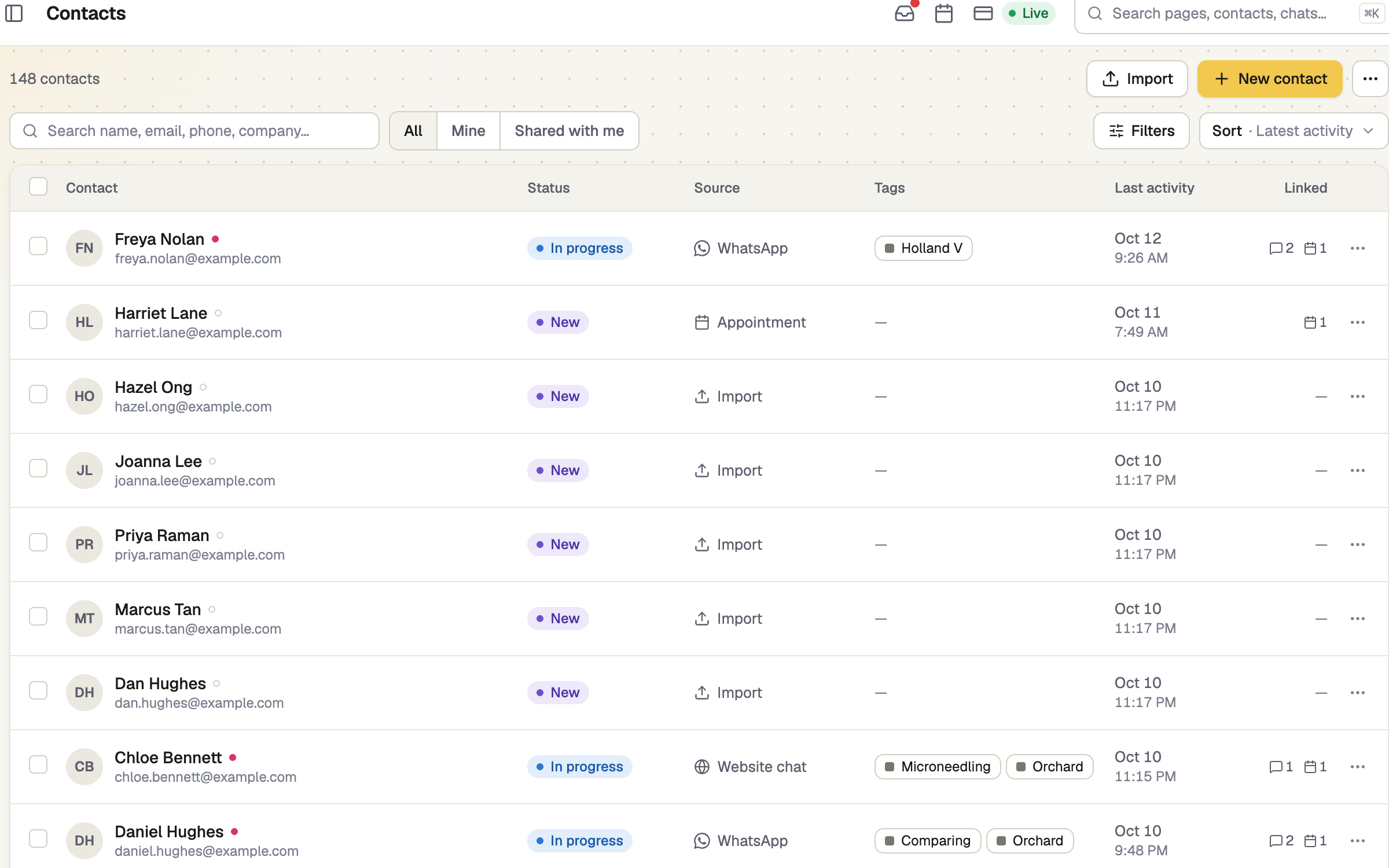
Everyone who gets in touch lands here: AI chats on your E-Card and website, WhatsApp chats (once Lead capture is on for the number), contact and pre-chat forms, bookings, and anyone you add or import. The Source column says which. All needs See every contact; Mine is your own contacts plus those shared with you; Shared with me is only the shared ones.
Find people
Search by name, email, phone or company. Filters narrow by Status, Lead signal, What happened, Source and Activity, and Sort starts with Latest activity. The dot beside a name is the lead signal; Linked counts their conversations and bookings.
Open a contact and edit it
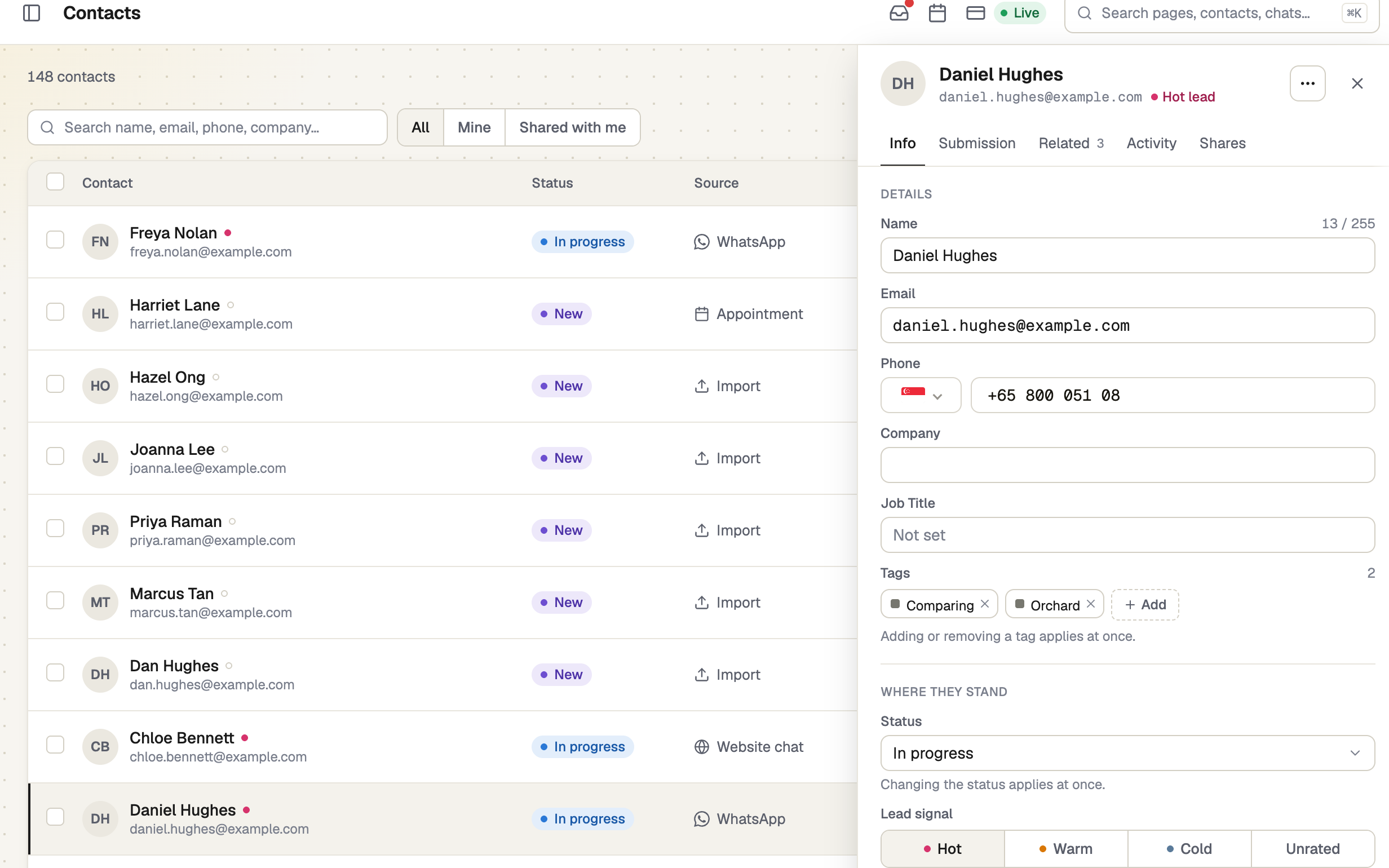
A panel slides over the list. Info holds the details, status, lead signal, notes and owner. Submission is what they typed into a form, Related their conversations and bookings, Activity the history, Shares who else can see them. Change fields, then press Save changes. Status and tags apply at once.
Read the lead signal
The AI reads how ready someone sounds from what they said. Hot: asked for a price, quote or booking, asked to be contacted, or named a deadline. Warm: comparing or asking specifics. Cold: browsing, or "not now". Unrated means nothing to judge, not cold. You can change it on Info. Hover the signal on the Inbox contact card for the AI's reason.
A new hot lead is emailed once, to whoever is listed under Settings → Notifications → Hot leads (the owner if nobody is), and pops up on devices with New leads switched on.
Watch your plan's allowance
Your plan includes a set number of contacts (see pricing). A notice appears as you near it. At the limit New contact and Import stop. New leads still save, but the newest stay hidden until you upgrade. Far past it, new leads stop saving.
If it doesn't work
| What you see | What to do |
|---|---|
| "Your plan doesn't include contacts." | Choose a plan to see and add contacts. Leads from your forms and AI chats still email you. |
| "New leads have stopped saving." | You are far past your allowance. Delete contacts you don't need, or upgrade. |
| "This contact is hidden" | It is saved, and appears as soon as your plan has room. |
| No New contact or Import button | You need Edit contacts, or your allowance is full. |
Next
- Import contacts — bring in a list you already have
- Merge duplicate contacts
- Mark a lead won or lost