Before you start
0 / 3
- A name for the widget, for your own use, such as "Homepage bubble"
- Your website's address, such as
https://example.com - Something for the AI to answer from, or the widget can only be saved switched off
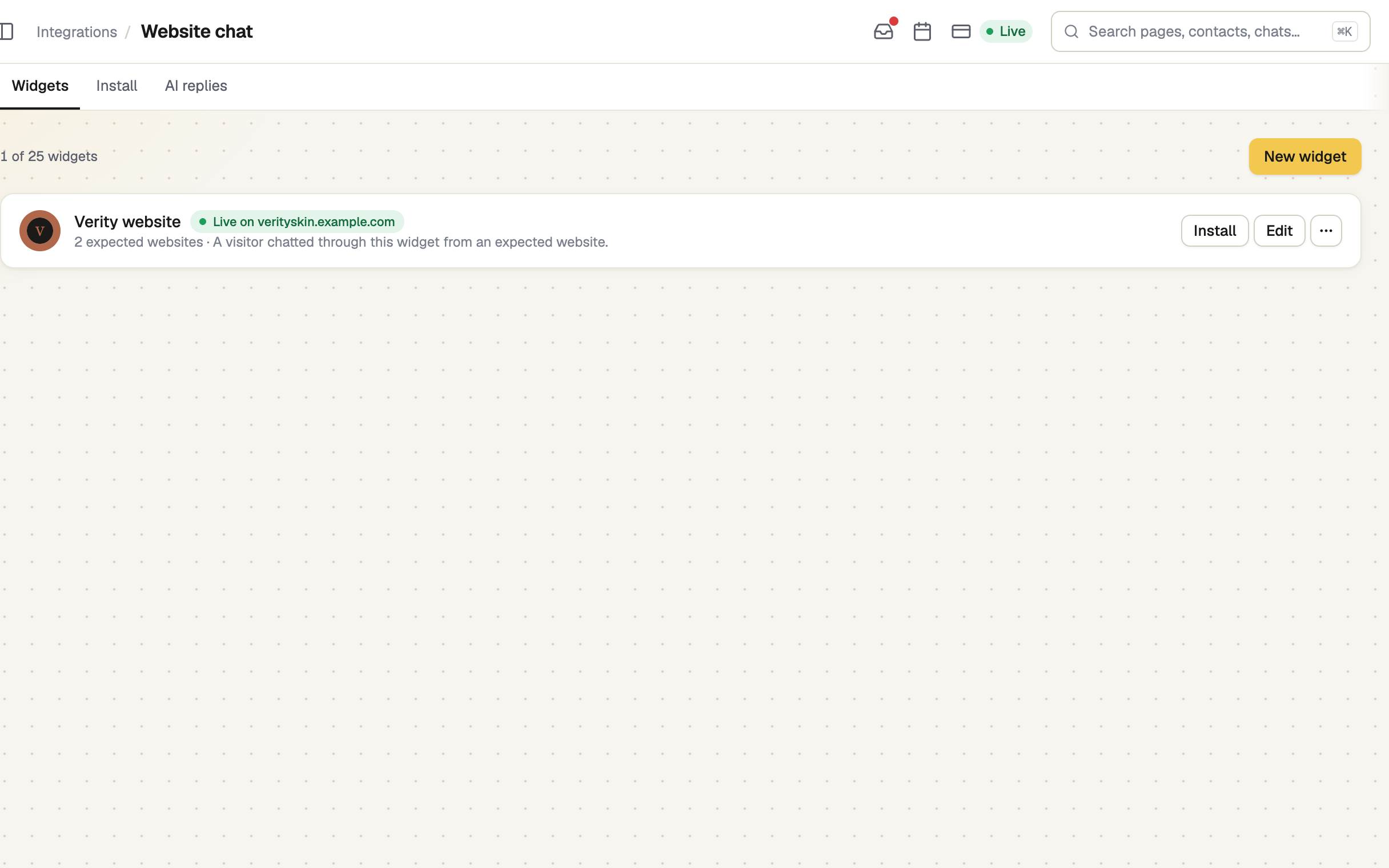
Open Website chat and press New widget
Open Integrations → Website chat. On an empty list press Create a widget; otherwise press New widget. You need a WebChat or All-In-One plan (or the free trial) and the permission “Manage website chat”.
Each plan includes a set number of widgets. At the limit, a window offers Upgrade the plan, Buy one more or Free a slot.
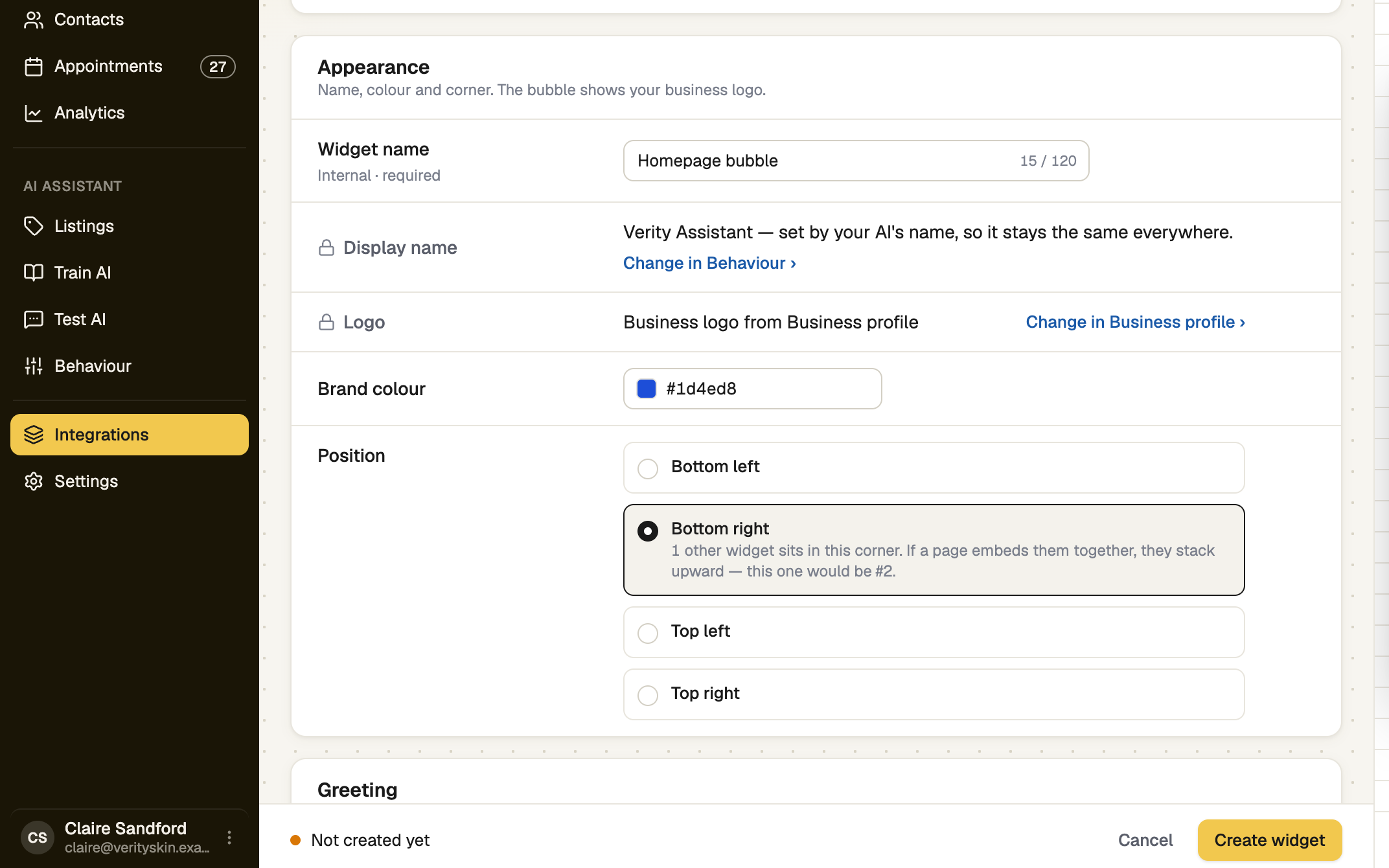
Pick the brand colour and the corner
Brand colour takes a colour code like #1a73e8. Position puts the chat bubble in one of four corners. The chat shows your business logo and your AI's name, which are set elsewhere (Business profile and Behaviour). These options are open on every plan with Website chat.
Write the greeting
Greeting title, Greeting message and AI disclaimer are what visitors read when they open the bubble. A new widget starts with default wording you can change.
List your website, then create the widget
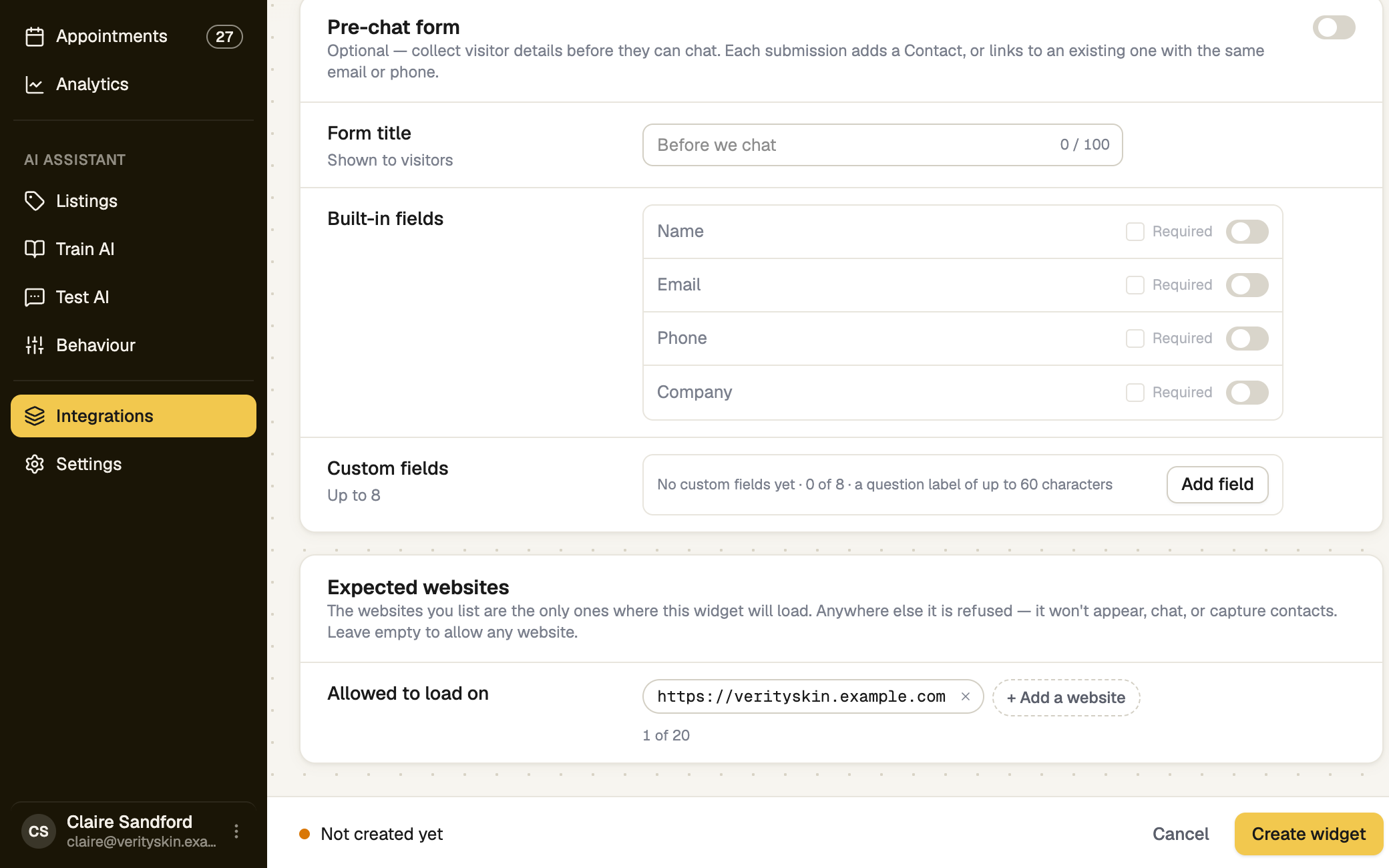
Under Expected websites, press + Add a website and enter https://example.com. The widget loads only on listed websites and is refused anywhere else. Leave the list empty to allow any website. Then press Create widget.
If it doesn't work
| What you see | What to do |
|---|---|
| "Give the widget a name." | Fill in Widget name. |
| "Can't save while it's on: the AI has nothing to answer with. Train it, or turn this chat off for now." | Press Train your AI, or switch Show on your website off and save it switched off. |
| "Use a colour code like #1a73e8." | Start with # and use digits 0 to 9 and letters a to f. |
| "Origin must start with http(s)://" | Type the full website address, starting with https://. |
| "At your plan's limit." | Delete a widget, buy one more, or upgrade. |
Next
- Put it on your website — copy the code and paste it in
- Colours, position and the TapBrig badge
- Ask for details before the chat starts
To pause or delete a widget later, use the menu at the end of its row: Pause or Delete widget.