Before you start
0 / 3
- A photo — JPG, PNG or WebP; a square one works best
- Your full name, as the people you talk to should see it
- A phone number, if you want one on your account (optional)
Open Settings and choose Profile
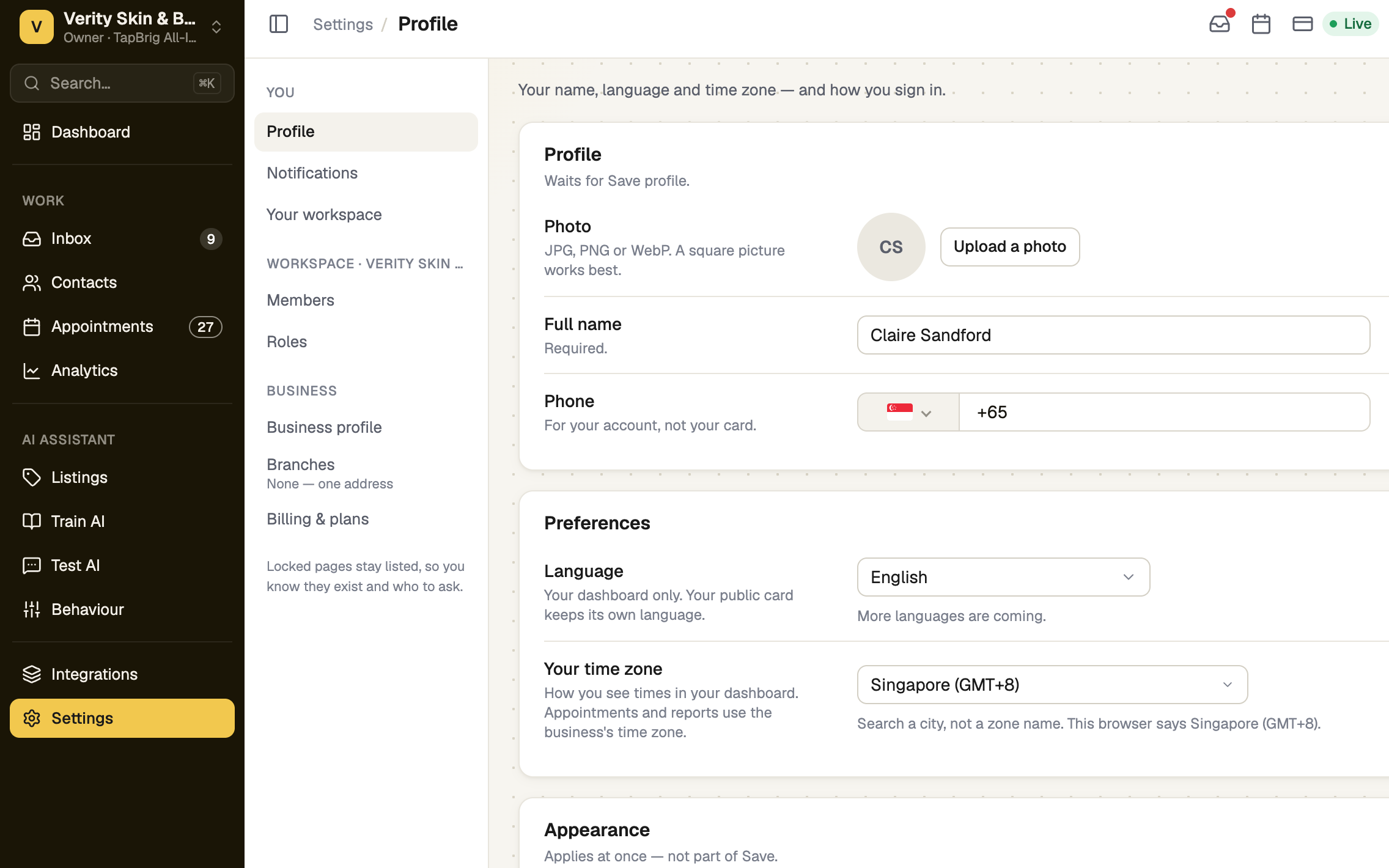
Go to Settings → Profile, or open the account menu at the foot of the sidebar and choose Profile & preferences. On a phone, open Menu first.
Add your name and photo
In the Profile card, select Upload a photo, type your Full name (required) and add a Phone if you like. The phone number is for your account, not your card. If you were invited to a business, a name and a photo together complete its Setup step Add your name and photo.
Choose language and time zone
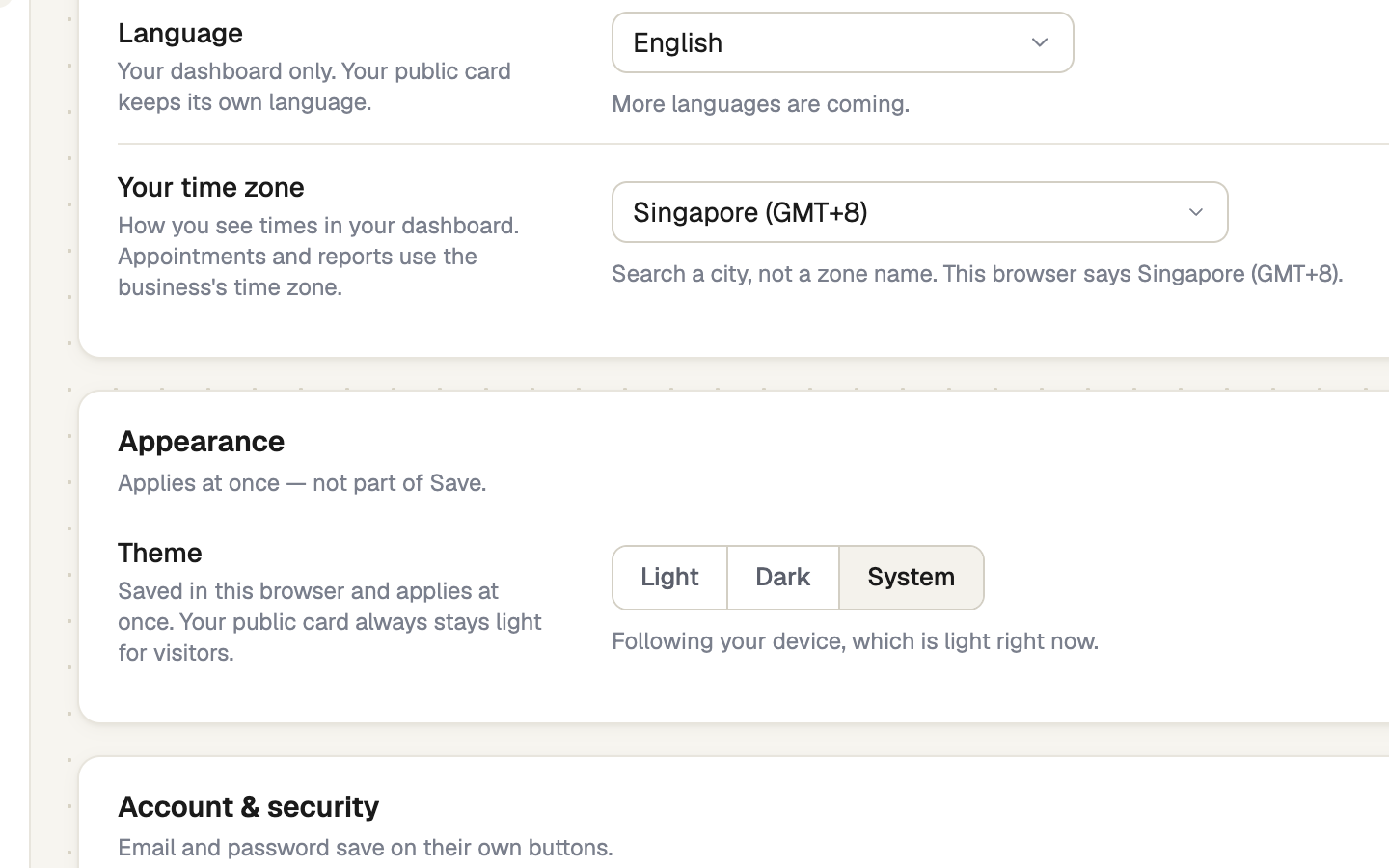
Under Preferences, pick your Language. It changes your dashboard only — your public card keeps its own language. Under Your time zone, search for a city. It sets the times you see in your dashboard; appointments and reports use the business's time zone.
Select Save profile. Discard drops what you changed.
Pick a theme
Under Appearance, choose Light, Dark or System. It applies at once, is saved in this browser only, and is not part of Save profile. New accounts start on Light. Your public card always stays light for visitors.
If it doesn't work
| What you see | What to do |
|---|---|
| "Add your name before saving." | Full name can't be empty. Type it, then save again. |
| "Couldn't save your profile. Please try again." | Check your connection and select Save profile again. |
Next
- Sign-in, password and security — change your password, check your email address
- Notifications: email and this device — choose what reaches you