Before you start
0 / 3
- A plan with room for more than one person — Plus or higher
- Your teammate's email address
- The role they should have (Employee is the usual choice)
Open Settings and choose Members
Go to Settings → Members. The meter at the top shows how many seats are used. Only the owner, or a role with Invite members and set roles, can invite.
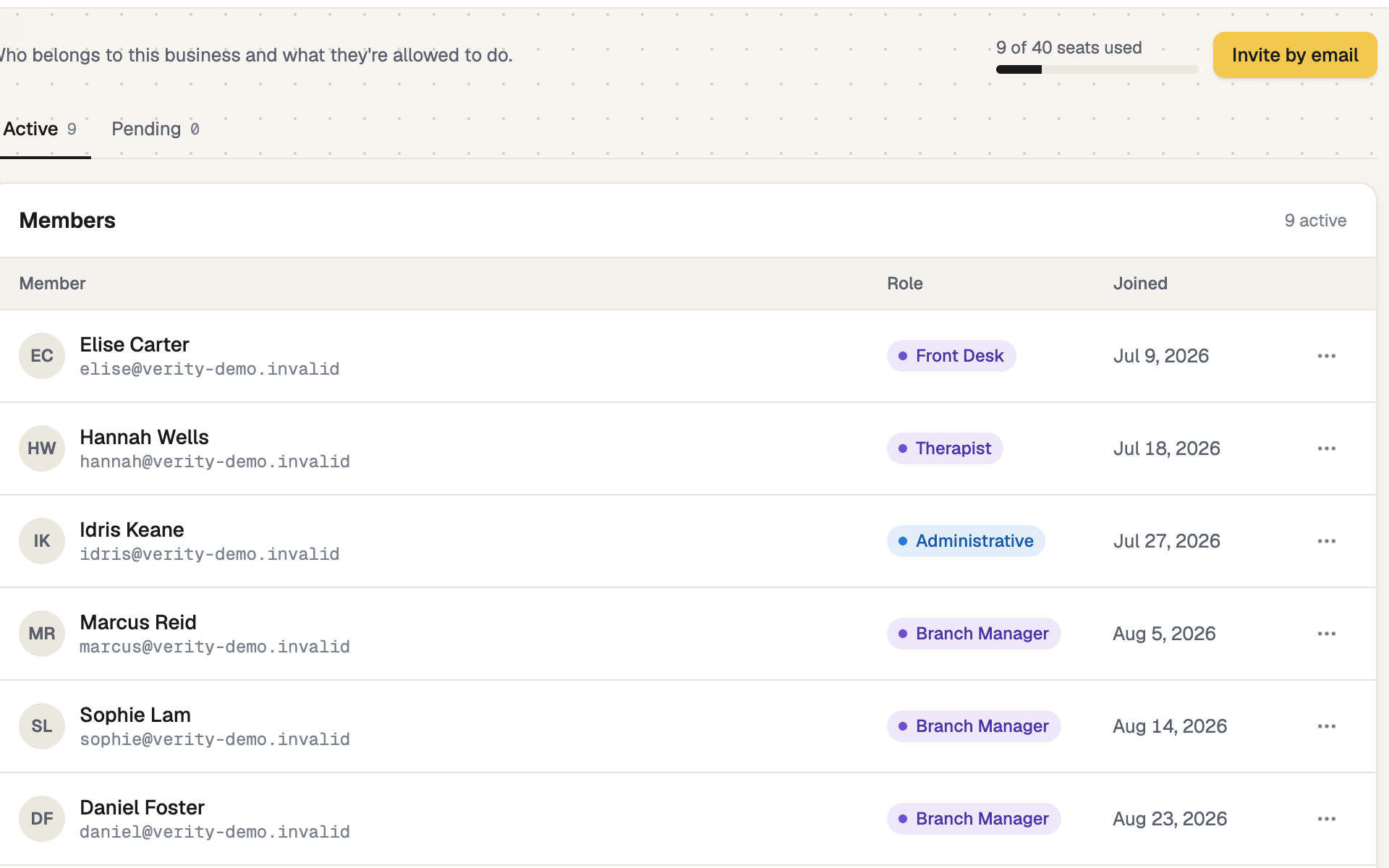
Invite them by email
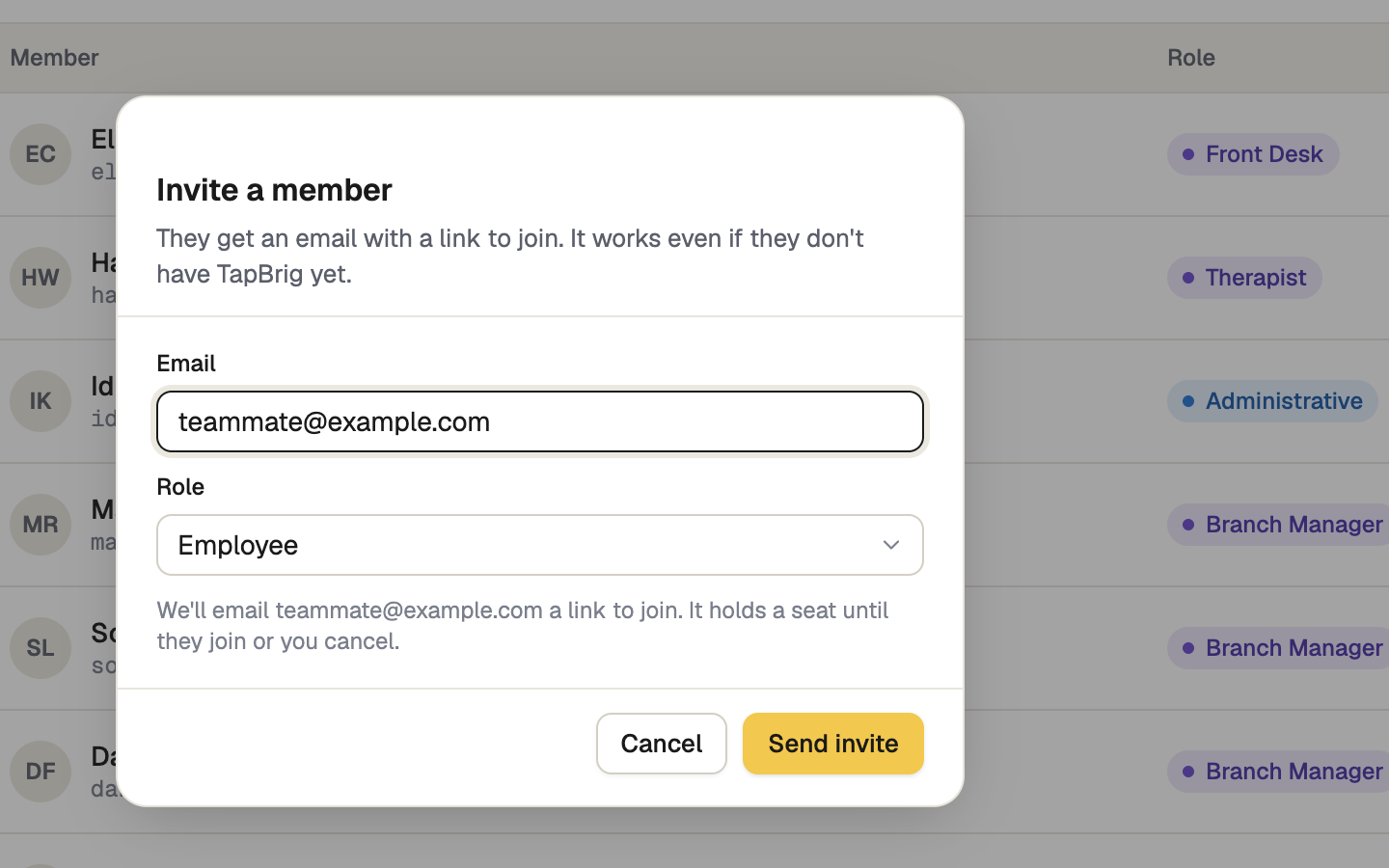
Choose Invite by email, enter their Email, pick a Role and select Send invite.
- No TapBrig account yet: they get an email with a link to create one. They join with the role you chose, with no approval step.
- Already has an account: the invitation waits on their Dashboard, where they choose Accept or Decline.
An invitation holds a seat until they join or you cancel it.
Or share the invite link
Under Active, the Invite teammates card shows an invite link and a Join code. Anyone who uses either asks to join as an Employee and waits for you. If the link gets out, select Regenerate… — the old one stops working and people already in keep their access.
Approve requests and follow up
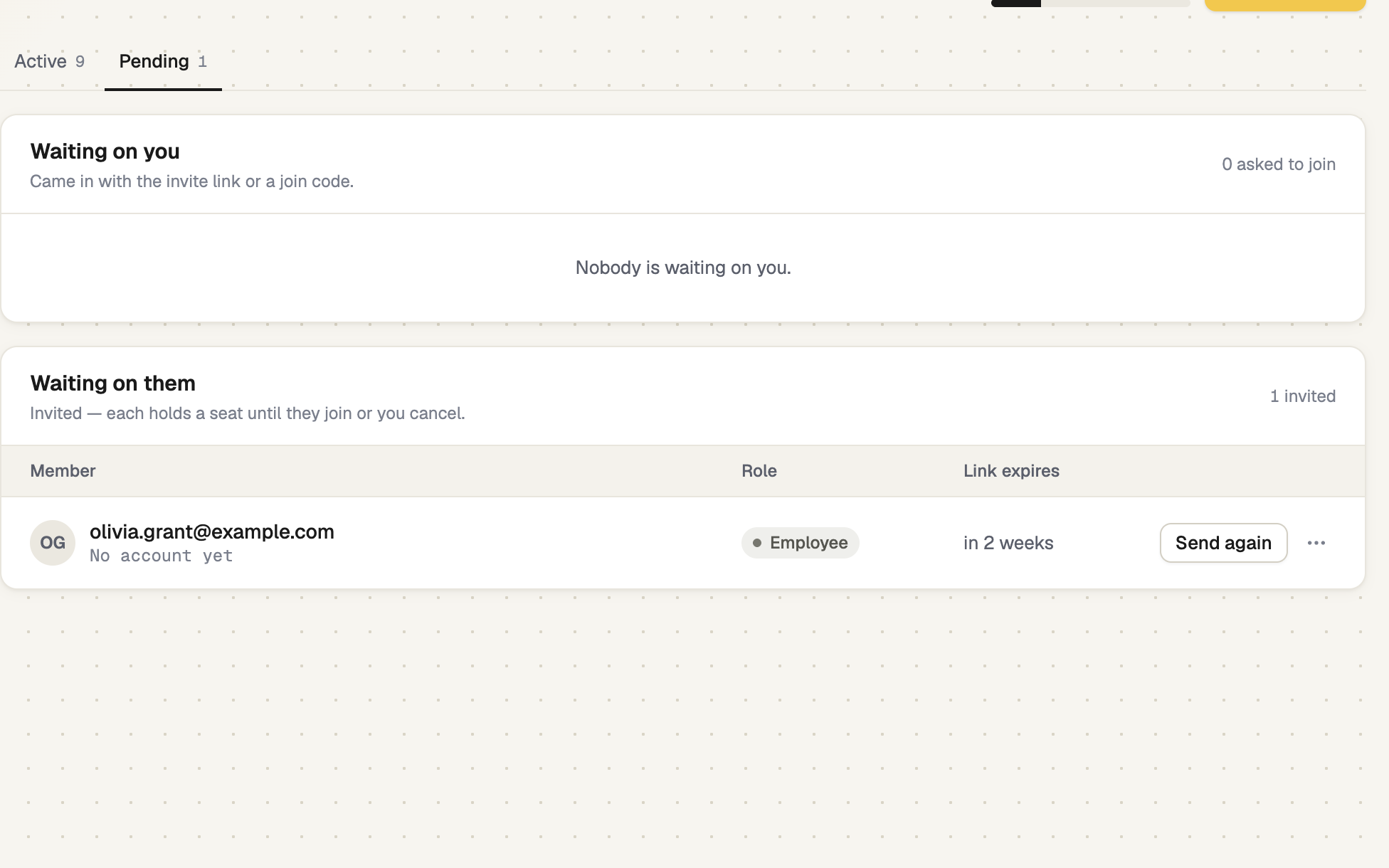
Open Pending. Under Waiting on you, select Approve or Reject (it needs Approve join requests). Under Waiting on them, use Send again, or Cancel invitation in the ⋮ menu. Link expires shows how long the link has left, such as "in 2 weeks"; an expired invitation stays listed so you can send it again.
Change a role or remove someone
In Active, open the ⋮ menu on a row and choose Change role, or Remove (which needs Remove members). Removed people lose access straight away; their contacts and chats stay with the business. You can't change your own role or remove yourself, and the owner can't be removed.
If it doesn't work
| What you see | What to do |
|---|---|
| "Your plan has one seat." | Your plan is for one person. The owner (or Manage billing) can choose See plans and move to Plus or higher. |
| Invite by email is dimmed and a notice says every seat is taken | Cancel an invitation, remove someone, or add seats if your plan sells them. Approving a request needs a free seat too. |
| Your teammate sees "Invalid or expired invite link" | The link ran out or was cancelled. Select Send again. |
| "The join code is invalid or has expired." | The code was regenerated. Share the new link. |
Next
- Roles and permissions — decide what each person can do
- Extra seats, numbers and website chats — add seats when you run out
- Join a business you work for — what your teammate sees