Before you start
0 / 3
- The days and hours you take appointments
- Your time zone, set in Business profile (booking uses it)
- The Manage appointments permission; the owner has it
Open Appointments → Settings and switch Accept appointments on
Until it is On, no booking page, Book button or AI offers a time. You can set everything else up first.
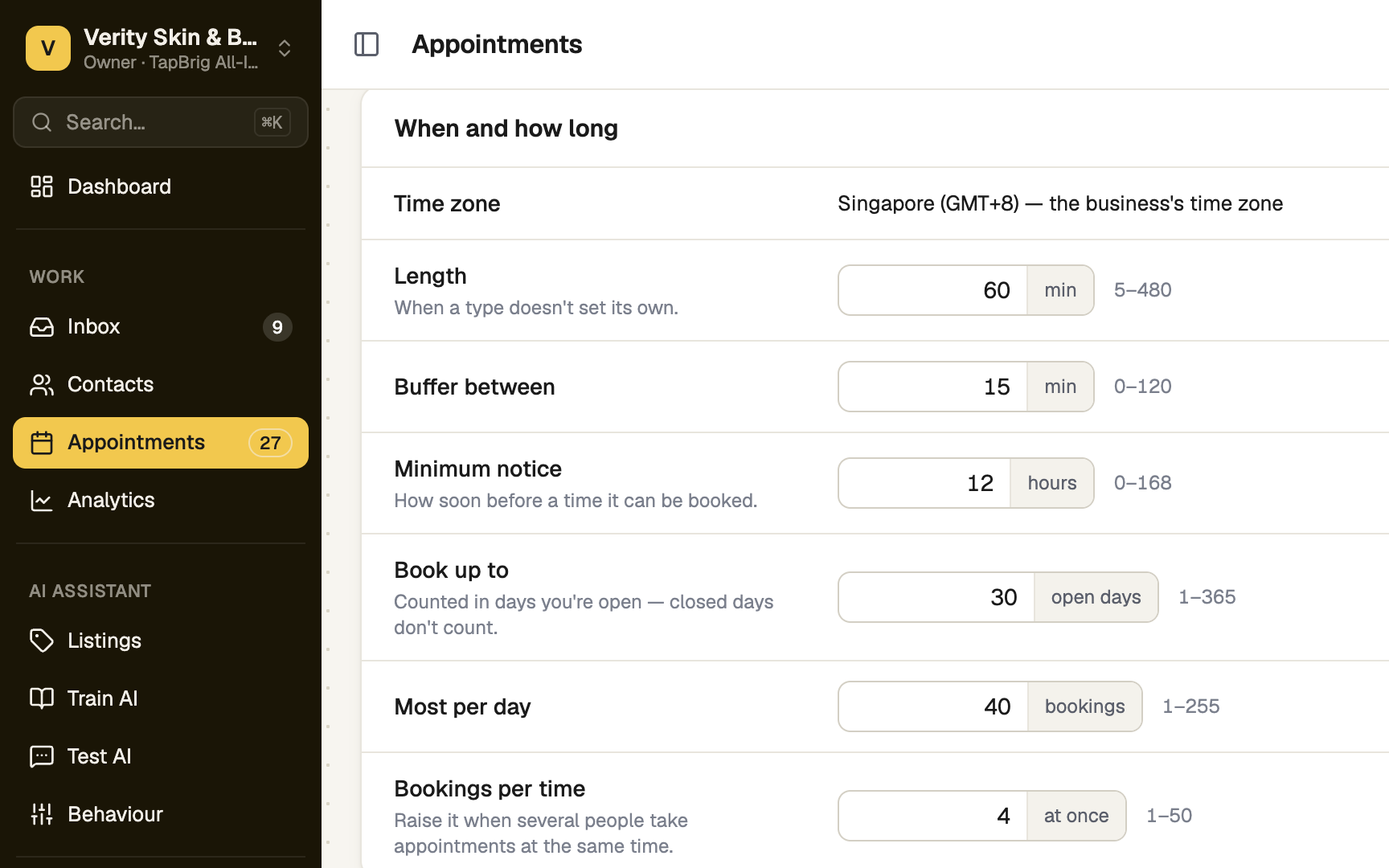
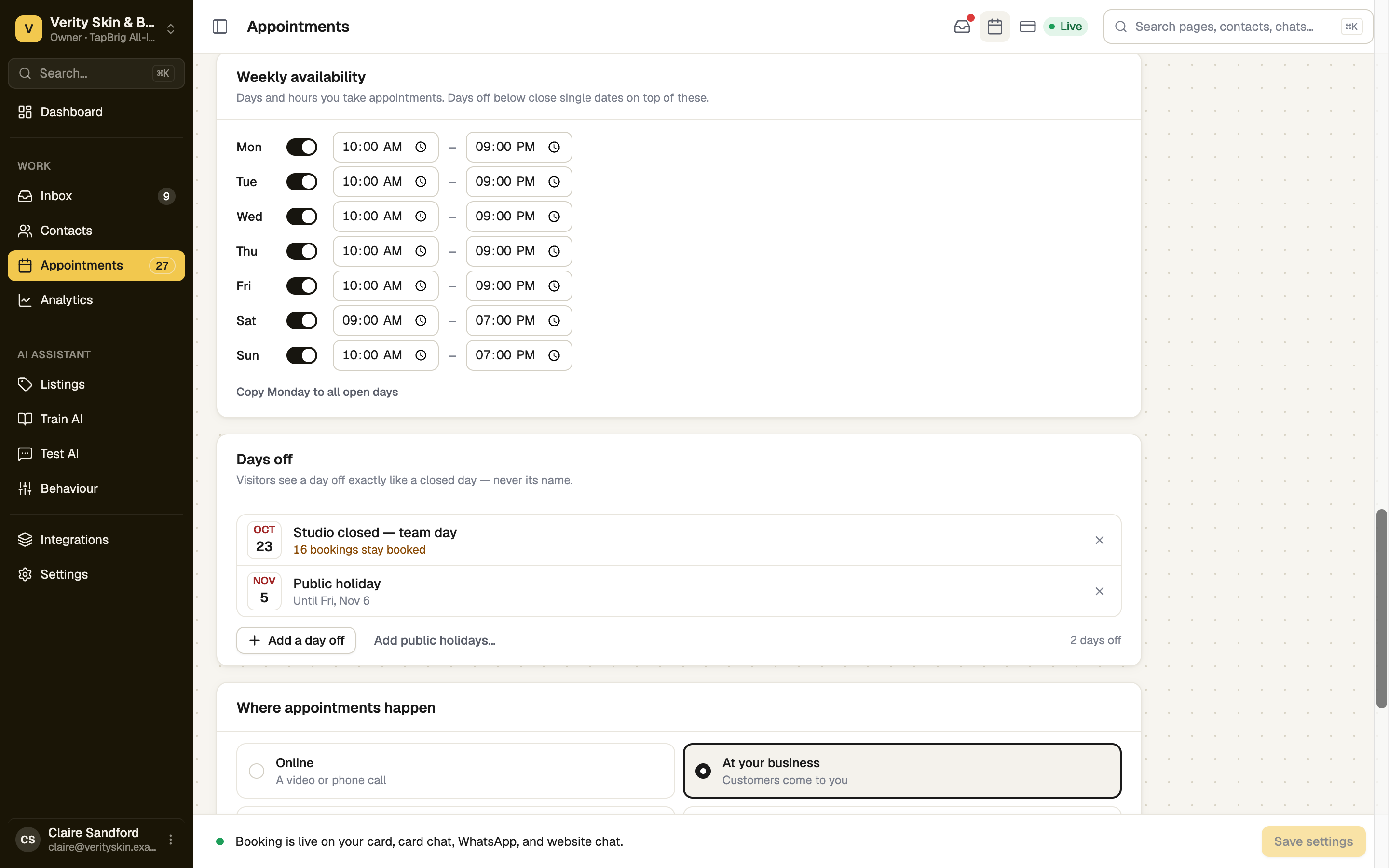
Set the rules under When and how long
- Length and Buffer between: each time starts one length plus one buffer after the last.
- Minimum notice: how soon before a time it can be booked.
- Book up to: how many open days ahead people can book. Closed days don't count.
- Most per day, and Bookings per time for when several people take appointments at once.
Close single dates under Days off
Press Add a day off (a date, an optional Last day, and a name only you see) or Add public holidays… and tick the days you close. Visitors see a day off as a closed day, never its name. Bookings already on it stay booked.
Check the preview and save
Next open times shows what visitors will be offered and updates as you edit. Press Save settings.
With branches, a Showing bar lets you edit all of them or one. Weekly availability is the same at every branch.
If it doesn't work
| What you see | What to do |
|---|---|
| "Booking is off." | Switch Accept appointments on and save. |
| "Booking is on, but nothing offers it." | Turn on at least one place under Where people can book. |
| "No open times with these rules." | Usually every day is closed. Switch a day on, or lower the notice. |
| "You can see these settings but not change them." | You need the Manage appointments permission. |
Next
- What people can book — add what visitors choose from
- Your booking page — share the link