Before you start
0 / 3
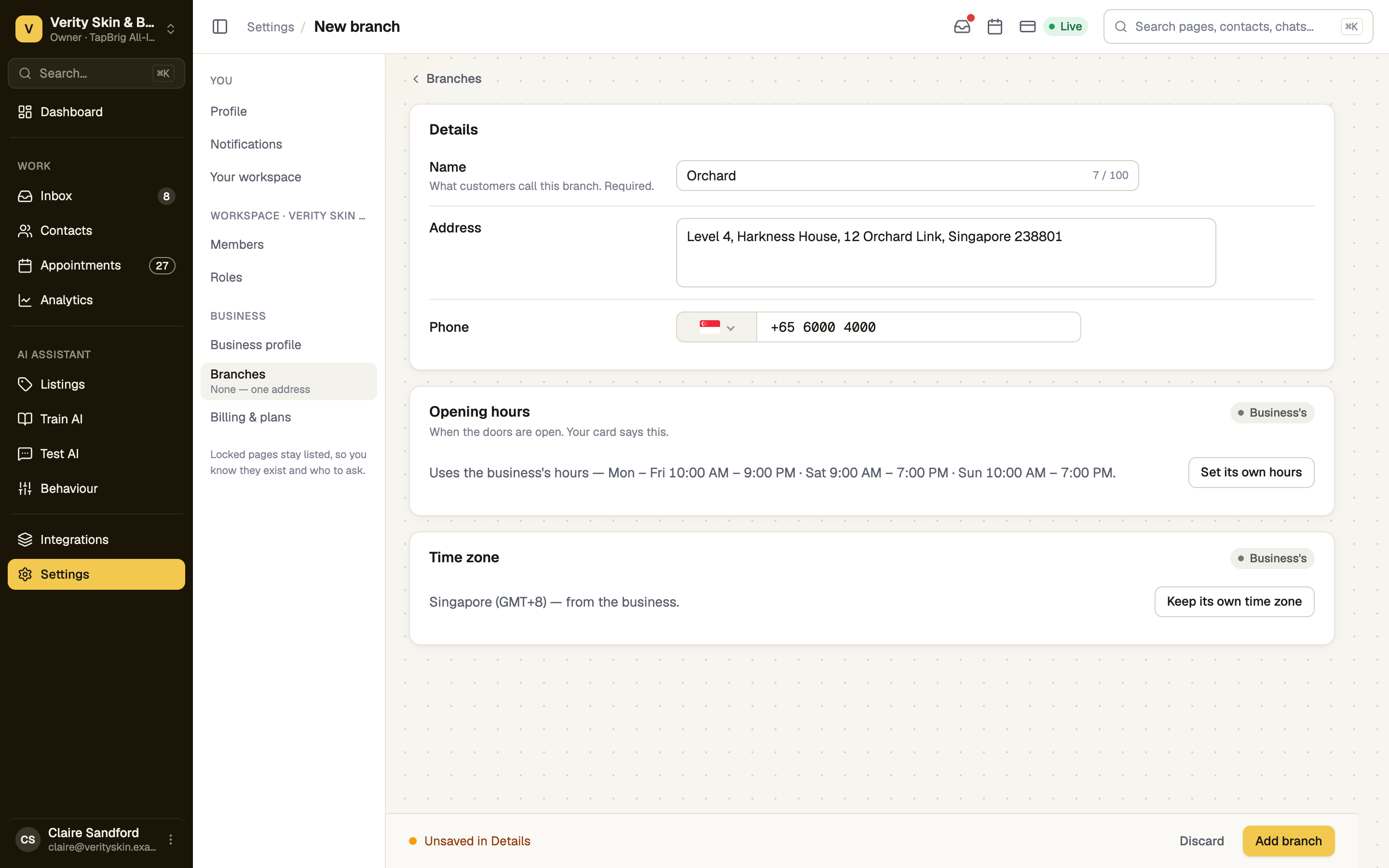
- A name for each location, the way customers say it
- Its address and phone, if they differ from the business's
- Its hours, if they differ from the business's
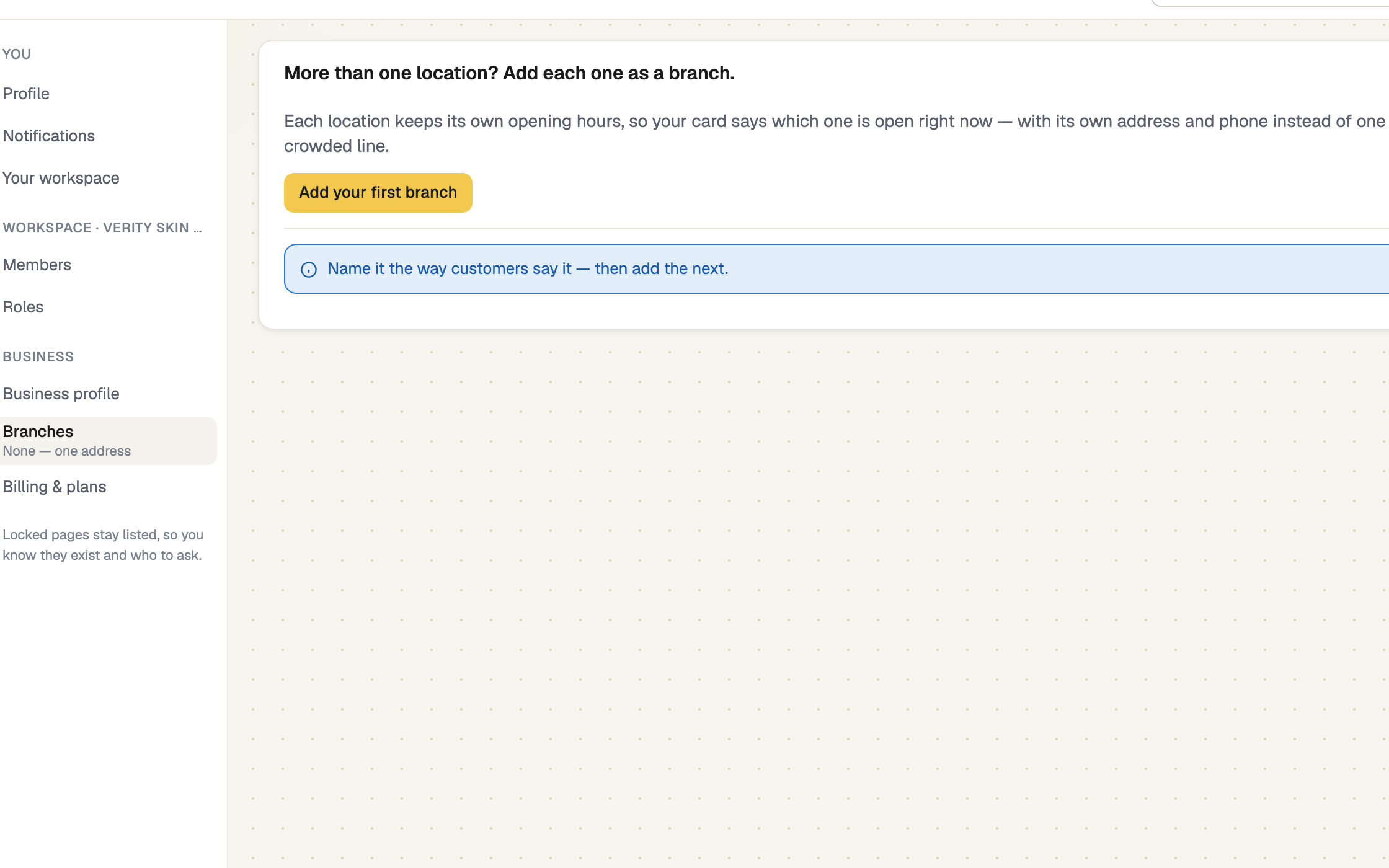
Open Settings → Branches and add one
Press Add your first branch, or Add a branch once you have some. You need the Edit the business profile permission; without it the page is read-only.
Keep the business's hours, or set its own
A branch uses the business's hours until you press Set its own hours. Copy hours from… starts from another branch, and Use the business's hours instead goes back.
Keep the business's time zone, or its own
Press Keep its own time zone only if the branch runs on another clock. Its hours, bookings and Open now then follow that zone.
Press Add branch
Then add the next one. On Plus or higher, choose who works where in Members; each person then shows on that branch's booking page.
What a branch changes
- Your card lists every branch with its own Open now chip, hours and address, instead of one hours line.
- Your AI can answer where you are and whether a branch is open.
- Bookings: in Appointments → Settings, each section can follow all branches or one (Set per branch). Once one is set per branch, the booking page asks visitors where they want to go.
Remove a branch
Open the branch, press Remove followed by its name, and confirm. Its address, phone and opening hours go with it. People, bookings and contacts stay.
If it doesn't work
| What you see | What to do |
|---|---|
| "You can see this page but not change it" | Ask the owner for Edit the business profile |
| "Branch needs a name." | Type a name. It is the one required field |
| "You already have a branch called" | Two branches can't share a name. Choose another |
| "That branch could not be added." | Check your connection and press Add branch again |
Next
- Opening hours — the business's own week
- When you are available — booking times are set separately
- Invite your team — then choose where each person works