Before you start
0 / 3
- Your name and job title
- A number people can message, and your email
- One line about what you do
Open Integrations and choose E-Card
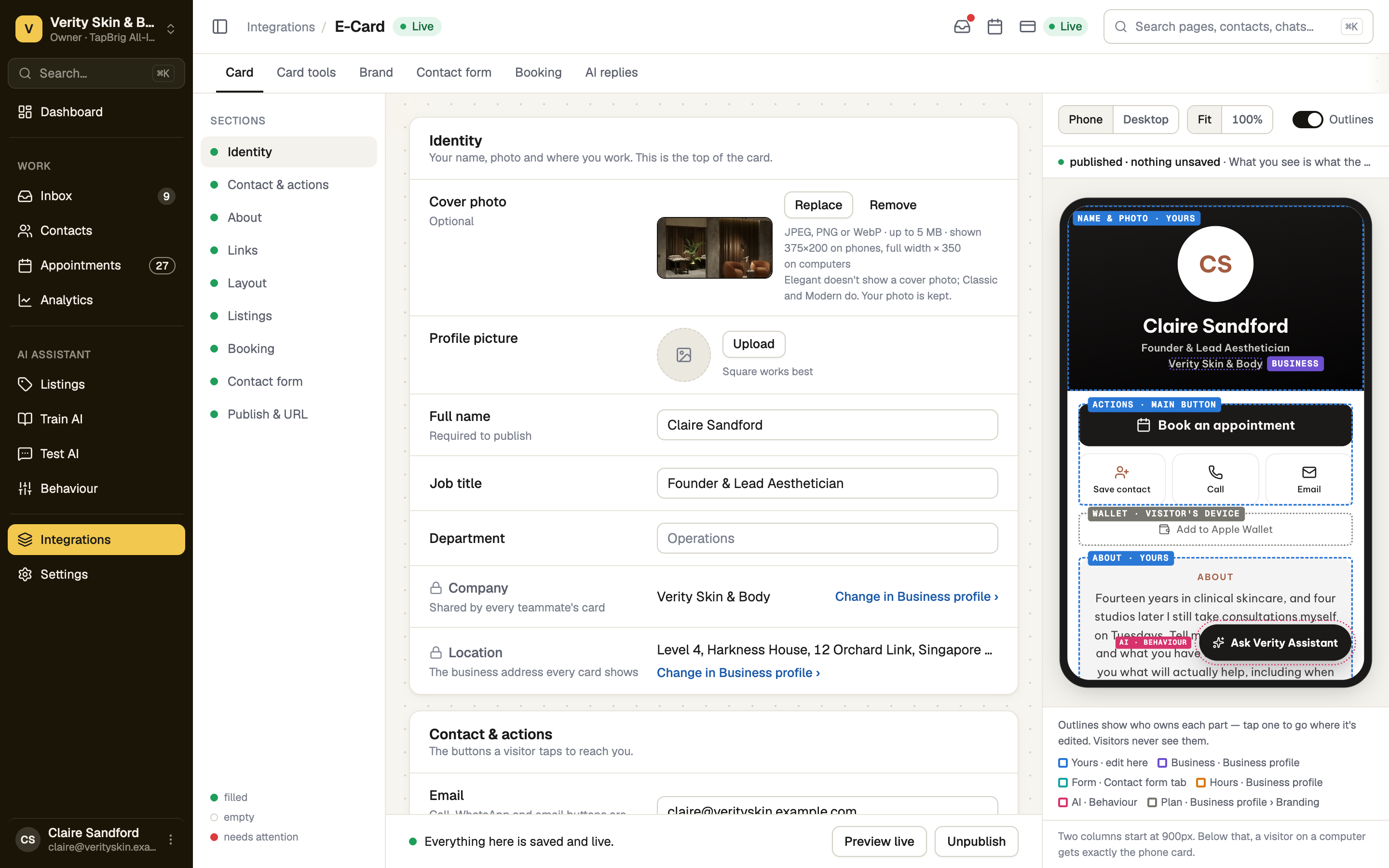
On Integrations, press Open E-Card. The Card tab is the editor, with your sections in a list (a row of chips on a phone) and a preview of your card. A dot beside each section shows whether it is filled, empty or needs attention.
Invited to a business? This is your Set up your card step. The business details are already on your card.
Add your name, photo and contact details
In Identity, enter your Full name, Job title and a photo. A card can't be published without a name.
In Contact & actions, add your Phone and Email. The Call, WhatsApp and Email buttons are built from them, and WhatsApp needs a mobile number.
Locked rows (company name, address, opening hours) belong to the business. Change in Business profile edits them.
Choose your main button, then add About and Links
Under Main button, keep Choose for me (WhatsApp if your number is a mobile, then Book, then Call) or pick one yourself. Write a few lines in About.
In Links, press Add a platform or Custom link. Platform links take a handle or an address. A custom link needs a name and an address starting https://. Hide from card keeps a link saved but off the card.
Choose which sections show, and in what order
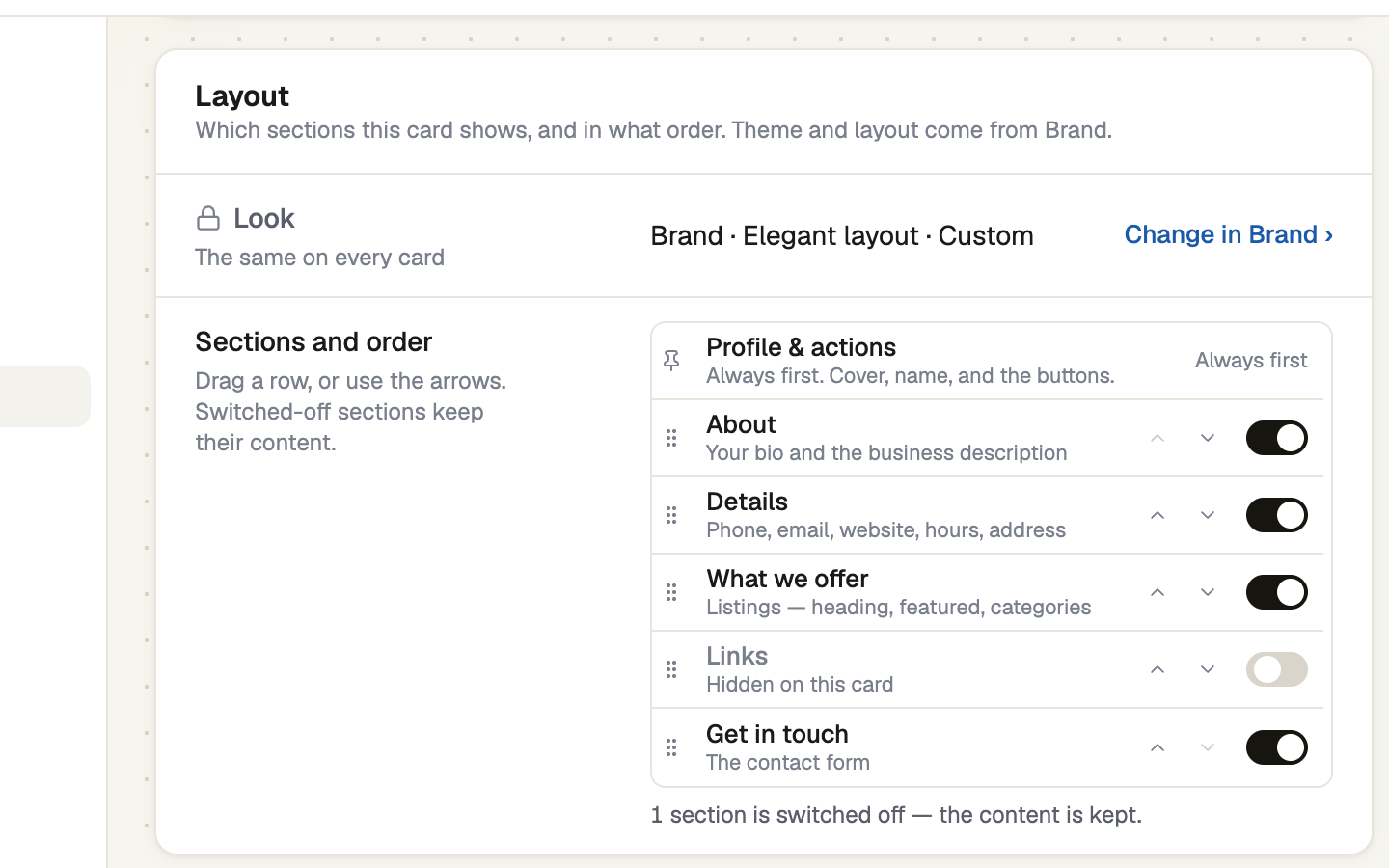
Layout lists About, Details, What we offer, Get in touch and Links. Switch each on or off and drag to reorder. A switched-off section keeps its content.
Colours and layout style are not set here. The business owner sets one look for every card in E-Card → Brand.
Check the preview, then save
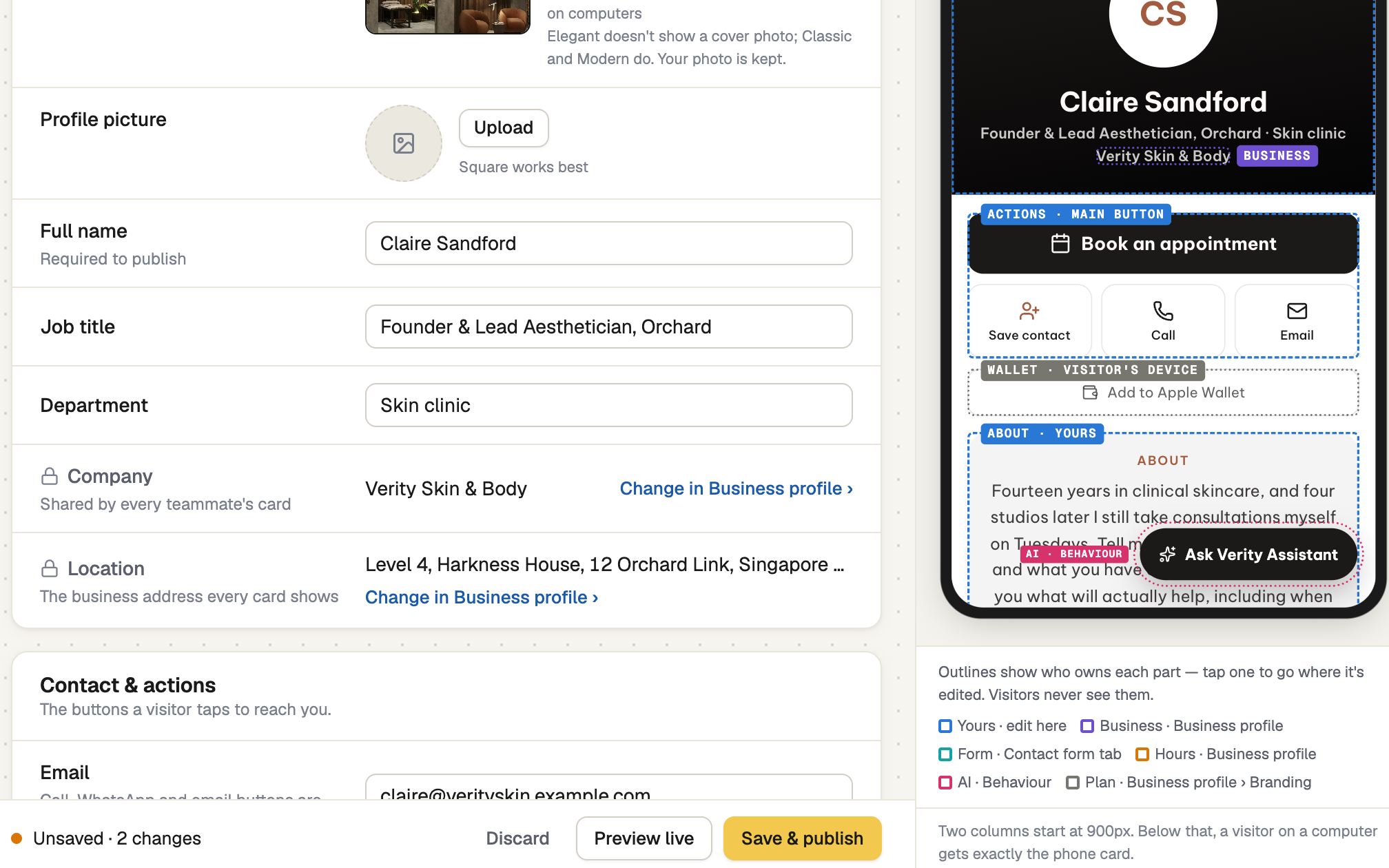
The preview shows your unsaved draft. If it isn't beside the form, press Preview. Then press Save & publish.
A live card changes at once. A card that isn't live yet publishes only if nothing needs fixing, and otherwise saves and lists what to fix. Leave with unsaved changes and TapBrig keeps the draft on that device. Visitors still see the saved card.
If it doesn't work
| What you see | What to do |
|---|---|
| "Add your name — the card can't publish without it." | Fill in Full name in Identity. |
| "That doesn't look like an email address." | Correct Email. A wrong email also stops the card saving. |
| "Your role can't edit cards" | Your card is read-only. Ask the business owner for “Edit their E-Card”. |
| "We couldn't load your card" | Reload before you edit. Anything typed now would not be saved. |