Before you start
0 / 3
- The questions you want to ask
- The email addresses that should hear about each enquiry
- The permission “Edit forms” to change anything. “See forms” lets you look.
Open E-Card and choose Contact form
There is one form for the whole business, so a change shows on every card. Under Heading and button, set the Form heading and Submit button wording. Until you do, visitors see Get In Touch and Send.
Choose the questions
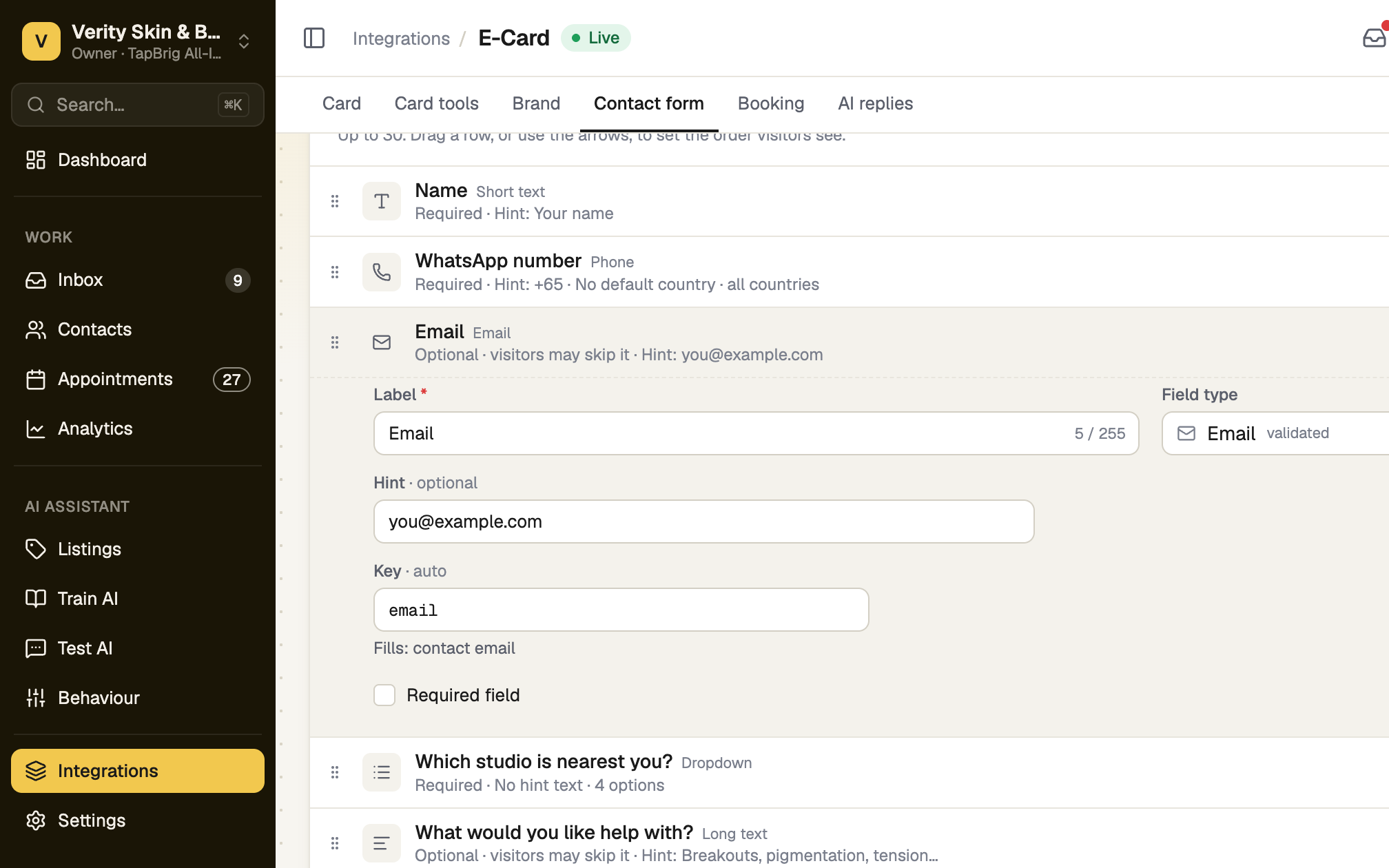
A form nobody has edited asks for Name, Email Address, Contact No. and Messages. Under Fields, press Add field for more: short or long text, email, phone, number, date, dropdown, radio, checkbox or yes/no.
Tick Required field for answers you must have. Checkboxes are always optional. Drag a row, or use the arrows, to set the order. Then press Save changes.
Check what fills the contact
Each field has a Key, set from its label and type. The keys name, email, phone, company, job_title and message fill that part of the new contact (message fills its notes). Any other key stays with the submission only. A line under the key says which, for example "Fills: contact email".
Choose who is emailed
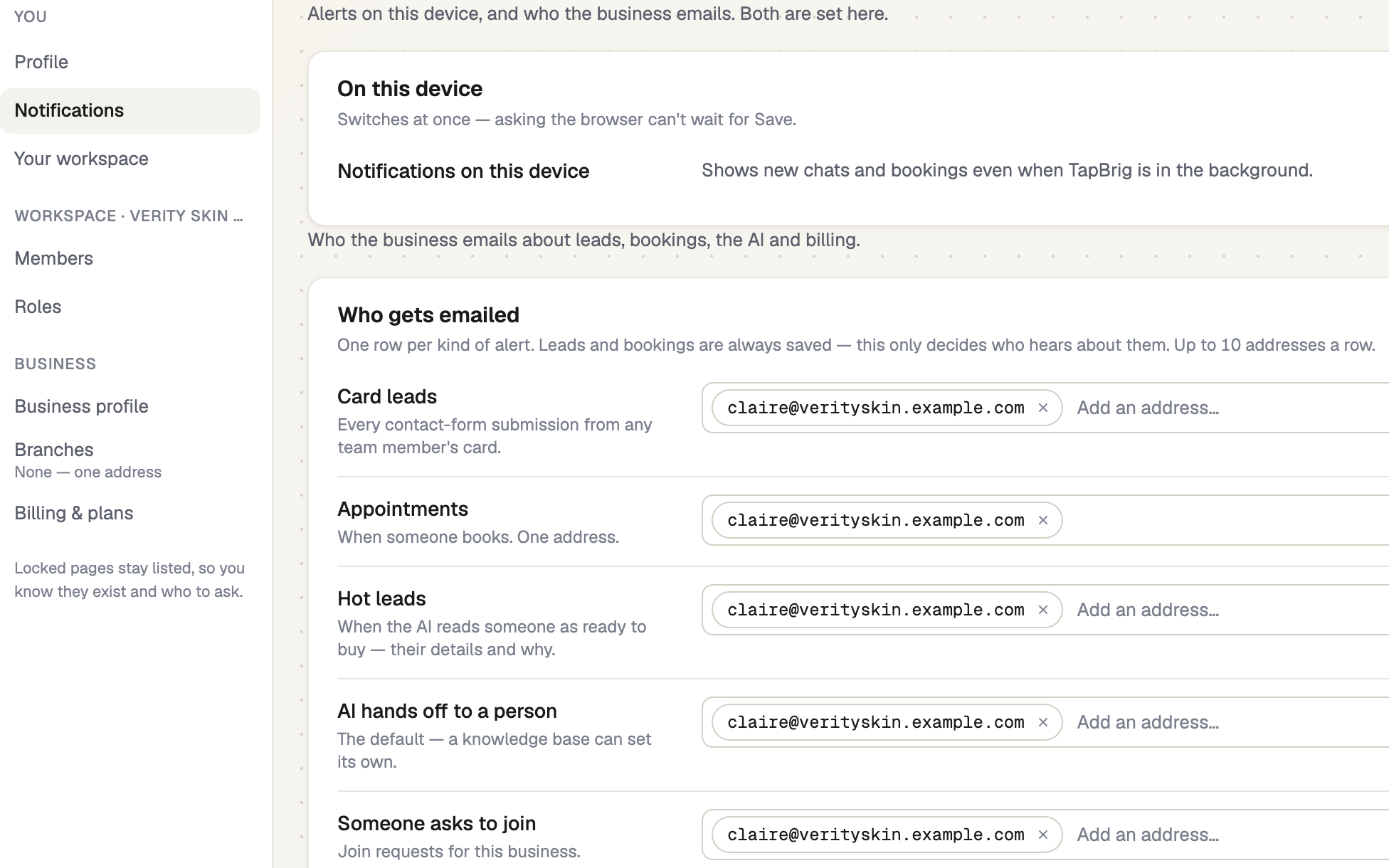
Who's emailed only shows the list. Change it in Settings → Notifications, on the Card leads row. It needs “Edit the business profile”. If the list is empty, each card's owner gets the email.
What happens when someone sends it
- The visitor sees "Thanks for reaching out!".
- A new contact appears in Contacts, with the answers kept as they were sent.
- Everyone on the list gets an email starting New enquiry, with the answers.
If Get in touch is switched off in a card's Layout, that card shows no form even though the form is on.
If it doesn't work
| What you see | What to do |
|---|---|
| "No fields yet — the form can't be filled in. Add a field to get started." | Add at least one field and save. |
| "Give this field a label." | Every field needs a label before you can save. |
| "A choice field needs at least two options." | Add options to the dropdown, radio or checkbox field. |
| "You can't open form settings" | Your role can't open forms. Ask the business owner for “See forms”. |
| The enquiry email says it wasn't saved to your Contacts | Your plan's contact list is full, so the email is the only copy. Delete contacts or change plan. |
Next
- Contacts and leads — follow up the people who write in
- Notifications: email and this device — decide who is told, and how