Before you start
0 / 3
- A published card: the pass opens it
- A logo in Business profile (square works best), or a photo on your card
- A phone number on your card, if you want the Call quick action
Open Card tools and choose Digital Wallet
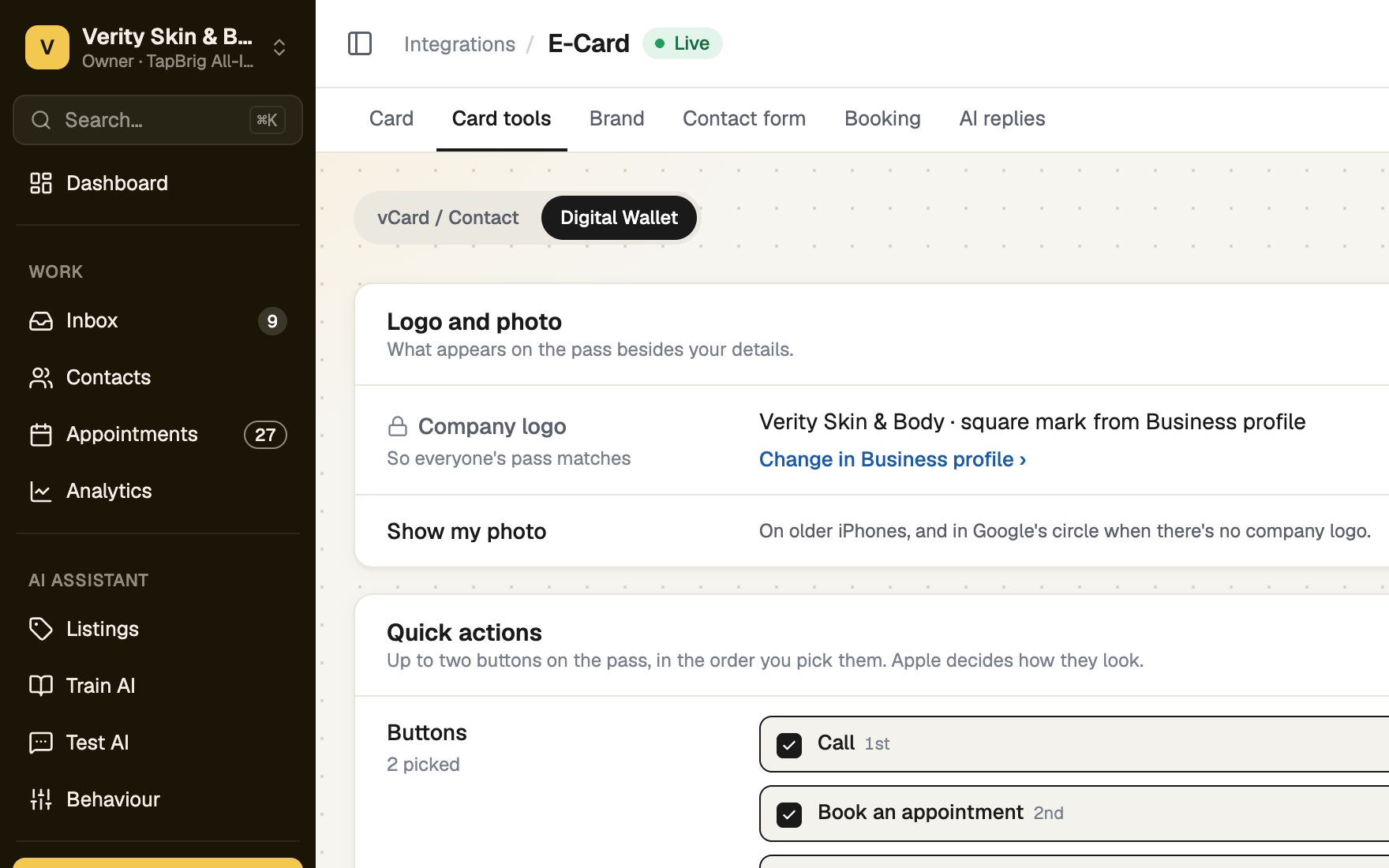
Open Integrations → E-Card → Card tools → Digital Wallet. TapBrig sets the colours, artwork, text sizes and code, so every pass scans and reads well. You choose two things.
Choose your photo and quick actions
Show my photo puts your photo on older iPhones, and in Google's circle when there is no company logo. Under Quick actions, tick up to two buttons, Call and Book an appointment. They appear in the order you tick them. Save contact is always on the pass.
The logo comes from Business profile, not from here. Press Save changes.
Add the pass to your phone
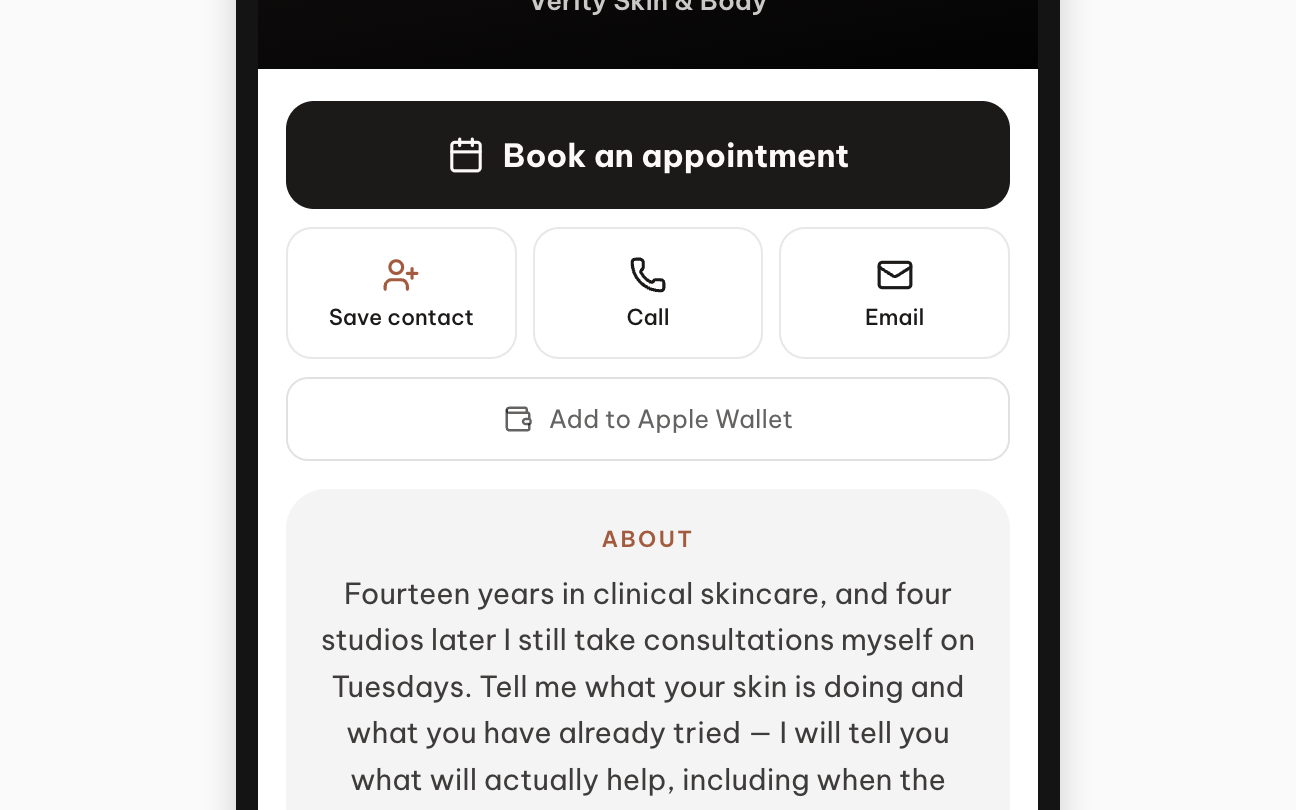
Open your card on your phone. On an iPhone or iPad press Add to Apple Wallet. On Android press Add to Google Wallet. The button follows the phone and never appears on a computer. Visitors add your pass the same way from your card.
Quick actions need iOS 27. Older iPhones show a flat card instead: no artwork and no quick actions, with your photo when it's on.
What a pass does
- Its QR code opens your card at its permanent address, so renaming the card never breaks it.
- Save contact on the pass downloads your current contact file.
- Your name, title and phone are fixed when the pass is added. After you change them, add the pass again to replace it.
- If a plan ends, passes already in wallets keep working, and so does the card they open.
If it doesn't work
| What you see | What to do |
|---|---|
| "Couldn’t add the pass to your wallet. Try again in a moment." | Wait a moment and press the button again. |
| "Your card isn't published yet." | Publish the card first. The pass opens a page nobody can see until then. |
| "Add a phone number to use this" | The Call quick action needs a number on your card. Book an appointment needs Booking turned on. |
| "Couldn't save that. Please try again." | Press Save changes again. |
| No wallet button on the card | Open the card on an iPhone, iPad or Android phone. A computer shows none. |
Next
- QR code and contact file
- Your business details — set the logo the pass uses
- Build your digital card