Before you start
0 / 3
- A list of what you sell: products, services or plans
- Prices, if you want them shown
- Photos, if you have them
Create a category
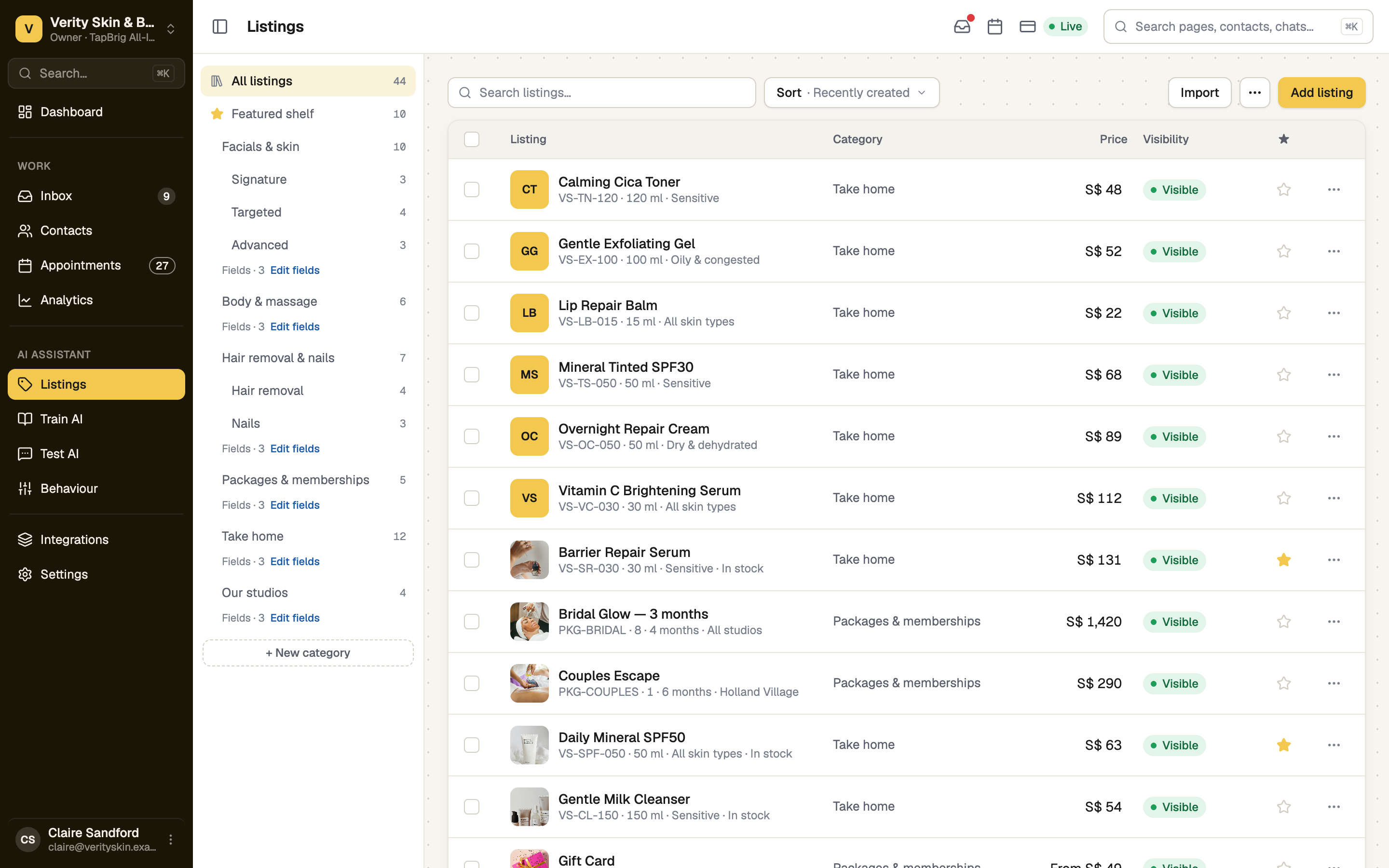
Under AI Assistant, open Listings and press New category. A category holds listings that share the same details, such as Drinks or Catering. Start from a preset or Something else, then add the Fields buyers compare. Number, money, choice and yes/no fields can be compared by the AI; text and dates are only read. Only the owner, or a role with Manage listings, sees this page.
Add listings
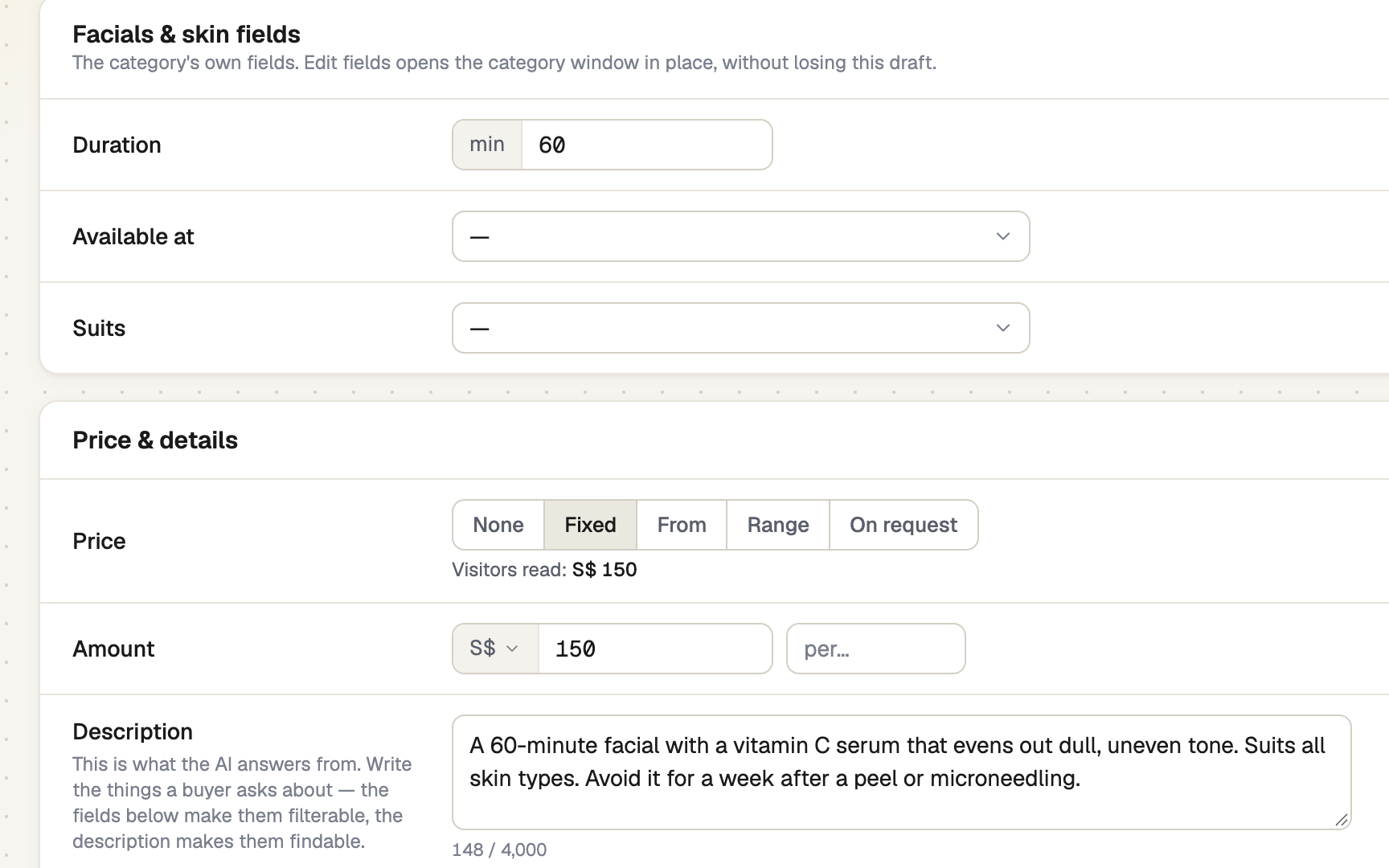
Press Add listing. Only the name is required. The Description is what the AI answers from, so write what buyers ask. Under How the price is shown, choose Fixed, From, Range or On request. Each listing can have its own Currency; the default is your business's. Under Images, the first photo is the cover. Already have a spreadsheet? Use Import instead.
Star the best for your card
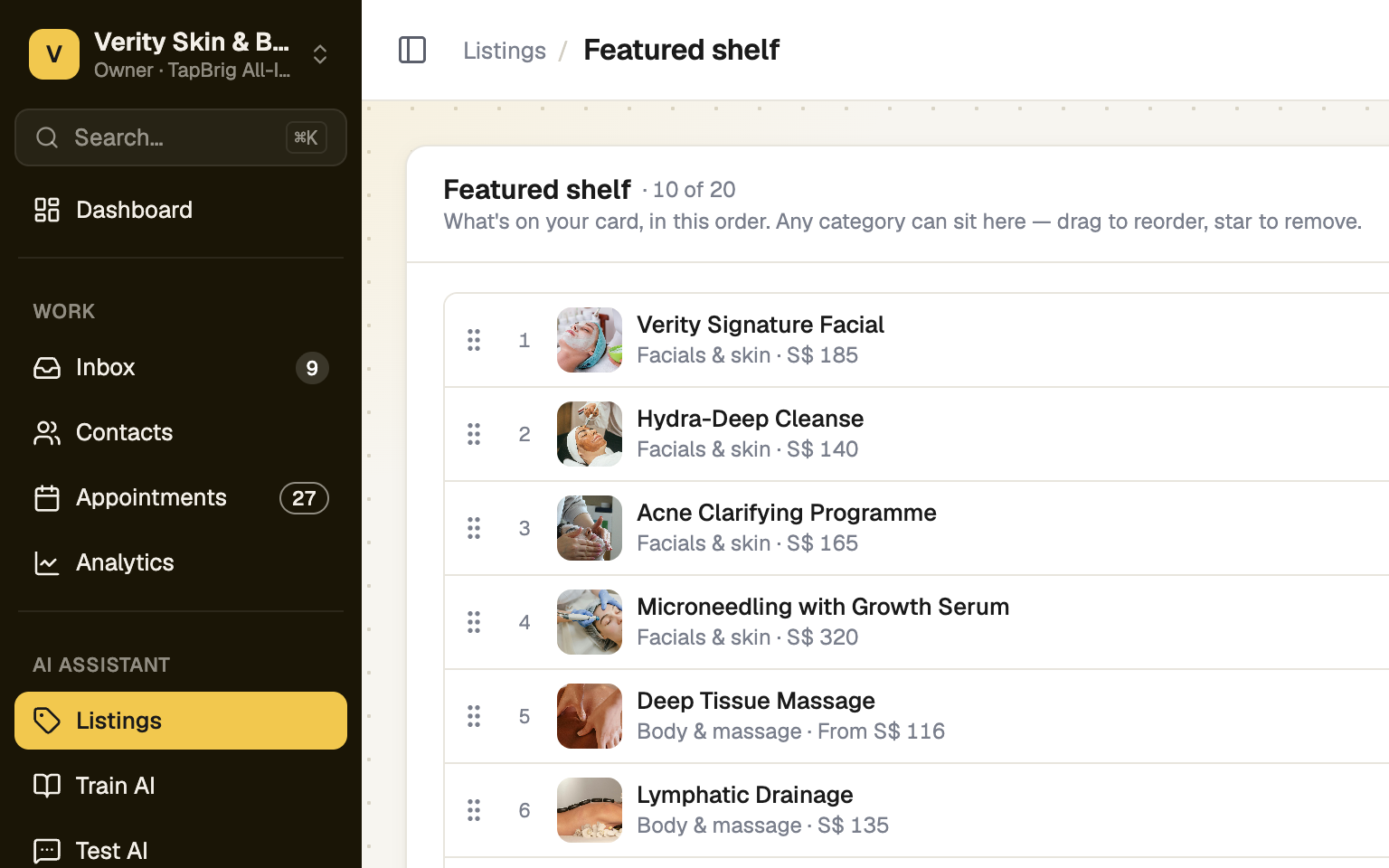
Press the star on a row to put a listing on the Featured shelf. Open Featured shelf in the category list to drag them into order, then press Save shelf. Your card shows the first few; the public page shows them all. A star changes your card only, not what the AI knows.
Hide what you cannot offer now
Set Visibility to Hidden, or tick several rows and press Hide. A hidden listing leaves your card and public page, and the AI never offers it. Delete cannot be undone.
Check what customers get
Ask about a listing in Test AI. The answer shows a chip with the listing's name that opens it. Under the table, See how they look on your E-Card › opens your card at its listings.
The AI reads every visible listing: name, category, price, description and each detail. It searches them when a customer asks what you have.
The public page
Visitors browse by category, search and sort, and each listing opens on its own page. With an E-Card, the Listings block opens the catalogue under your card's address. Every workspace also has a catalogue page of its own, and that is the address the AI sends in chats.
If it doesn't work
| What you see | What to do |
|---|---|
| "Your E-Card doesn't show listings yet." | Switch the Listings section on in the E-Card editor. |
| "Your E-Card isn't published yet." | Publish the card first. |