Before you start
0 / 3
- A plan with the AI on the card: Cards or All-In-One, or the free trial
- Something for the AI to answer from, added in Train AI or Listings
- The permission “Set how the AI behaves”, to change anything here
Open E-Card and choose AI replies
The tab appears only on plans with the AI on the card. Under AI on your card, a chip gives the verdict: Live, Off, On, but not answering or On · couldn't check. When it is on, visitors see a button on your card reading Ask a question, or Ask and your AI's name.
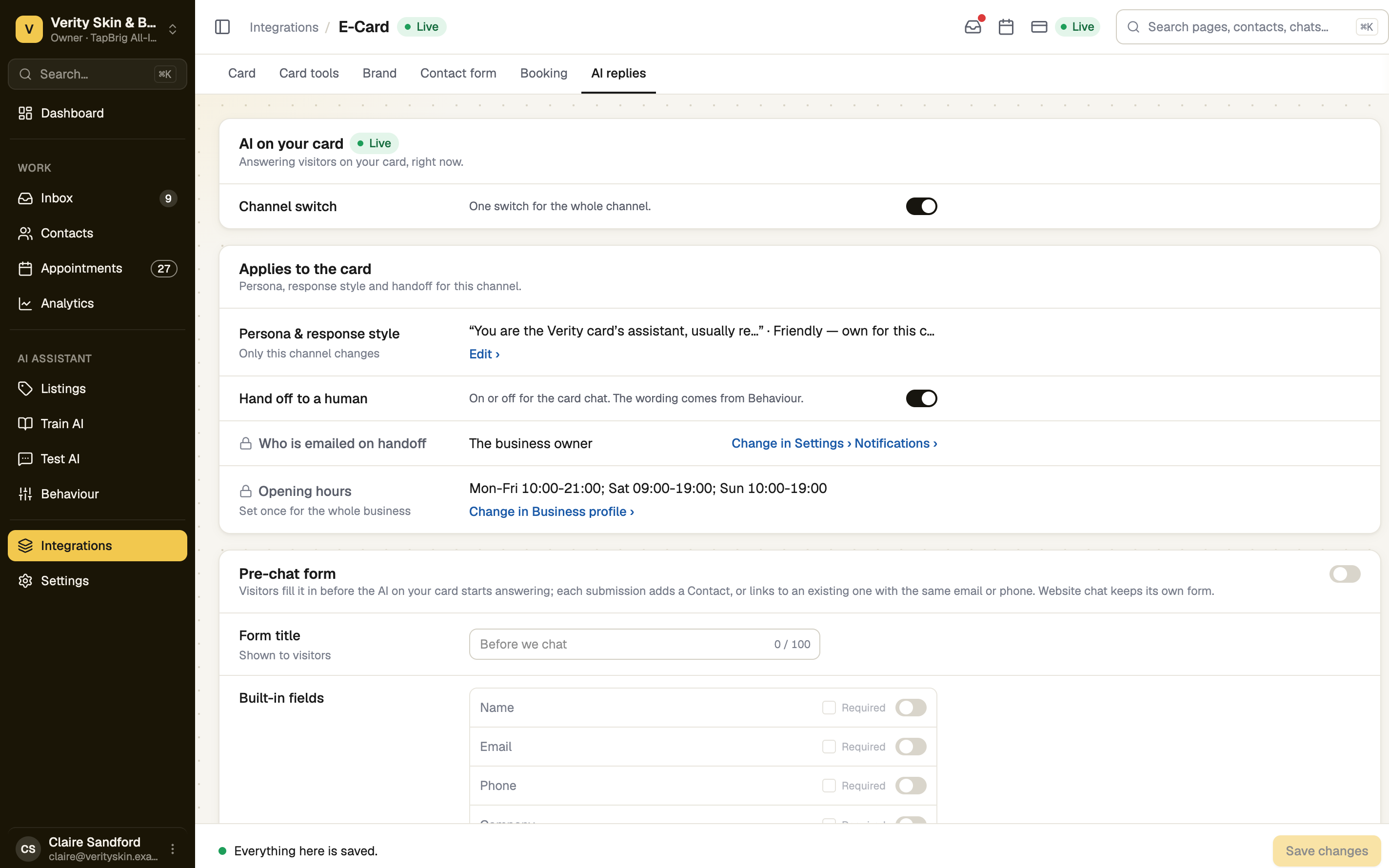
Switch the chat on or off
The Channel switch is one switch for the whole channel, so it covers every card in the business. It is on until you turn it off. Each AI reply uses 1 AI credit.
If the chip says On, but not answering, the AI has nothing to answer from yet. Messages wait for you and no credits are used. Press Train it.
Decide how it talks
Under Applies to the card, the persona and response style follow Behaviour unless you press Edit and choose Own for this channel. Hand off to a human turns handing over to you on or off for the card chat. Who is emailed when it does is set in Settings → Notifications.
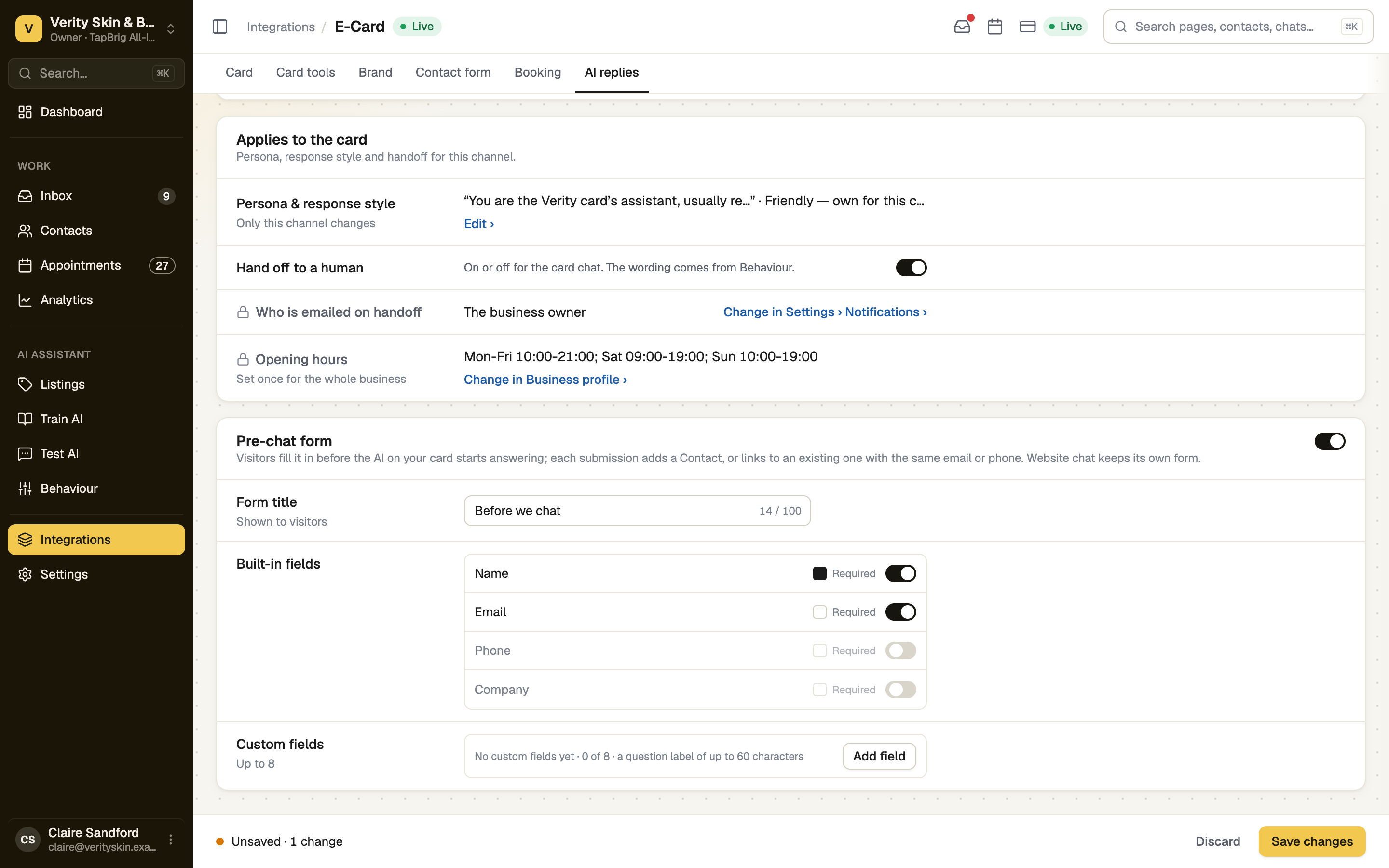
Save your changes
Press Save changes. One bar saves the switch, settings and form together.
Where the chats go
- Conversations appear in your Inbox with your other chats.
- Each pre-chat submission becomes a contact in Contacts, or the chat joins the contact you already have for that email or phone.
- Someone who fills in the form but never writes is in Contacts, not yet in the Inbox.
If it doesn't work
| What you see | What to do |
|---|---|
| "Not in your plan." | The AI on your card needs a plan with card AI. Press Upgrade. |
| "On, but not answering" | Open Train AI and tell it what you sell. |
| "On · couldn't check" | Reload the page and look at the chip again. |
| "The AI's settings need permission" | Ask the business owner for “Set how the AI behaves”. |
| "Every question needs a label." | Fill in or remove the blank question, even if the form is off. |