Before you start
0 / 3
- The phone or computer you want alerts on, with TapBrig open in it
- The email addresses that should hear about leads, bookings and billing
- To change the email half: be the owner, or have Edit the business profile
Open Settings and choose Notifications
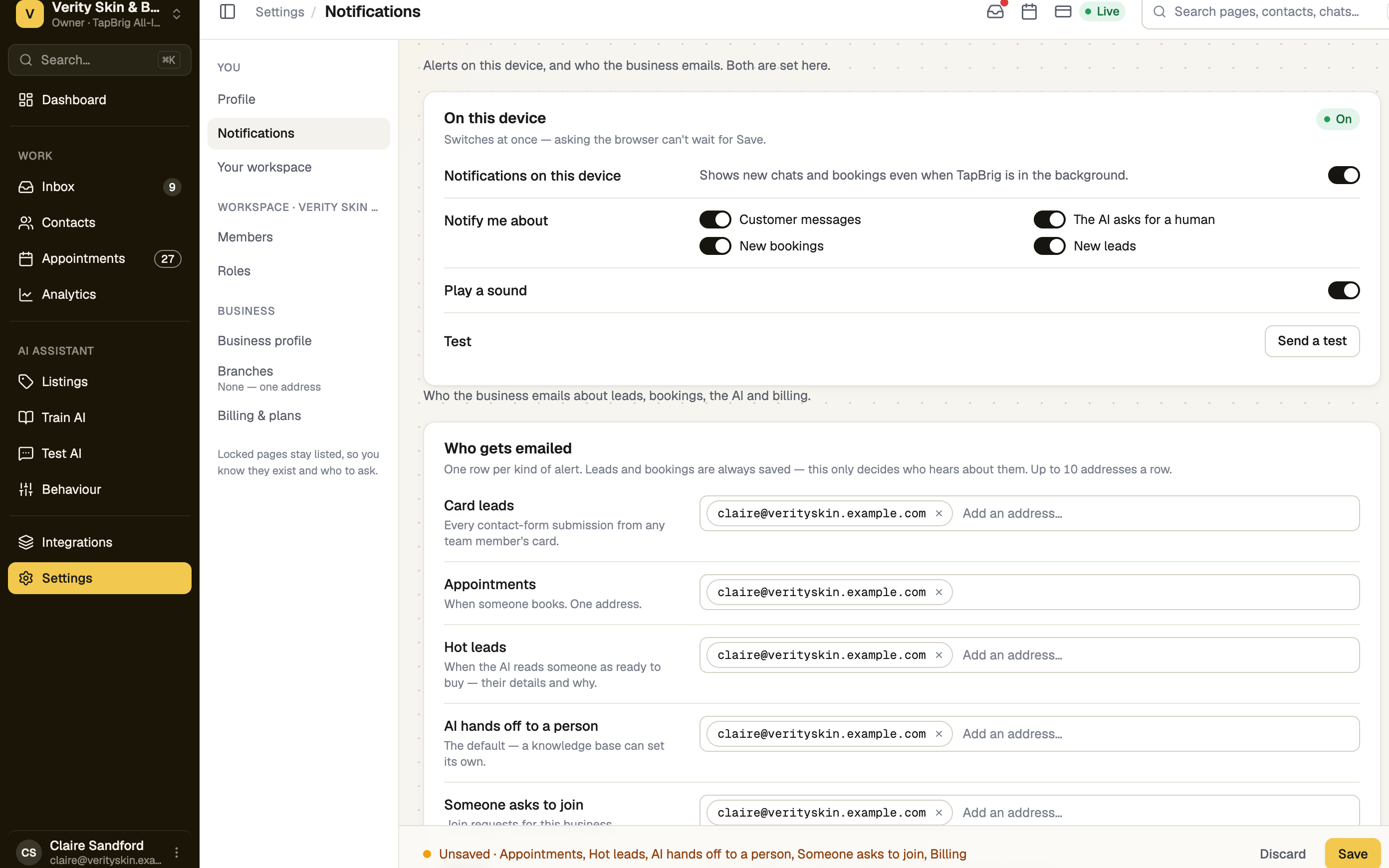
Go to Settings → Notifications. The page has two parts: On this device, which is yours alone, and Who gets emailed, which is the whole business's.
Switch on this device
In On this device, turn on Notifications on this device and allow your browser's prompt. It shows new chats and bookings even when TapBrig is in the background. It is kept per browser: repeat it on each phone or computer. If the chip reads Needs Home Screen, add TapBrig to your Home Screen first — see Add TapBrig to your home screen.
Choose which alerts
Under Notify me about, switch Customer messages, The AI asks for a human, New bookings and New leads on or off. An alert marked Not in your plan can't arrive. Turn Play a sound on or off, then select Send a test.
Choose who gets emailed
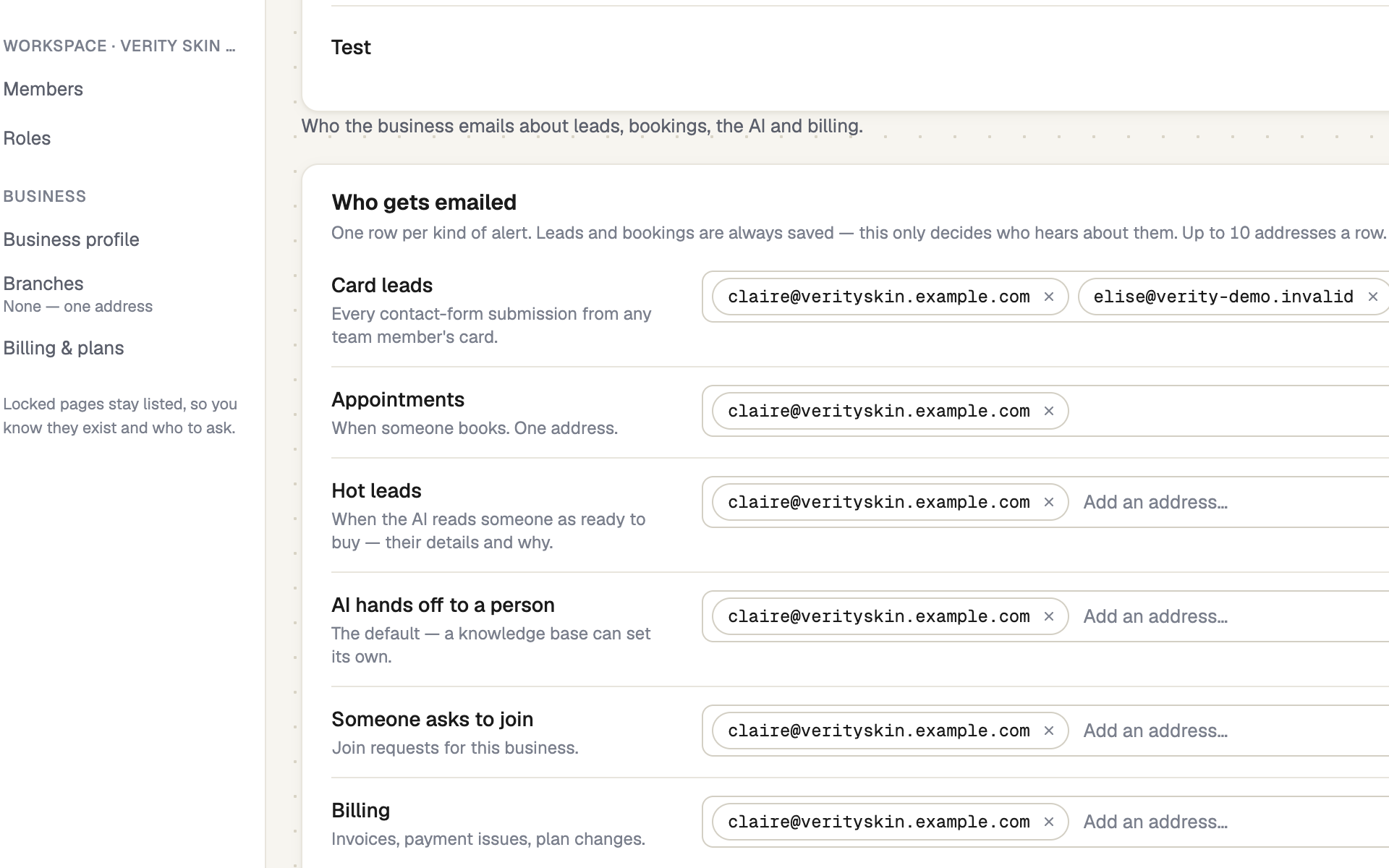
In Who gets emailed, each row is one kind of alert: Card leads, Appointments (one address), Hot leads, AI hands off to a person, Someone asks to join and Billing. Type an address, press Enter and select Save. A row takes up to 10 addresses.
Leads and bookings are always saved; this only decides who hears about them. A cleared row goes to the usual person: the card's or number's owner for leads and the AI, whoever a booking is with, the business owner for join requests, and the owner plus billing managers for billing. A new workspace opens with your address filled in but unsaved: select Save to keep it.
Stop trial tips and reminders
Around the free trial the owner gets tips and reminders, each ending with Unsubscribe from tips and reminders. The page that opens asks "Stop trial tips and reminders?" — select Unsubscribe. Emails about your account and billing still arrive. Settings has no switch to turn reminders back on.
If it doesn't work
| What you see | What to do |
|---|---|
| Blocked: "This browser is blocking notifications for TapBrig." | Allow them in the site settings (the lock icon beside the address), then come back. |
| "The test didn't go through. Switch notifications off and on again, then send another." | Do exactly that. |
| "Read-only — changing it needs" Edit the business profile | Ask the owner to change the row, or add that permission to your role. |
| "Not verified · alerts paused" on Profile | Confirm your email address; alerts resume afterwards. |
Next
- Your profile — name, photo, language and time zone
- Add TapBrig to your home screen — needed for alerts on an iPhone
- If a payment fails — the Billing row decides who is told