Before you start
0 / 3
- A category to import into, made first in Listings
- A spreadsheet with a heading row and one row per item
- A name for every item, the one required column
Start the import and take the template
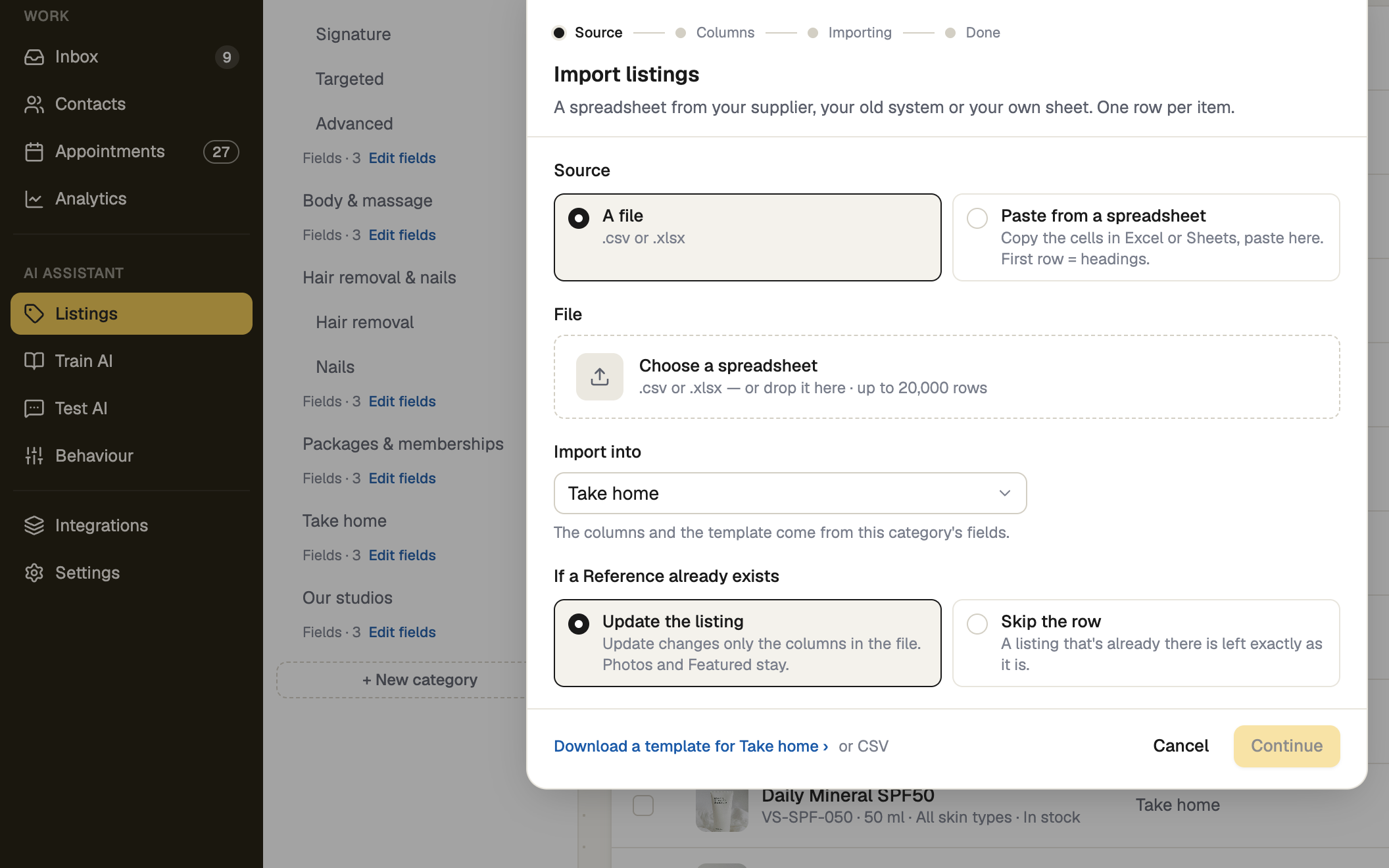
In Listings, press Import (on a narrow screen it is under ···). Only the owner, or a role with Manage listings, sees Listings. Choose the category under Import into, then press Download a template for that category. Its columns come from the category's fields.
Fill in one row per item
Give each row a Name. Reference is your own unique code, so a re-import updates the item instead of duplicating it. A price can read 45, from 45, 45-60 or On request. Put a currency code in front of the amount, or use a Currency column; with neither, the row is priced in your own currency. A bare $ names no currency.
Choose the file
Pick a .xlsx or .csv file, or Paste from a spreadsheet. Excel files are read from the first visible sheet. Under If a Reference already exists, Update the listing changes only the columns in your file, and Skip the row leaves the item alone.
Match the columns
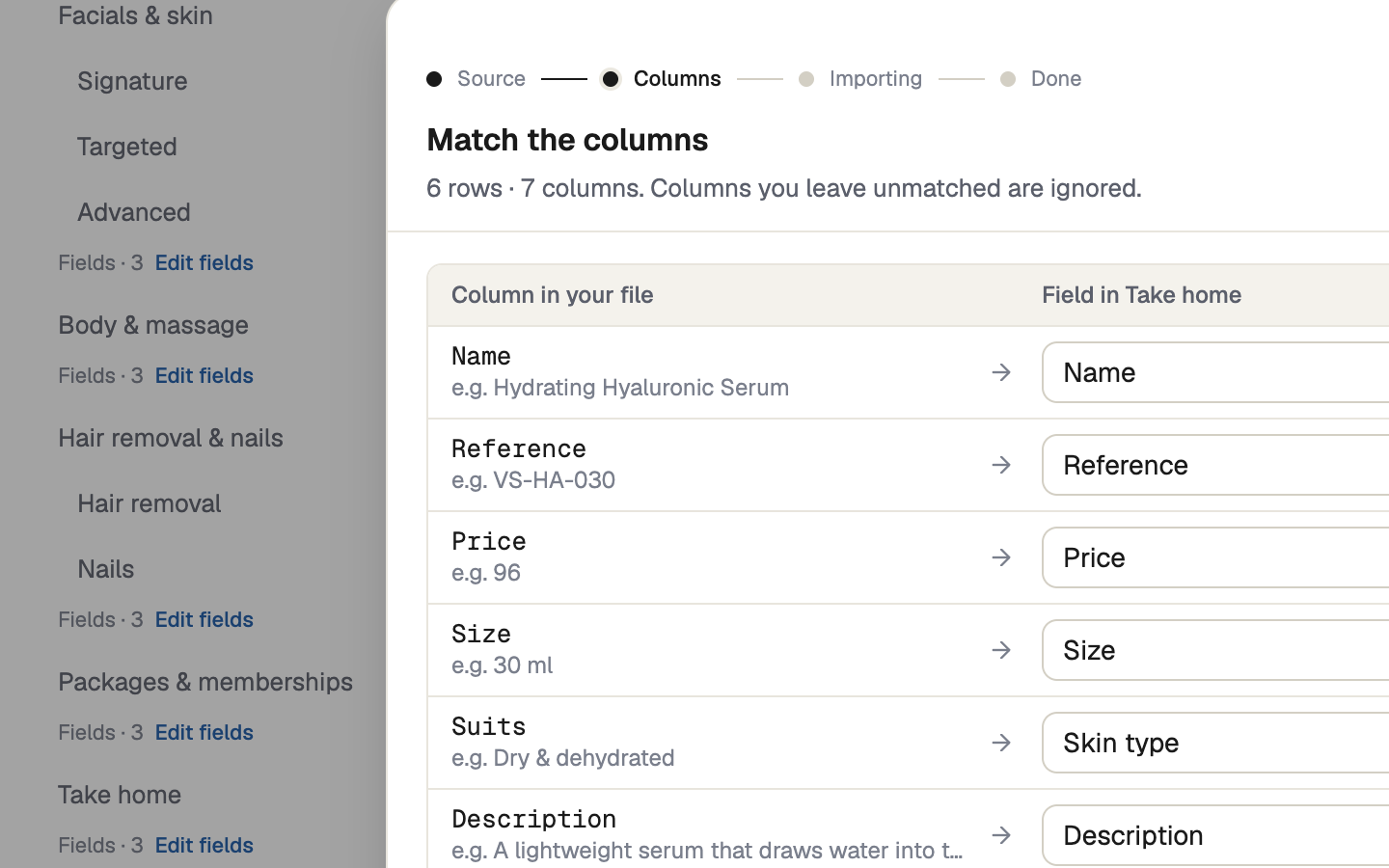
Each Column in your file gets a Field in your category; unmatched columns are ignored. A column the category lacks can become a New field, created only when you import. One column must be the Name. The counts show what is new, updated or skipped; nothing is written until you press Import.
On a phone, if more than two columns need you, the file is saved for a computer.
Check the result, or undo it
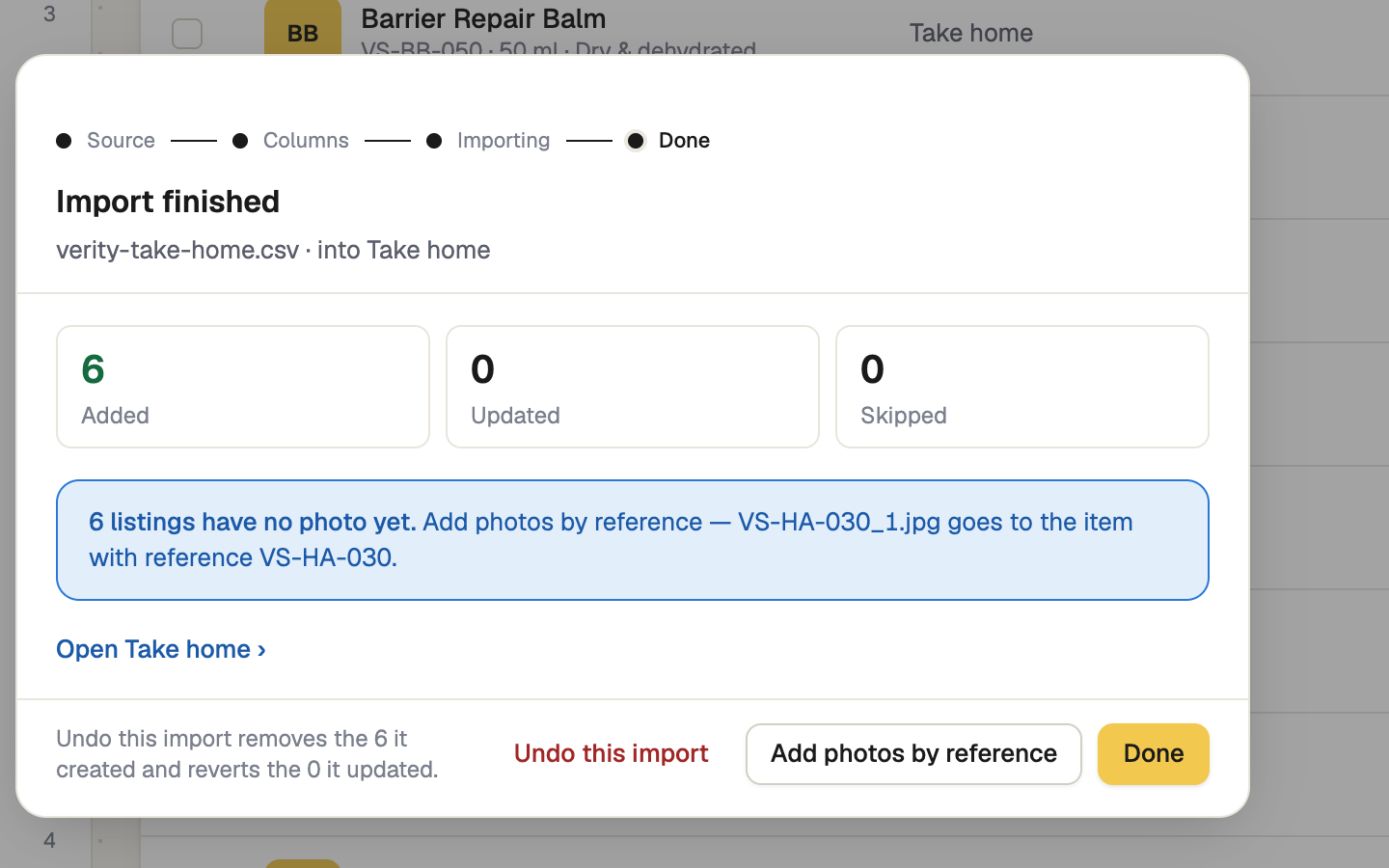
The result shows Added, Updated and Skipped; download the skipped rows for the reasons. Undo this import removes what it created and restores what it changed, for 24 hours; anything you edited since is kept. Afterwards, edit items in the table, and tick rows to hide, move or star many at once.
Add photos
In the ··· menu, Add photos by reference takes a folder of images: SB-101_1.jpg goes to the item with reference SB-101 as photo 1. Or fill an Image URLs column before you import.
If it doesn't work
| What you see | What to do |
|---|---|
| "That isn't a CSV or an Excel file. Save it as .csv or .xlsx and try again." | Save the sheet in one of those formats. |
| "That looks like an older .xls or a password-protected file. Save it as .xlsx or CSV and try again." | Remove the password and upload the file again. |
| "No column is the listing's Name yet." | Pick the column that holds the name in the list. |