Check whether your card is already live
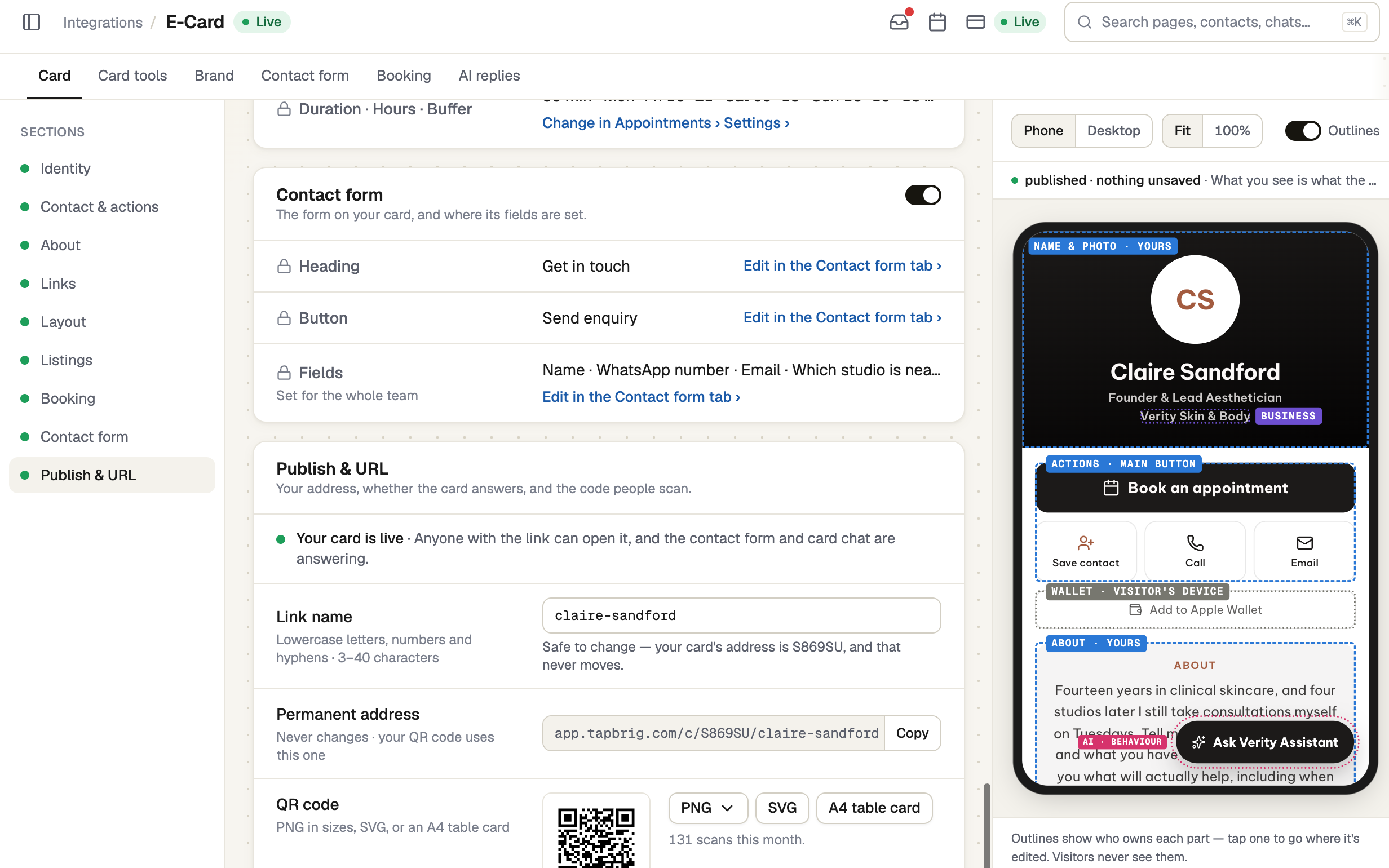
Open Integrations → E-Card. The pill at the top says Live or Not published. A card made when you sign up for your own account starts live. A card made for you when you join a business starts unpublished.
Publish it
Press Save & publish, or Publish when nothing is unsaved. If something stops it, a list says what (often a missing name) and each row jumps to the section that fixes it. The first time, a window offers Copy link and Download QR.
Copy the permanent address
In Publish & URL, the Permanent address row shows app.tapbrig.com/c/K7M2QX/sarah-collins with a Copy button. The six characters after /c/ are your card's code. It never changes and is never given to anyone else. The last part is your Link name, which you can change at any time. Both /c/K7M2QX and the longer form open your card. Paste either into messages, email signatures and social profiles.
The QR code carries the code, not the link name. Renaming your card never breaks anything you have already printed.
Scan it with your phone
In Setup, press Start the test on Scan it with your phone. The step unlocks once the card is published. Scan the code on screen with a phone camera. The step ticks when your card opens on a phone, not on a tablet or a computer.
screenshot · Live test dialog asking you to scan the card with your phone · 1440 × 900
Unpublish when you need to
With nothing unsaved, press Unpublish and confirm. The link, QR code, contact file and wallet pass then stop opening your card until you publish again; visitors see "This card isn't available". Nothing is deleted.
If it doesn't work
| What you see | What to do |
|---|---|
| "Can't publish yet — …" | Look at the red list at the top of the editor. Each row names a problem and the section that fixes it. |
| "We haven't seen the card open" | Check the card is published, and scan with a device other than this one. A tablet or a computer does not count. |
| "Only a–z, 0–9 and hyphens, 3–40 characters." | The Link name can't hold other characters. Use lowercase letters, numbers and hyphens. |
| "Couldn't change whether the card is published." | Reload the page and try again. |
Next
- QR code and contact file — download the QR code for print
- Your card in Apple Wallet and Google Wallet
- Collect enquiries from your card