Before you start
0 / 3
- A plan that is Plus or higher — on Standard the Roles page is locked
- To create roles: be the owner, or have Manage roles
- A teammate in Members to give the role to
Open Settings and choose Roles
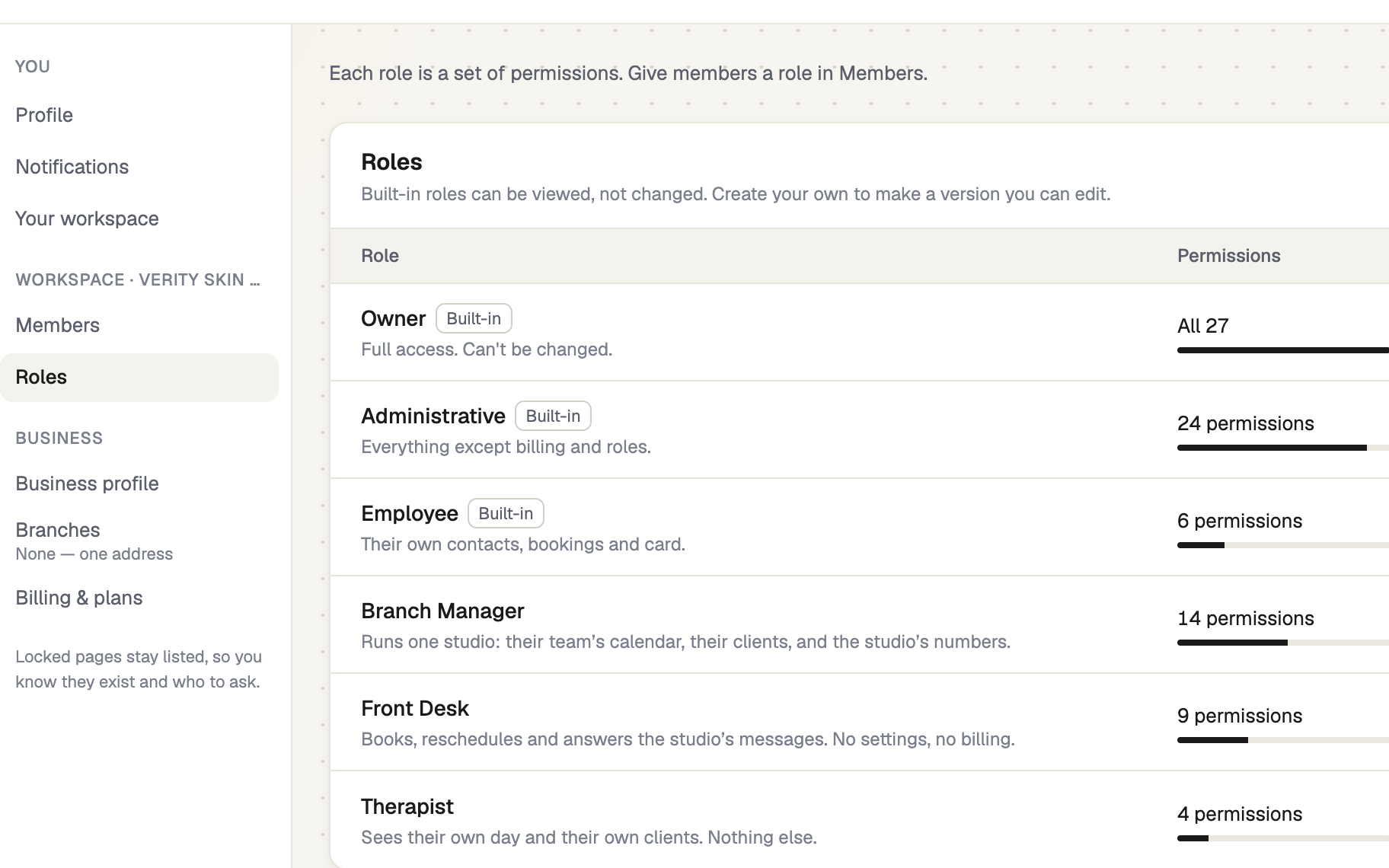
Go to Settings → Roles. Three roles tagged Built-in are always there. You can View them but not change them:
- Owner — full access, and only the business owner holds it.
- Administrative — everything except billing and roles.
- Employee — their own contacts, bookings and card.
Create your own role
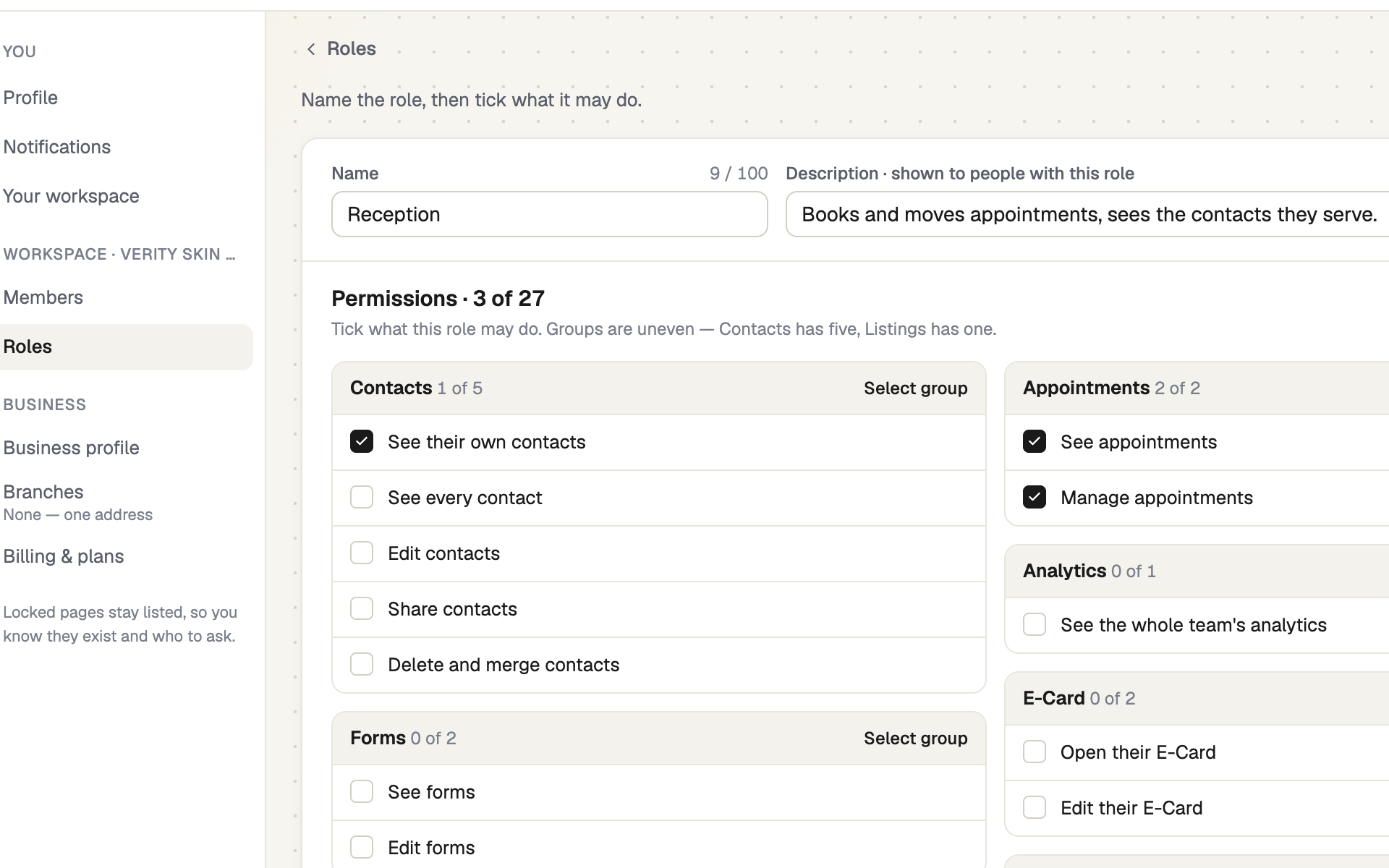
Select New role, enter a Name and a Description, and tick what the role may do. Permissions are grouped — Contacts, Appointments, Analytics, E-Card, Forms, Website chat, WhatsApp, Listings, AI assistant, Business, Members and Roles — and each has a one-line description. Select group and Select all save clicks. Finish with Create role.
You can only give permissions you hold yourself; the rest are locked. To start from a built-in role, View it and copy its ticks.
Give the role to someone
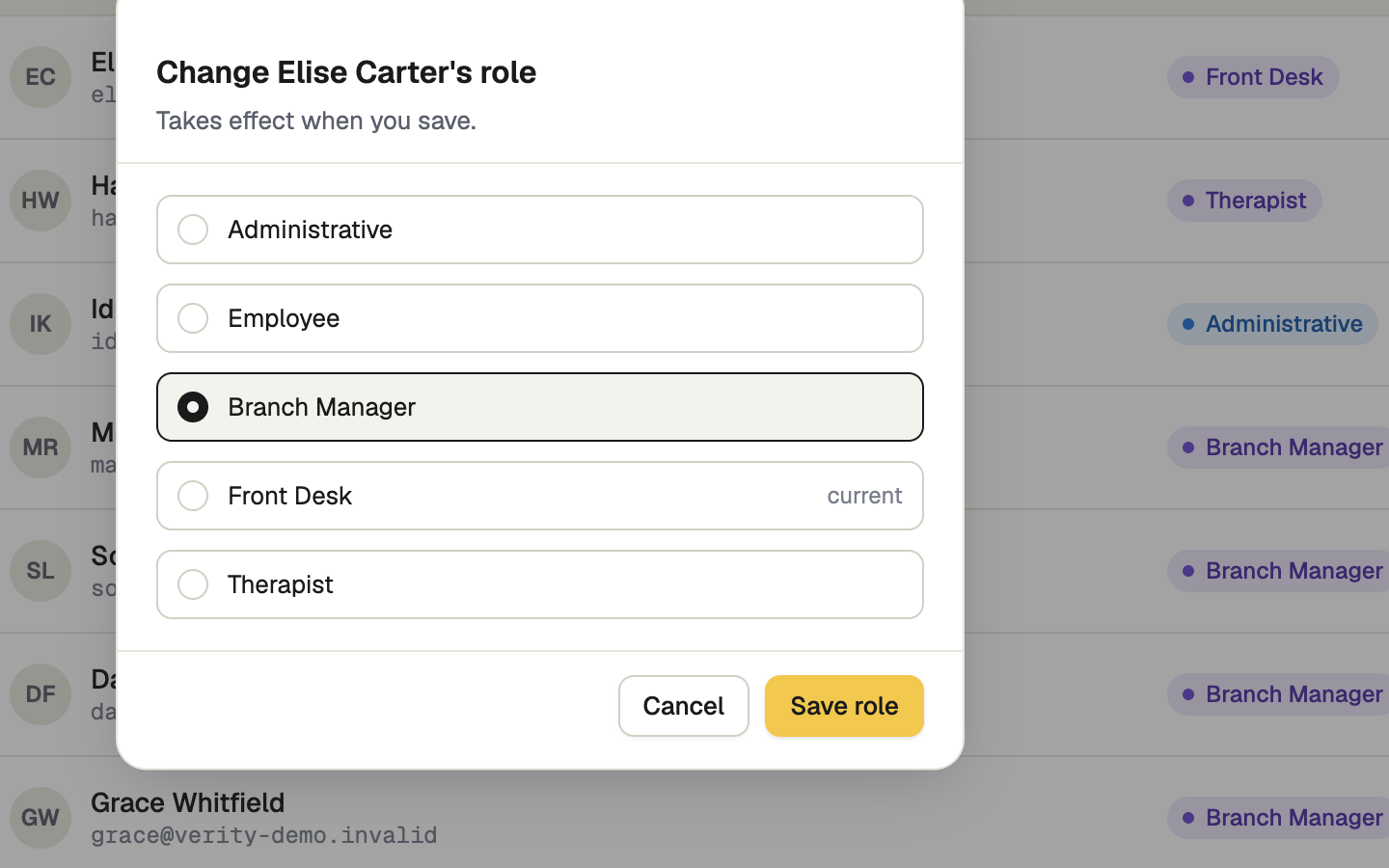
In Settings → Members, open the ⋮ menu on their row, choose Change role, pick the role and select Save role. It takes effect when you save. You can also pick the role when you invite. Nobody can change their own role, and the Owner role stays with the owner.
Know what they will see
Pages a role can't open are left out of the sidebar. In Settings they stay listed with a lock and "Needs a permission you don't have". A page they may read but not change opens with a note saying so, and a page they can't open offers Copy an access request to send to the owner. Everyone can check their own role under Settings → Your workspace → See the full list.
Reading WhatsApp chats also needs access to the number — see Who can use which number.
Edit or delete a role
Choose Edit on a role you made, or open its ⋮ menu and choose Delete. If people still have it, pick a new role for each and select Reassign and delete.
If it doesn't work
| What you see | What to do |
|---|---|
| A permission is greyed with a lock: "You don't have this yourself, so you can't give it." | Leave it unticked, or ask the owner to create the role. |
| "Name is required" | Type a Name before Create role. |
| "Select at least one permission" | Tick at least one box. |
| "A role with this name already exists." | Choose a different Name. |
Next
- Invite your team — bring people in with the role you made
- Who can use which number — WhatsApp access is per number
- Join a business you work for — the teammate's side