Before you start
0 / 3
- A published card: every link here points at a page nobody can open until you publish
- A plan with the E-Card (Cards or All-In-One)
- The permission “Open their E-Card”
Download the QR code
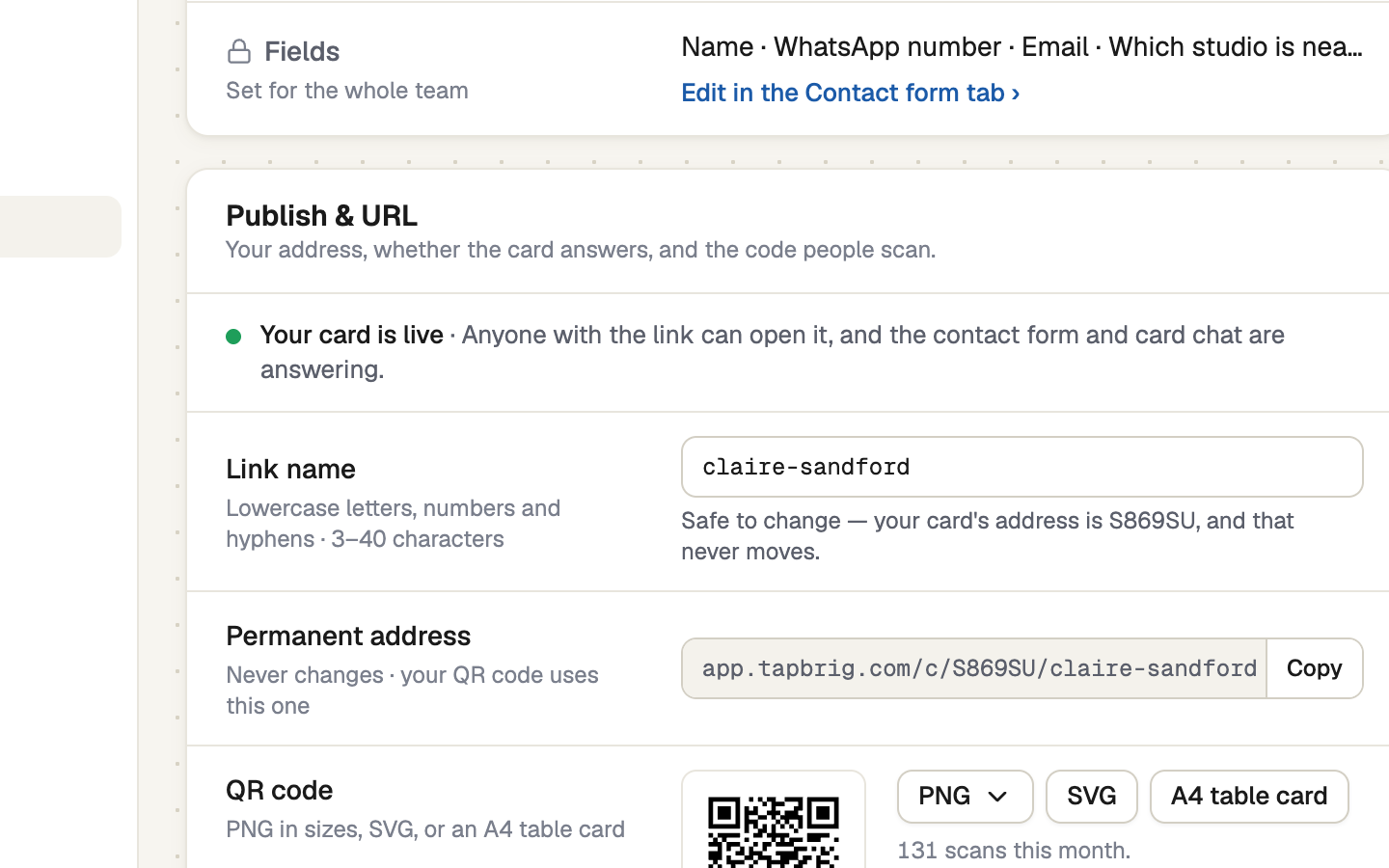
Open Integrations → E-Card and go to Publish & URL. Under QR code, choose PNG (two sizes), SVG or A4 table card, a printable sheet with your name, title and the code.
The code is always black on white with a white border. Leave both as they are. Under the buttons, TapBrig shows how many times it was scanned this month.
Print it anywhere
The QR code holds your card's permanent address, never the link name. Renaming the Link name or editing the card changes nothing for printed copies. Only unpublishing stops them.
Save or share the contact file
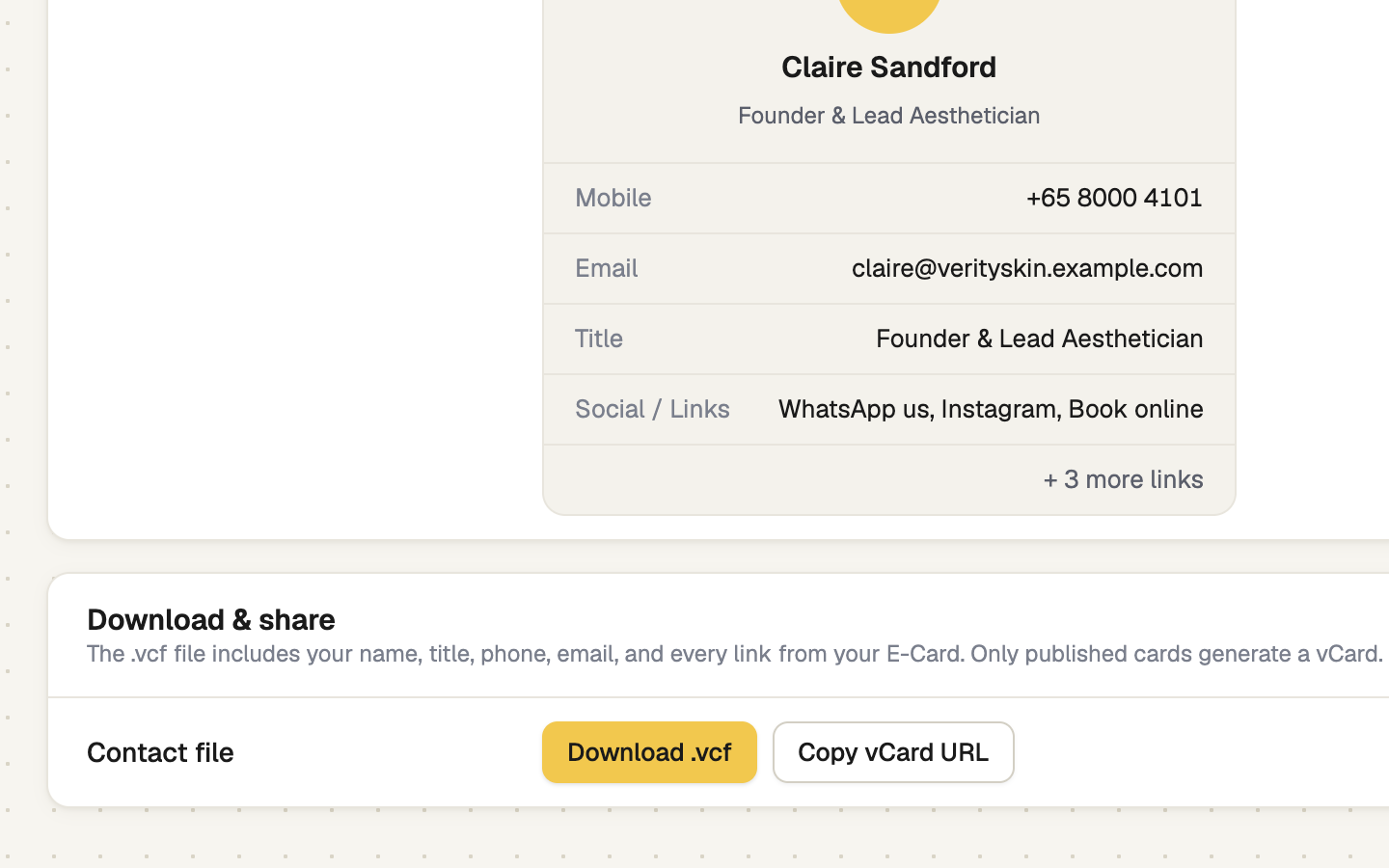
Open Card tools → vCard / Contact. Contact preview shows what a phone will save: mobile, email, title, department and links. Press Download .vcf to get the file, or Copy vCard URL for a link that always gives your latest details.
Visitors get the same file from Save contact on your card.
NFC tags
Writing an NFC tag from TapBrig is not switched on yet, so Card tools has two tabs: vCard / Contact and Digital Wallet.
If it doesn't work
| What you see | What to do |
|---|---|
| "Your card isn't published yet." | Press Publish card. The QR code and contact file work only once the card is live. |
| "Publish your card first." | The same fix: Download .vcf stays off until the card is published. |
| "Couldn't download that. Please try again." | Press the button again. If it keeps failing, reload the page. |
| "Could not copy to clipboard" | Select the link and copy it by hand. |
| "Card tools aren't on your plan" | Card tools come with a Cards or All-In-One plan. |
Next
- Your card in Apple Wallet and Google Wallet
- Publish it and share the link
- Your analytics, report by report — see how often the code is scanned