Before you start
0 / 3
- Something trained: a FAQ, a document, your website or a listing
- A question a customer really asks
- An AI credit or two, because each test reply uses 1, like a customer's
Open Test AI and ask
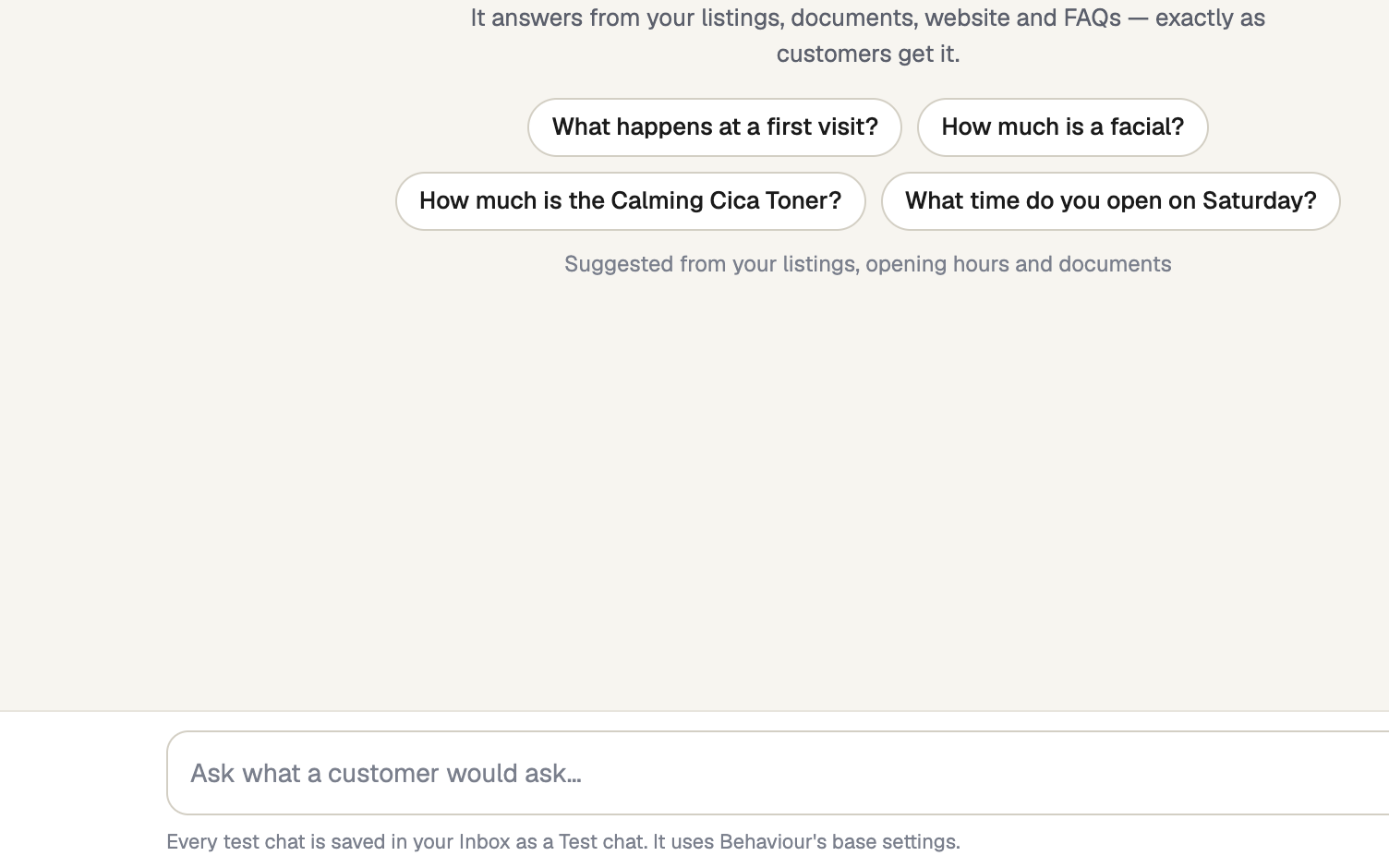
Under AI Assistant, open Test AI (on a phone, it is in Menu). Only the owner, or a role with Train the AI or Set how the AI behaves, sees it. Press a suggested question, or type your own and press Enter. The suggestions come from your listings, opening hours and documents.
Check where the answer came from
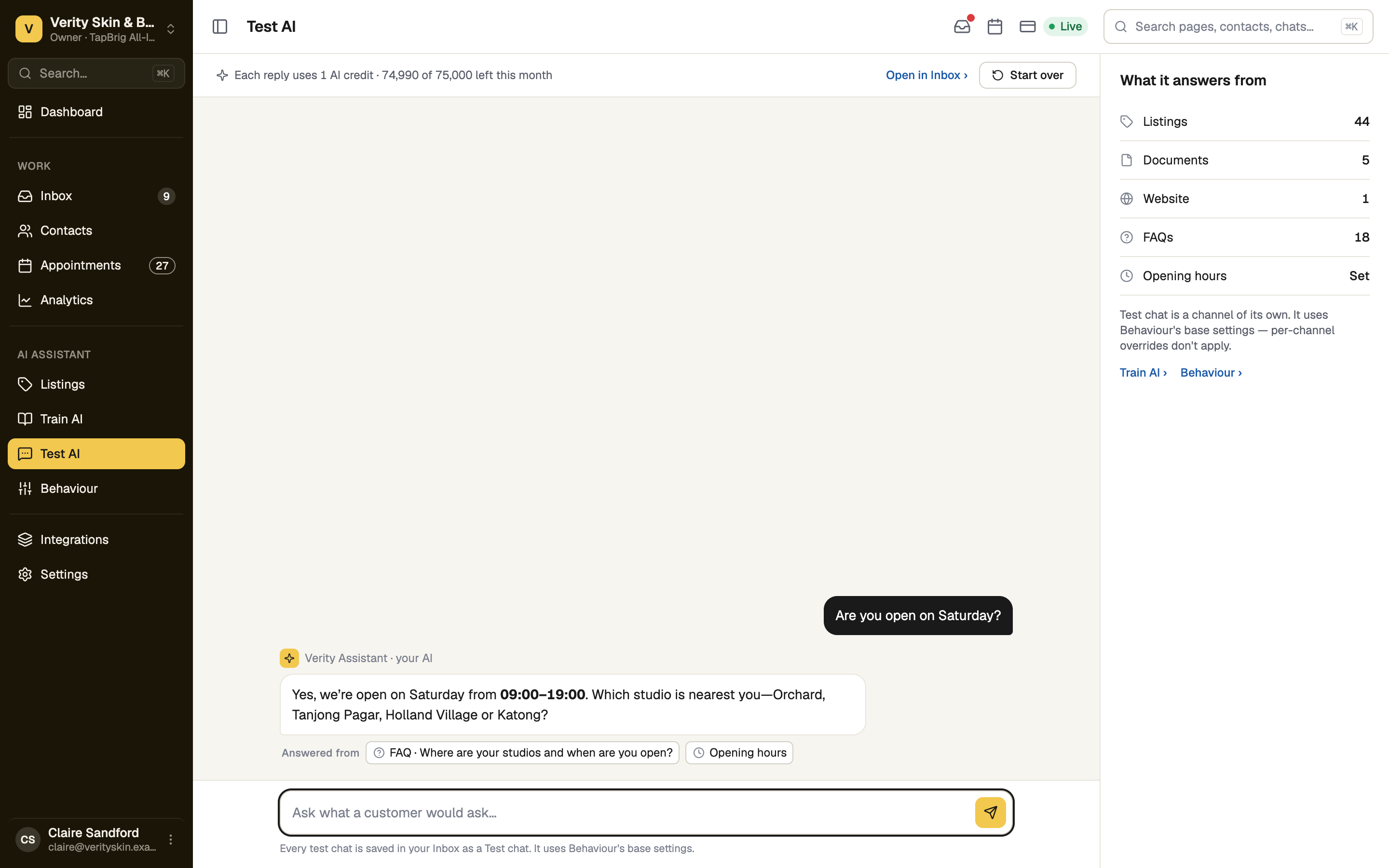
Under each answer, Answered from lists what it used: a FAQ, document, website page, listing, opening hours or booking page. Press a chip to open that source. When an answer is wrong, fix the source it names, not the answer.
Try the awkward questions
Ask for a price you have not listed, for a file, for a person. The AI should say what it does not know and send only what you switched on. If Human handoff is on in Behaviour, asking for a person ends with Handed to your team: the chat waits in your Inbox and your team gets the usual handover email.
Start over when you want a clean slate
Start over begins a fresh chat. Every test chat stays in your Inbox as a Test chat, where a teammate can take it over. Open in Inbox › jumps to it.
Test AI uses Behaviour's base settings. A channel's own persona or style, set on its AI replies tab, does not apply here. A name or email typed into a test chat creates a contact.
If it doesn't work
| What you see | What to do |
|---|---|
| "Your AI has nothing to answer from yet" | Add a FAQ, a document, your website or a listing. No credit is used. |
| "That reply didn't come through. No AI reply was used." | Press Try again. |
| "You've used this month's … AI replies" | Add more on Usage & spend, or change plan. Customers' chats pause too. |
Next
- Letting the AI answer customers — switch it on per channel
- Shape how the AI talks — name, tone and handover