Before you start
0 / 3
- Be the owner, or have a role with Manage billing
- A plan that includes the AI — the page is not listed without one
- A Monthly spend limit in mind, if you will use pay-as-you-go
Open Settings and choose Usage & spend
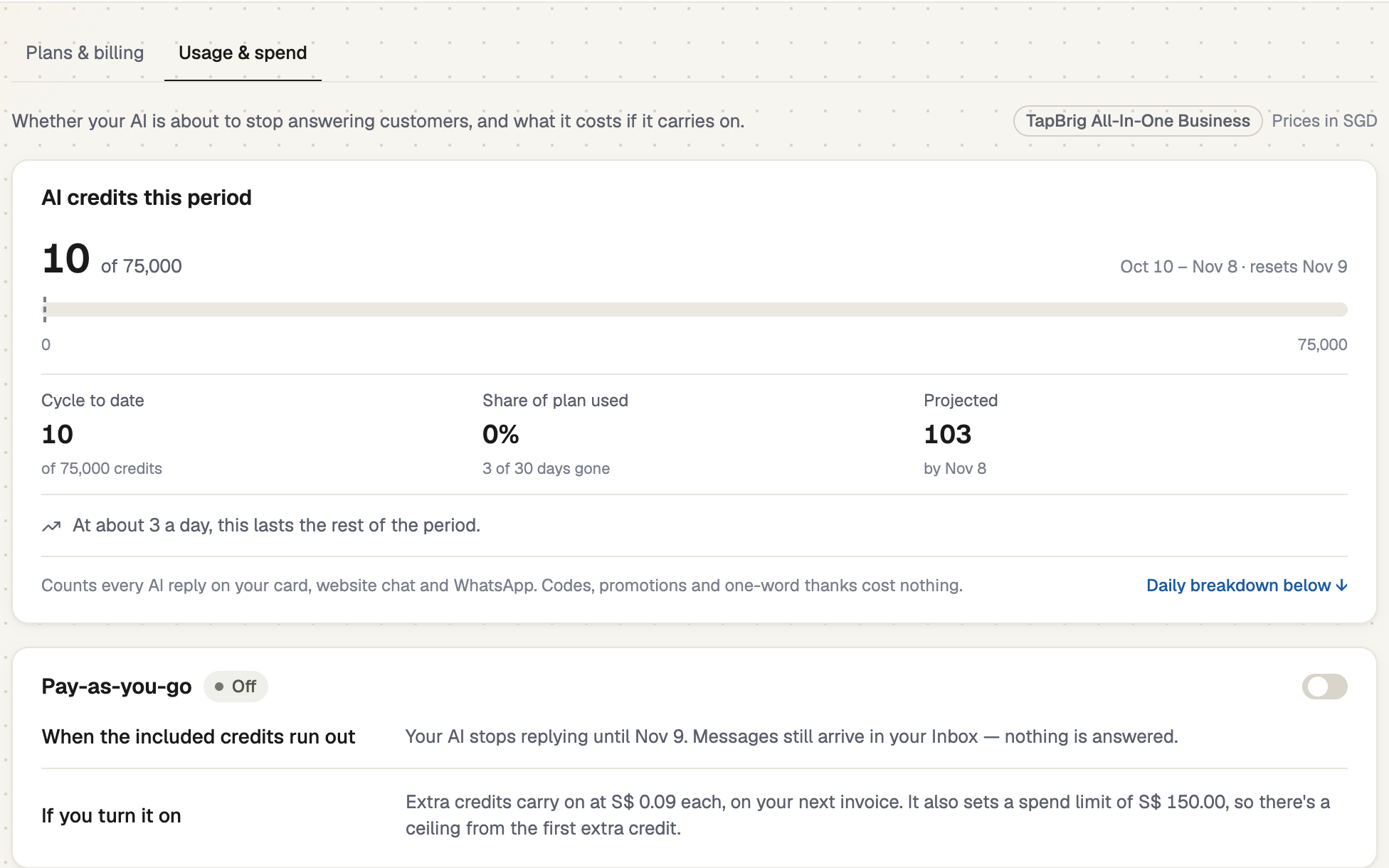
Go to Settings → Usage & spend. The meter shows the AI credits used this period, its dates and when it resets. 1 AI reply uses 1 AI credit on your card, website chat or WhatsApp; codes, promotions and one-word thanks cost nothing. A yearly plan's allowance still resets every month.
Get warned before it runs out
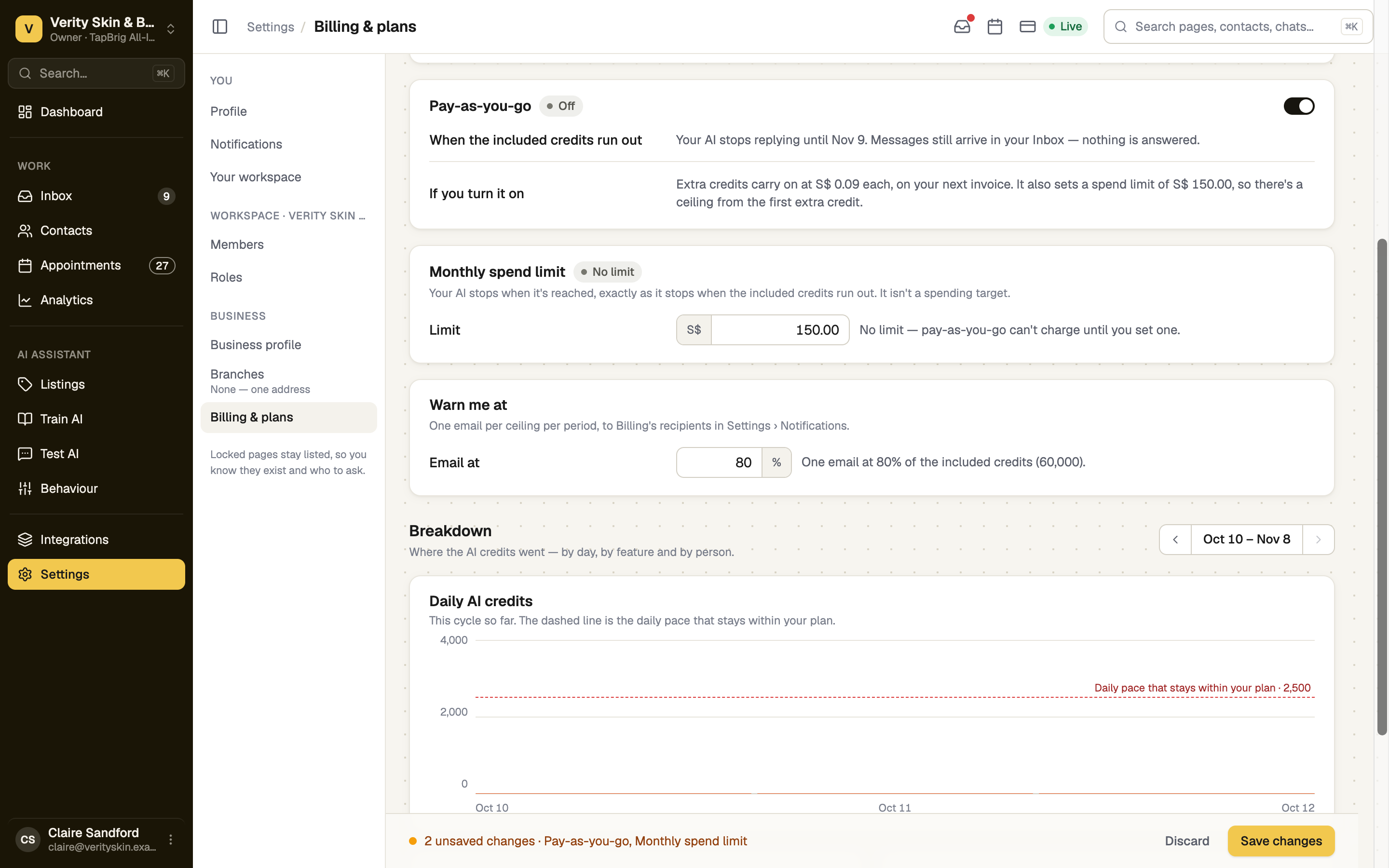
In Warn me at, set the percentage under Email at. One email goes out per period, with a notice in the app, to the Billing row of Settings → Notifications. With pay-as-you-go on it measures your spend limit; otherwise your included credits.
Decide what happens when credits run out
Your AI uses your plan's credits first, then any prepaid credit packs, then pay-as-you-go if it is on. With none of those it stops replying until the period resets; messages still reach your Inbox.
To keep it answering, switch on Pay-as-you-go. Each extra credit is charged at the rate shown, on your next invoice. It needs a Monthly spend limit above zero; switching on fills one in, so check it. The AI stops when the next reply would cross the limit, and never goes past twice your plan's credits. The free trial has none.
Save your choices
Everything on this page waits for Save changes; Discard drops it. Turning pay-as-you-go off while it is what keeps the AI answering asks "Stop your AI now?" first.
A failed payment pauses pay-as-you-go until the card works. Plan credits and prepaid packs keep answering.
Watch the spend
Billing & plans → This billing cycle is the quick view. See the daily breakdown › opens Analytics → Costs & usage.
If it doesn't work
| What you see | What to do |
|---|---|
| The red strip "Your AI is paused." or the notice "Your AI has stopped replying." | Credits are used up. On Usage & spend, use the notice's button: buy a pack, turn on pay-as-you-go or compare plans. |
| "Your AI has stopped replying — the spend limit is reached." | Select Raise the limit, or buy a credit pack to restart it at once. |
| "Your AI has stopped replying — this plan’s ceiling is reached." | That ceiling is twice the plan's credits. A credit pack or a larger plan lifts it. |
| "Set a spend limit above zero to turn pay-as-you-go on." | Enter a Monthly spend limit, then select Save changes. |
Next
- Buy extra AI credits — prepaid credits that never expire
- If a payment fails — what pauses while the card is failing
- Your plan and your bill — change plan for a bigger allowance