Before you start
0 / 3
- A widget you have already created
- The details you need before a chat starts: name, email, phone or company
- The permission “Manage website chat”
Open the widget and find Pre-chat form
Open Integrations → Website chat, press Edit on the widget and scroll to Pre-chat form. Each widget has its own form. The AI chat on your card has a separate one.
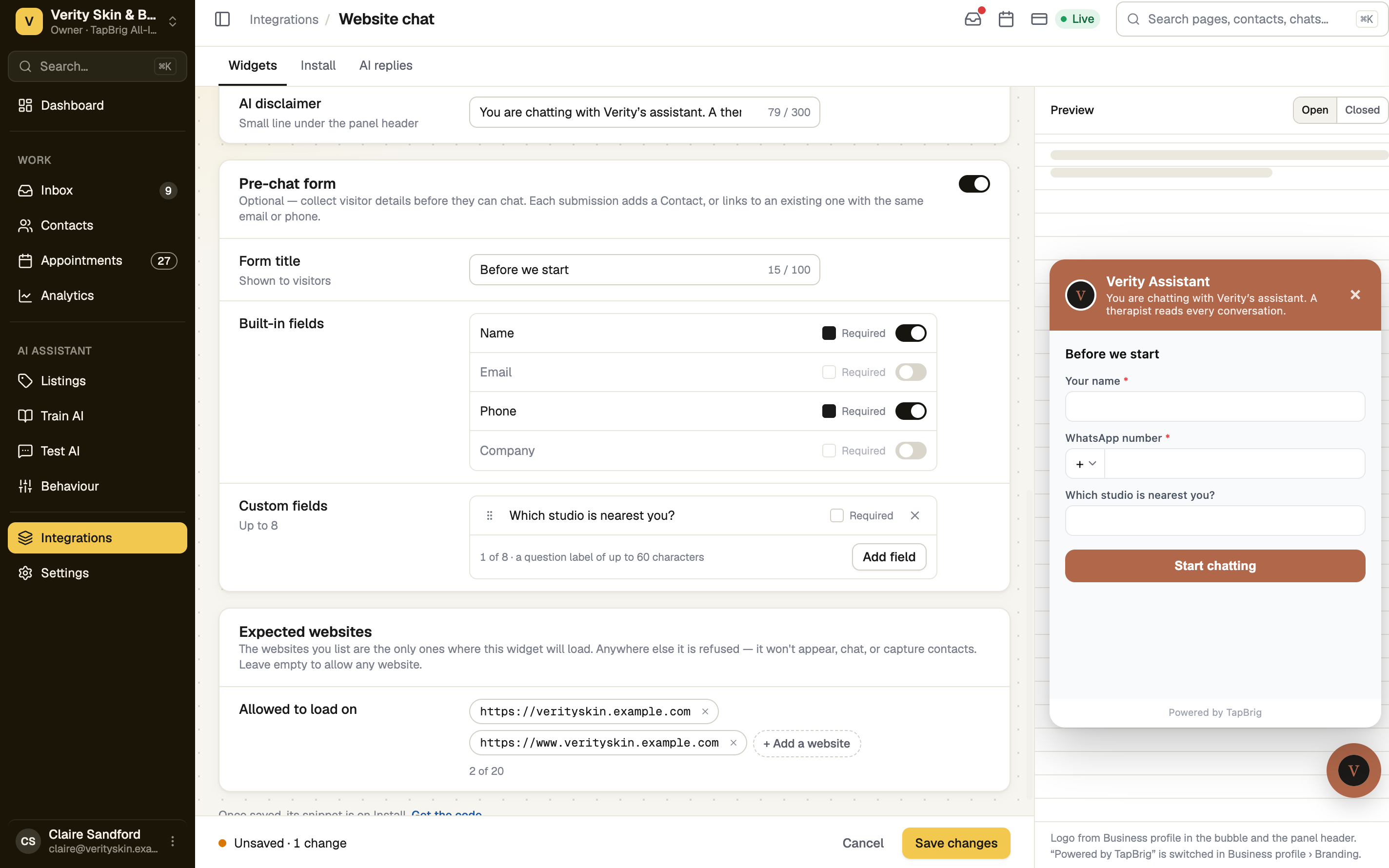
Choose the fields
Under Built-in fields, switch Name, Email, Phone and Company on or off, and tick Required for the ones visitors must fill in. Under Custom fields, press Add field and type your question. Drag a question to reorder it. Every question needs a label.
Save your changes
Press Save changes in the bar at the bottom. You don't need to paste the snippet again: the widget picks up the form when a page loads.
What happens to the details
- Visitors fill in the form once per browser, before the chat opens. Their button reads Start chatting.
- The phone box has a country picker, so numbers are saved with their country code.
- Each submission becomes a contact with the source Website pre-chat. If you already have a contact with the same email or phone, the chat joins that contact and it is not changed.
- Answers to your own questions are saved on the contact's Submission tab, each under its question.
- If your contact list is full, the chat still opens but no contact is created.
If it doesn't work
| What you see | What to do |
|---|---|
| "Every question needs a label." | Fill in or remove the blank question. A form can't be saved with a blank label, even while it is switched off. |
| "Please fill in the highlighted fields." | Complete the highlighted rows, then save again. |
| "Please fill the required fields." | A visitor sees this when they skip a field you marked Required. |
| "Couldn't submit — please try again." | A visitor sees this when the form did not send. Ask them to try again. |
| The form never appears | Check the switch is on and at least one field is on. A form with no fields is skipped. |
Next
- Colours, position and the TapBrig badge
- Contacts and leads — follow up the people who fill it in
- The AI chat on your card — the card has its own pre-chat form