Before you start
0 / 3
- The Manage appointments permission (See appointments only lets you look)
- Email the visitor switched on in Appointments → Settings → Confirming; it is by default
- Booking alerts set up under Settings → Notifications: an Appointments address, and this device
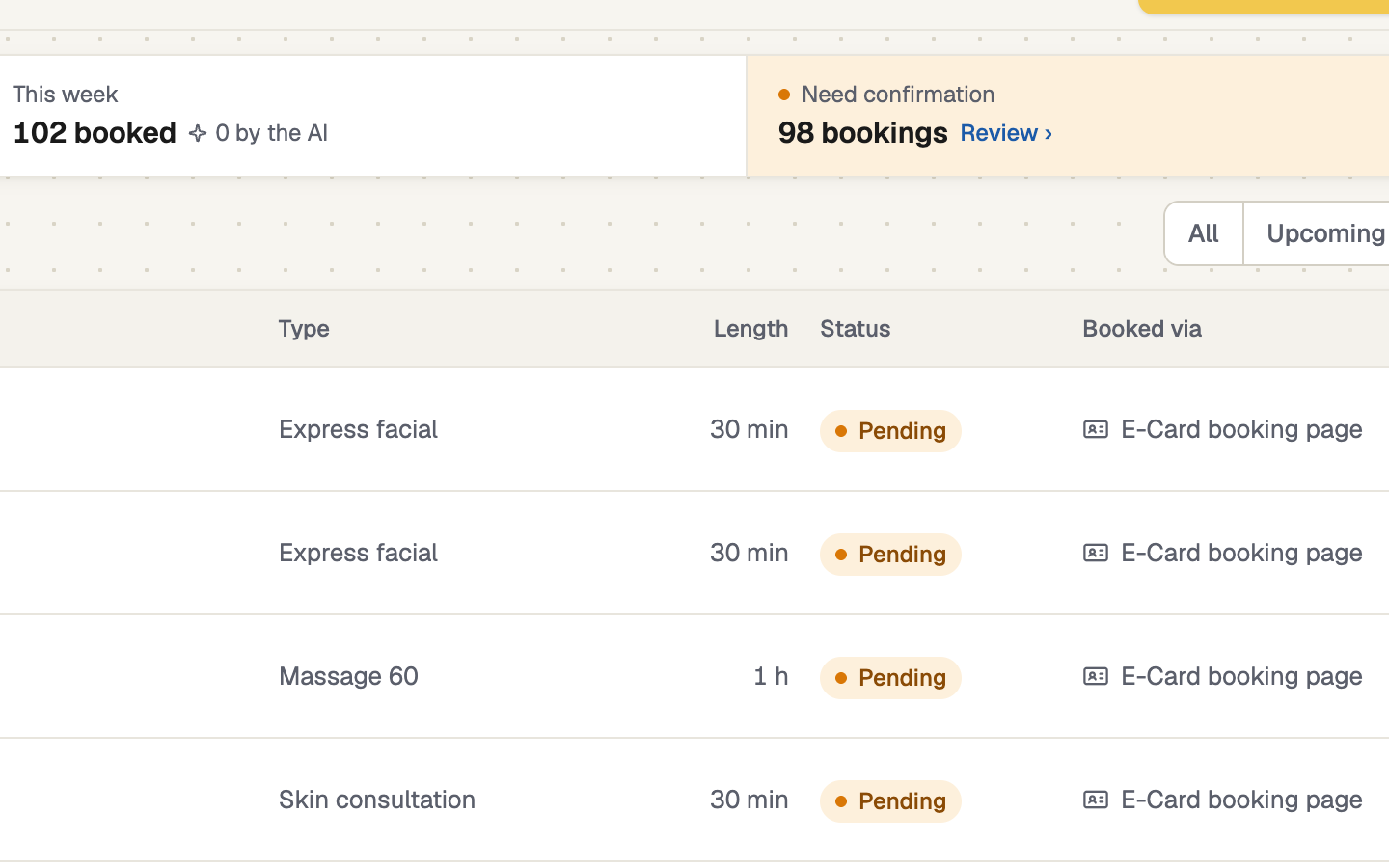
Open Appointments and press Review
A booking made on your booking page arrives as Pending: the time is held, but nobody has agreed to it. The Need confirmation box counts them, and Review lists them. You also get a New booking request email, and a device alert if you've turned them on.
Prefer every booking confirmed at once? Turn on Confirm bookings automatically under Appointments → Settings → Confirming.
Confirm it
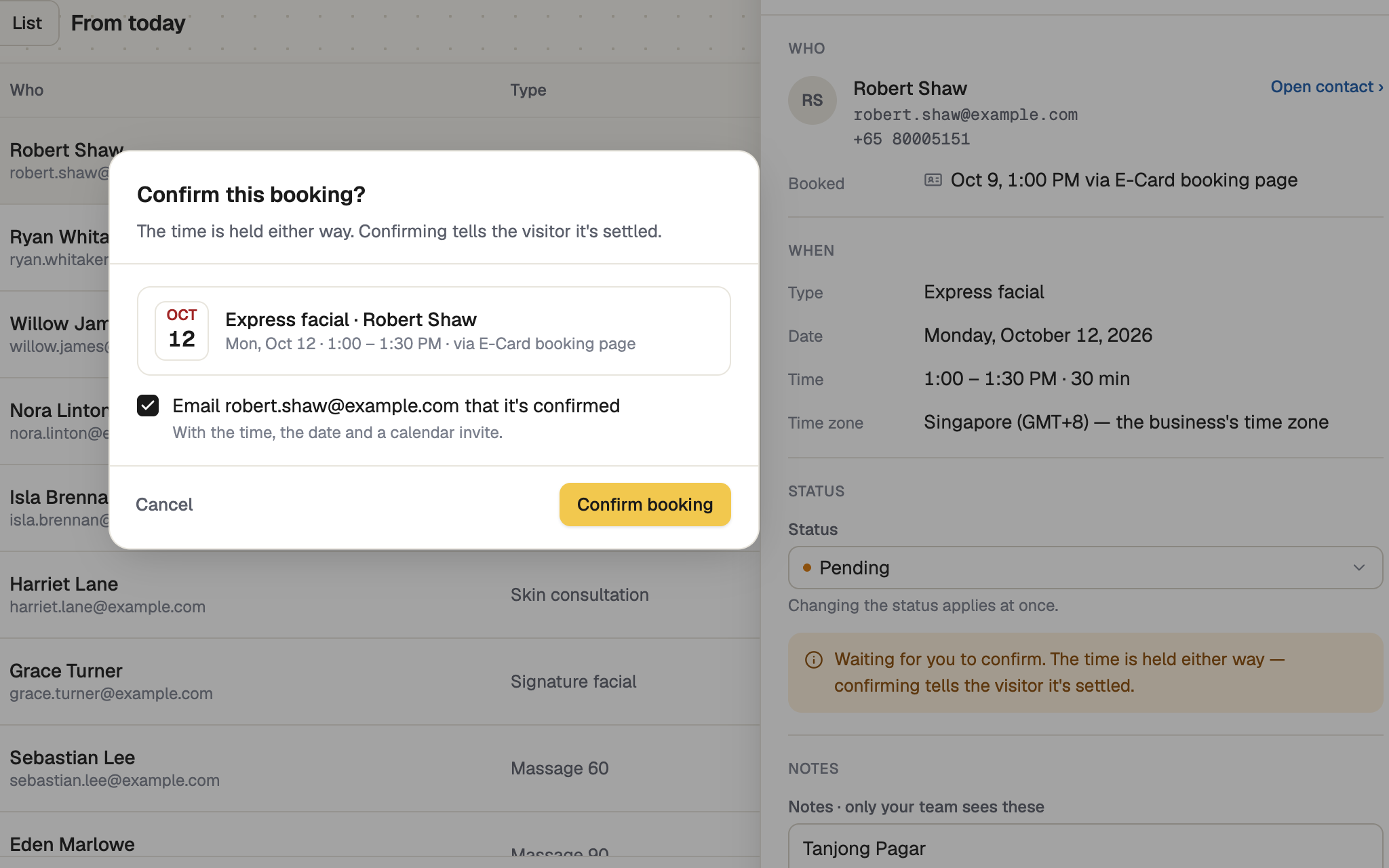
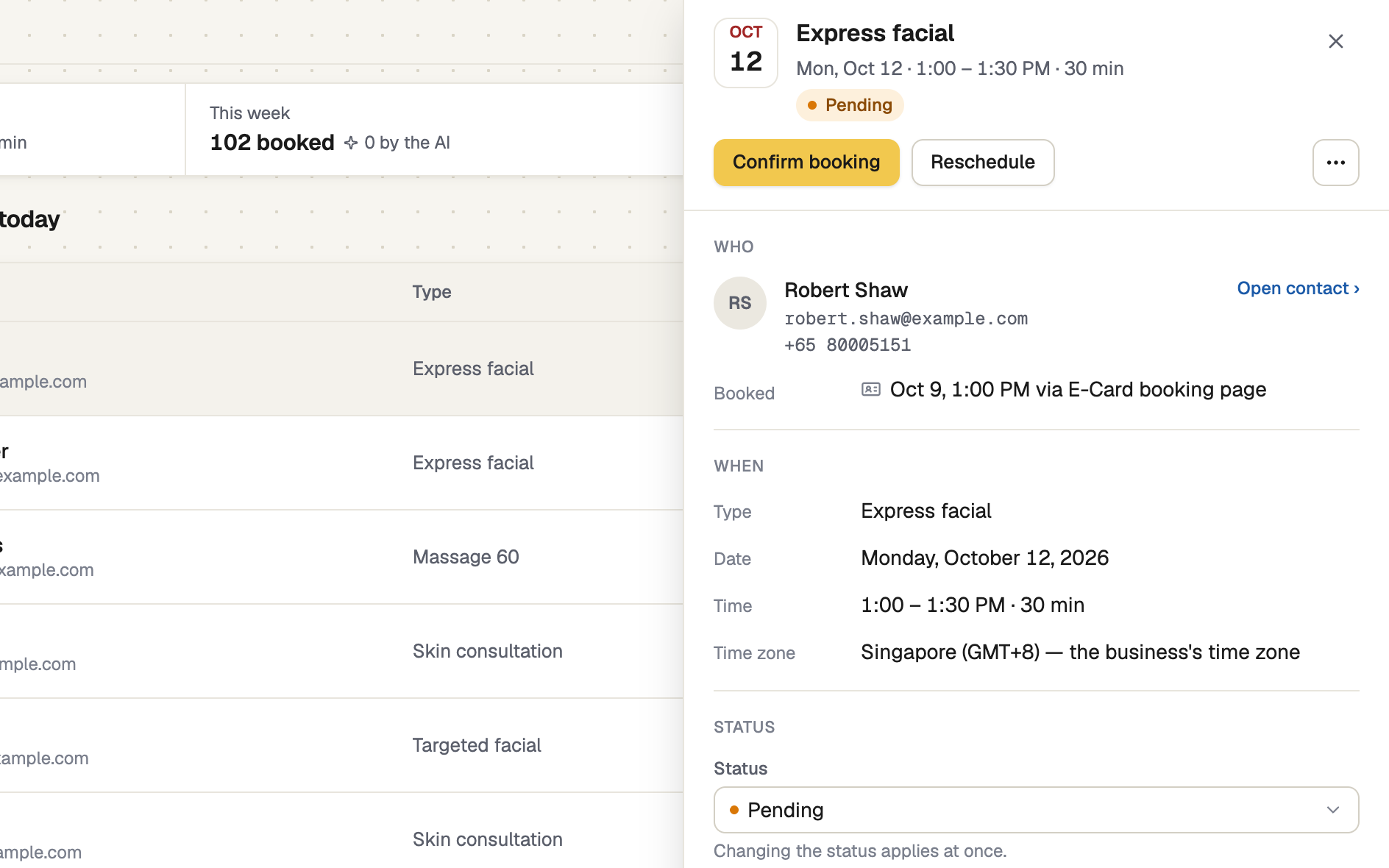
Open the booking and press Confirm booking. In Confirm this booking?, leave the email tick on to send the time, the date and a calendar invite, then press Confirm booking.
Move or cancel it
Reschedule opens Move appointment: choose a new date, time or length. A clash warns you and offers the next free times, but never blocks. To cancel, set Status to Cancelled, or choose Delete appointment from the ⋯ menu. Either way the time is free again. Move appointment and Delete appointment say whether the visitor will be emailed; untick it to skip the email this time.
Know what the visitor is emailed
Only when they gave an email address and Email the visitor is on. Replies reach you.
| When | They receive |
|---|---|
| They book, waiting | Request received, no calendar file |
| They book, auto-confirmed | You're confirmed, with a calendar file |
| You confirm it | Confirmed, with the file |
| You move a confirmed booking | Your appointment has moved, with a new file |
| You move a request still waiting | New time for your request, no calendar file |
| You cancel or delete it | Appointment cancelled |
If it doesn't work
| What you see | What to do |
|---|---|
| "Visitor emails are off in your appointment settings, so nobody will be emailed." | Switch Email the visitor on in Settings. |
| "This booking has no email address, so nobody will be emailed." | Contact them by phone or WhatsApp. |
| "Another booking overlaps this time. Check it, then press again to keep both." | Press the button again if you mean to keep both. |
Next
- Notifications: email and this device — choose who hears about new bookings
- Your booking page — where bookings come from