Before you start
0 / 3
- Your website address, if you have one
- Files customers ask for, such as a price list or menu
- Your usual answers to the questions you get most
Open Train AI and see what is missing
Under AI Assistant, open Train AI. Only the owner, or a role with Train the AI, sees it. The Ready to answer card shows what is still missing.
The AI answers from what you add here, your listings and your business details.
Add your website
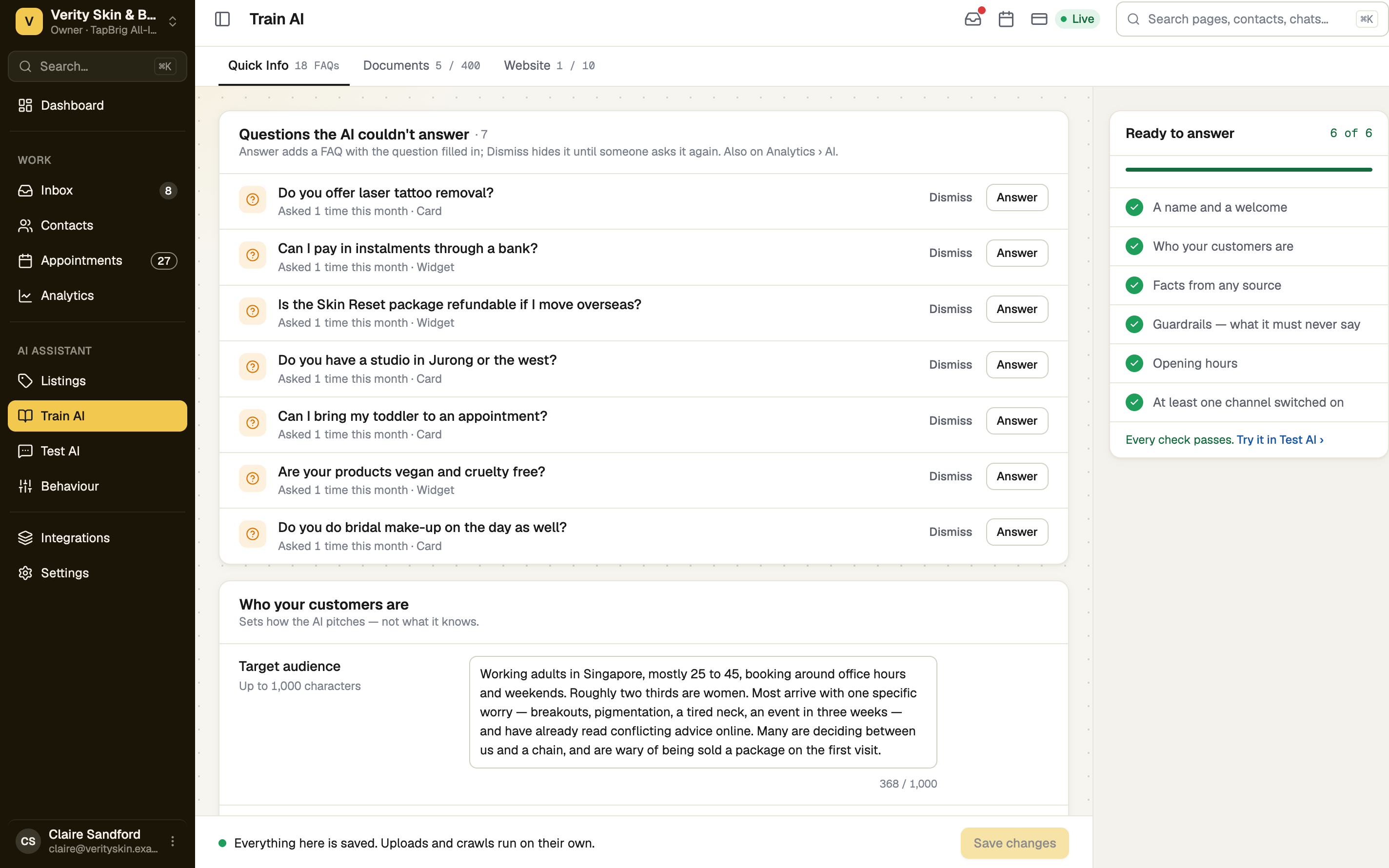
On Website, type an address and press Crawl website. The AI reads pages whose address begins with what you typed, up to 3 levels deep and your plan's page limit. example.com reads the whole site; example.com/menu only the menu and the pages under it.
Linked PDFs and images are not read, so upload them as documents. Once the site is Ready, open What the AI read and tick AI may send on pages it can link to customers, such as your pricing page.
Upload documents
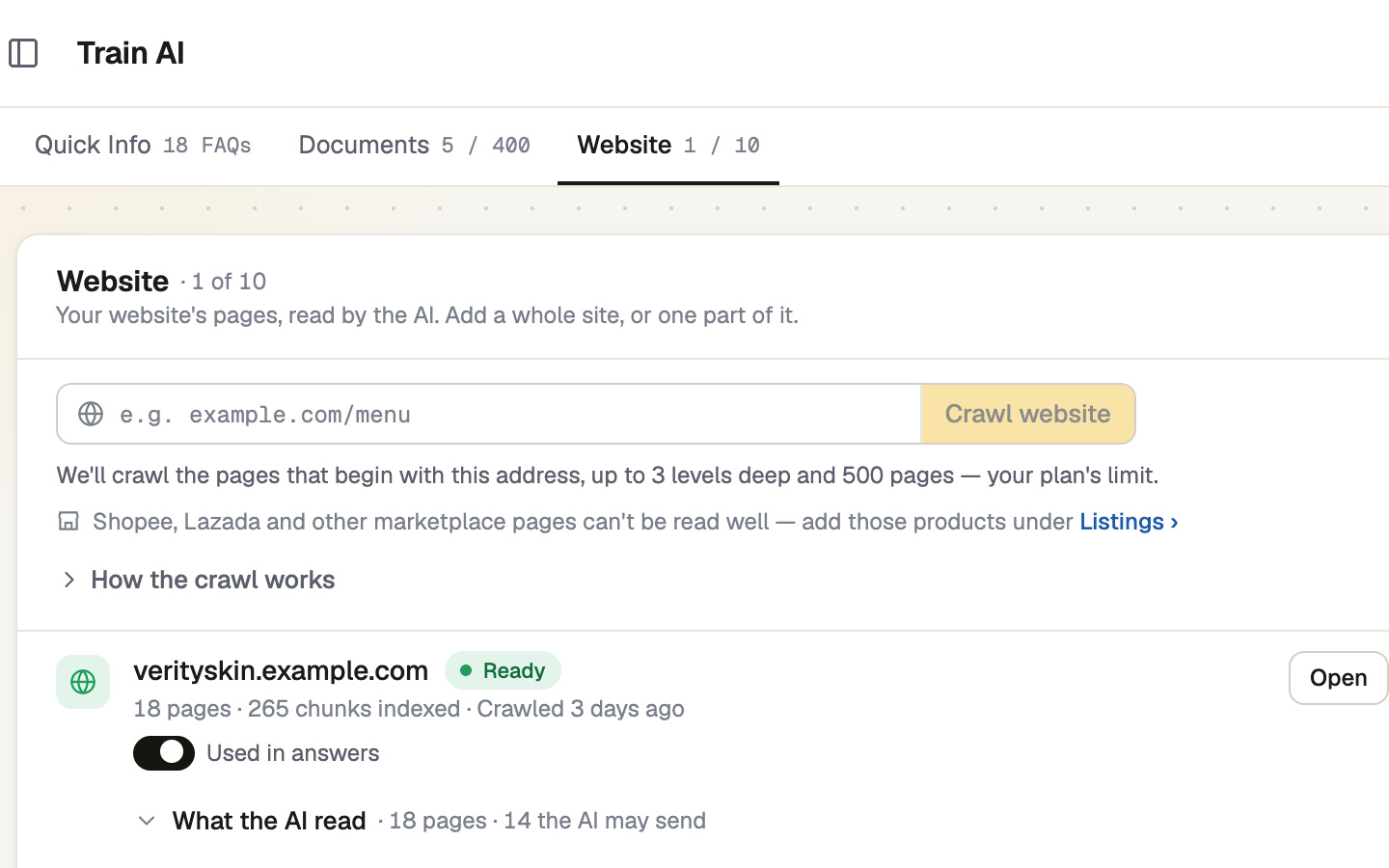
On Documents, drop in a PDF, Word, Excel, PowerPoint, CSV or text file; your plan sets how many, and how large. Spreadsheets are read row by row, so keep a heading row; save an old .xls as .xlsx.
Once a file is Ready, Used in answers is on, and Can be sent to visitors is off until you turn it on for files customers may receive.
Write your FAQs
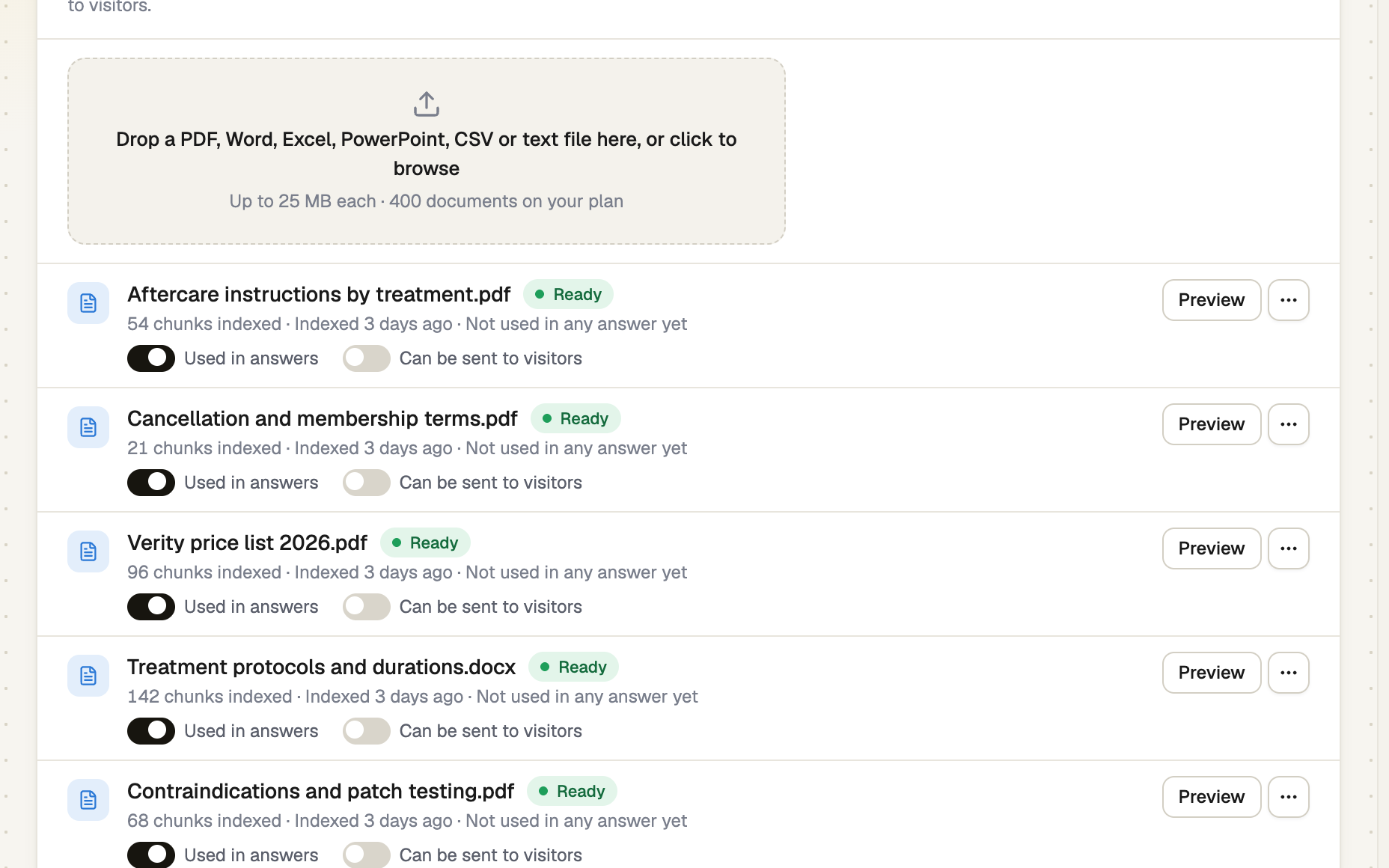
On Quick Info, start with three FAQs: press Add FAQ for short, exact answers on prices, policies, parking. Longer material belongs in a document. Opening hours come from Business profile.
Questions the AI could not answer in chats appear under Questions the AI couldn't answer. Press Answer to turn one into a FAQ.
Save, wait for Ready, then test
FAQs and switches wait for Save changes; uploads and crawls run on their own. Each source shows Pending, then Ready, or Failed with the reason. The AI uses a source once it is Ready. Then try it with Ask in Test AI › at the bottom.
With no FAQ, no Ready source and no visible listing, the AI does not reply to customers at all.
If it doesn't work
| What you see | What to do |
|---|---|
| "We couldn't reach that address. Check it's correct and the site is online." | Open the address in your browser, then crawl again. |
| "We reached the site but found no readable text to learn from — it may be image-only, or build its content with JavaScript." | Upload the key pages as a document, or write FAQs. |
| "This site turned our reader away." | Ask whoever runs the site to allow "TapBrigBot", or upload the key pages as a document. |
Next
- Ask it a test question — check answers before customers do
- Letting the AI answer customers — switch it on per channel