Before you start
0 / 3
- A connected WhatsApp number
- Teammates who are already members (teammates need Plus or higher)
- The Manage WhatsApp numbers permission; the owner has it
Open Integrations → WhatsApp → Access
Under Who can see each number, every number shows how many people can use it. People without access don't see the number or its conversations.
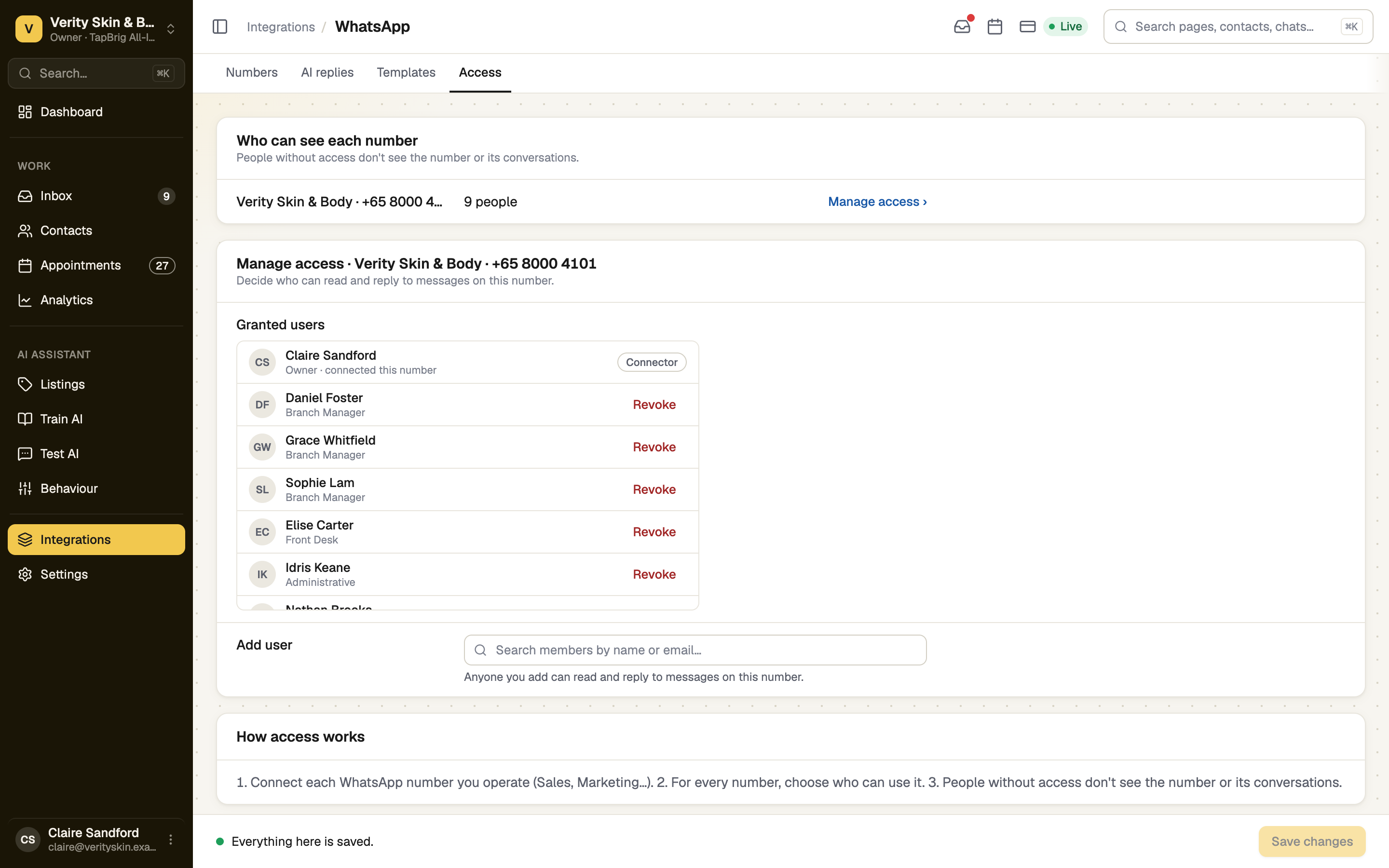
Press Manage access beside a number
Granted users lists everyone who has it. The person who connected the number is marked Connector and can't be removed.
Add or remove people
Search under Add user by name or email, then press Add. Anyone you add can read and reply on this number. To take access away, press Revoke and confirm.
Press Save changes
Nothing applies until you do. The person then sees the number's chats in their Inbox and can be assigned them.
Access is half the rule. Their role must also include See WhatsApp chats, or the number stays hidden even when they're on the list.
If it doesn't work
| What you see | What to do |
|---|---|
| "No member matches that." | The search lists active members only. Invite them first, and check your own role includes See members. |
| "Couldn't save every change. What saved is shown; the rest is still waiting." | Press Save changes again. |
| A teammate still can't see the number | Check their role, in Settings → Roles, includes See WhatsApp chats. |
Next
- Roles and permissions — give a role See WhatsApp chats
- Owner and assigned teammates — hand a chat to someone with access