Before you start
0 / 3
- A widget you have already created
- Your brand colour as a colour code, such as #1a73e8
- Your logo in Business profile, if you want it in the bubble
Open the widget's Appearance
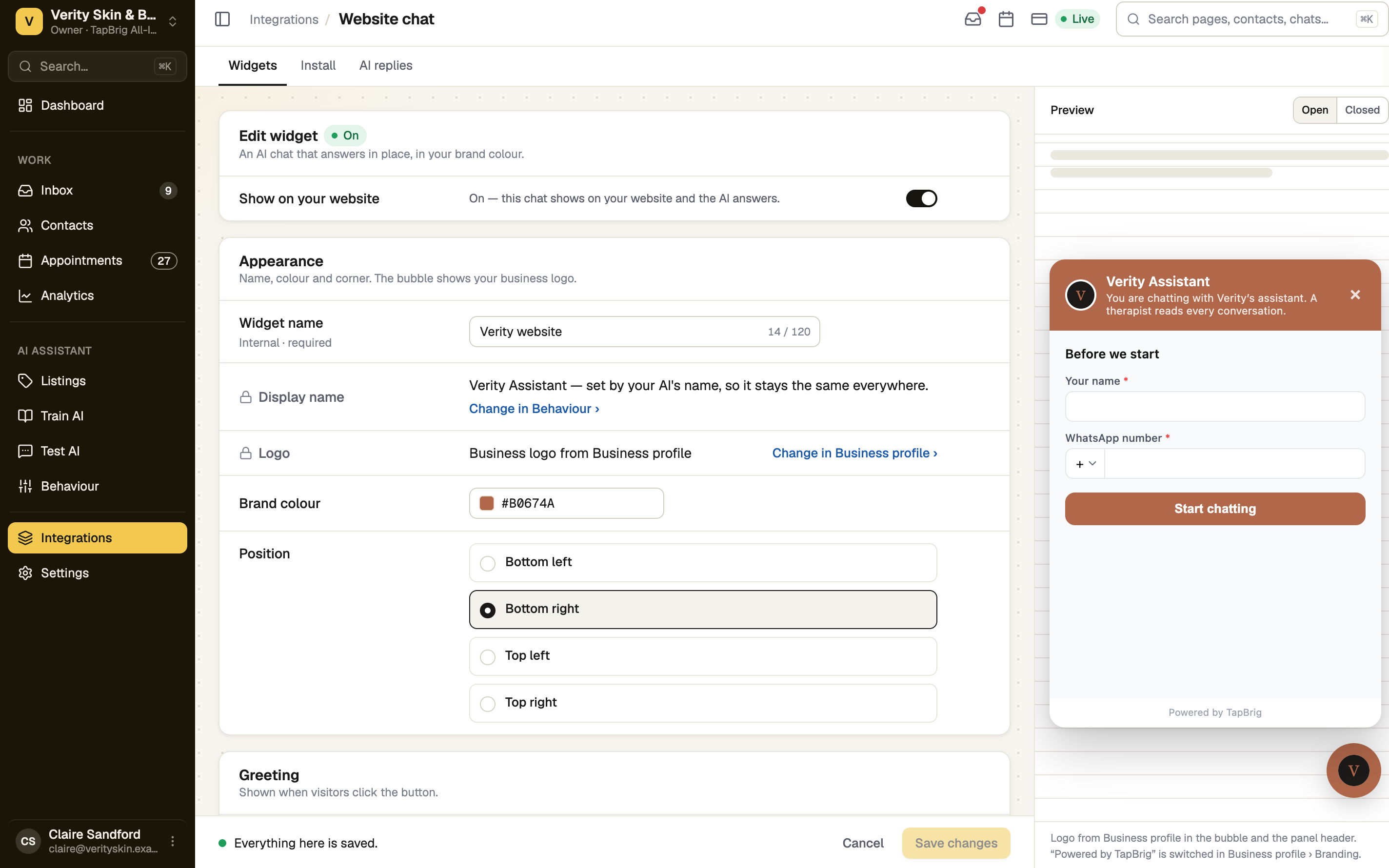
Open Integrations → Website chat, press Edit on the widget and find Appearance. The real widget previews beside the form. If it isn't beside the form, press Preview. The Open and Closed switch shows the open panel or only the bubble.
Pick the colour and the corner
Enter your Brand colour as a colour code. Under Position, choose Bottom left, Bottom right, Top left or Top right. The editor tells you when other widgets already sit in that corner. Colour, corner and greeting are open on every plan with Website chat.
Check the logo and the name
Display name and Logo are shown but not edited here. The name is your AI's, set in Behaviour. The logo is your business logo from Business profile. With no logo, the bubble shows the first letter of your business name.
Write the greeting
Under Greeting, set the Greeting title and Greeting message visitors read when they open the bubble. AI disclaimer is a small line under the panel header. Press Save changes.
Decide on the Powered by TapBrig line
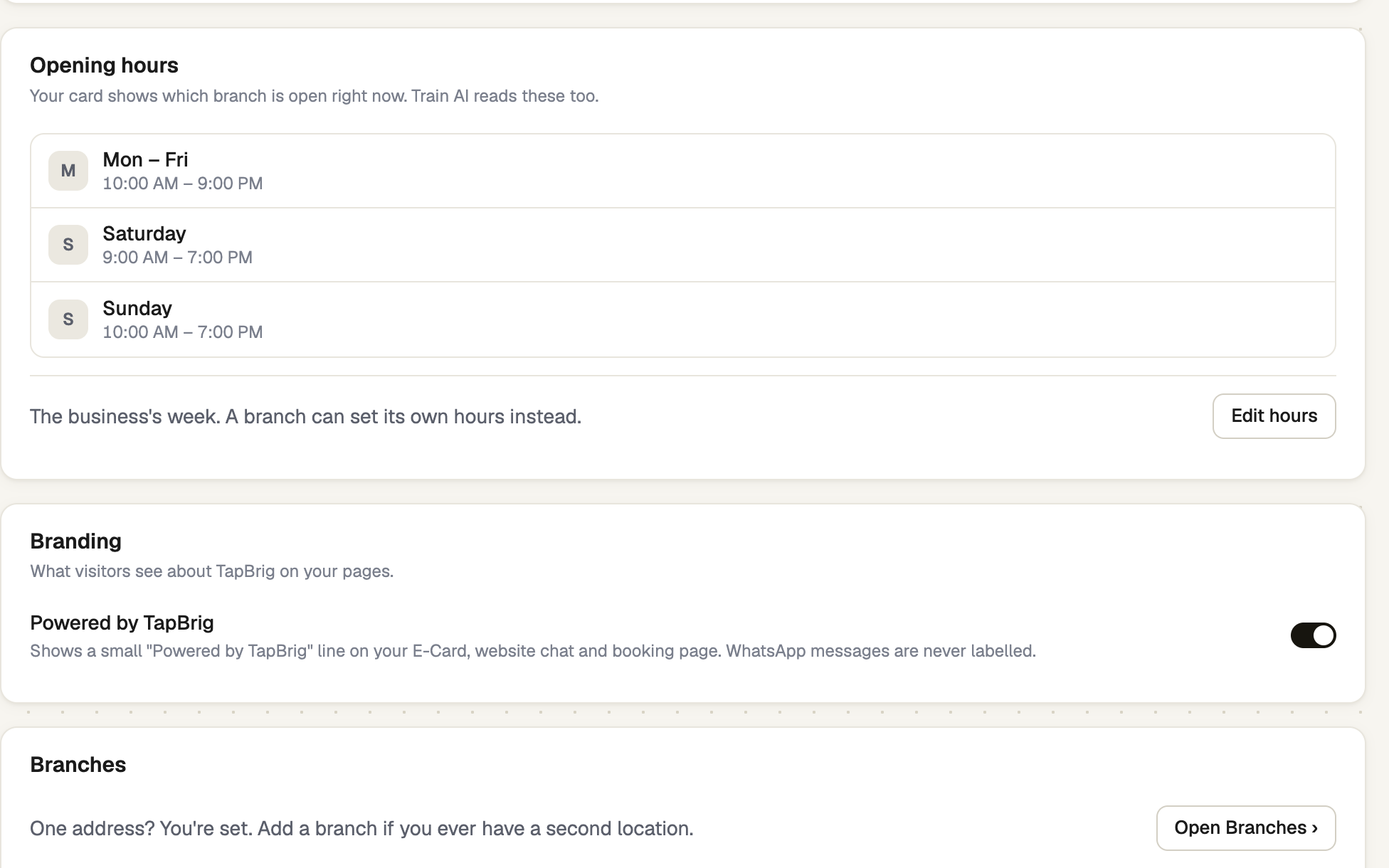
Visitors see a small "Powered by TapBrig" line in the chat panel. It is switched in Settings → Business profile → Branding: turn off Powered by TapBrig and press Save changes. One switch covers your website chat, your E-Card and your booking page. WhatsApp messages are never labelled.
Hiding it needs WebChat Plus or higher, or All-In-One Plus or higher. On other plans, including the free trial, the switch stays on and locked.
If it doesn't work
| What you see | What to do |
|---|---|
| "Use a colour code like #1a73e8." | Start with # and use digits 0 to 9 and letters a to f. |
| "Your plan doesn’t include hiding "Powered by TapBrig"." | Upgrade from the lock's Upgrade button, or leave the line on. |
| "Not in your plan. Ask the business owner to upgrade." | Only the owner, or a role that can manage billing, can change plan. |
| "No logo yet — the chat shows a monogram of your business name" | Add a logo in Business profile if you want it in the bubble. |
| "Couldn't save the widget. Your changes are still here — try again." | Press Save changes again. |