Before you start
0 / 3
- A widget you have created and switched on
- Access to your website's editor, or the person who looks after the site
- Your website's address, to check it is on the expected list
Open Website chat and choose Install
Open Integrations → Website chat → Install and pick your widget. The line under the chips gives its state. If it says Off, press Turn on.
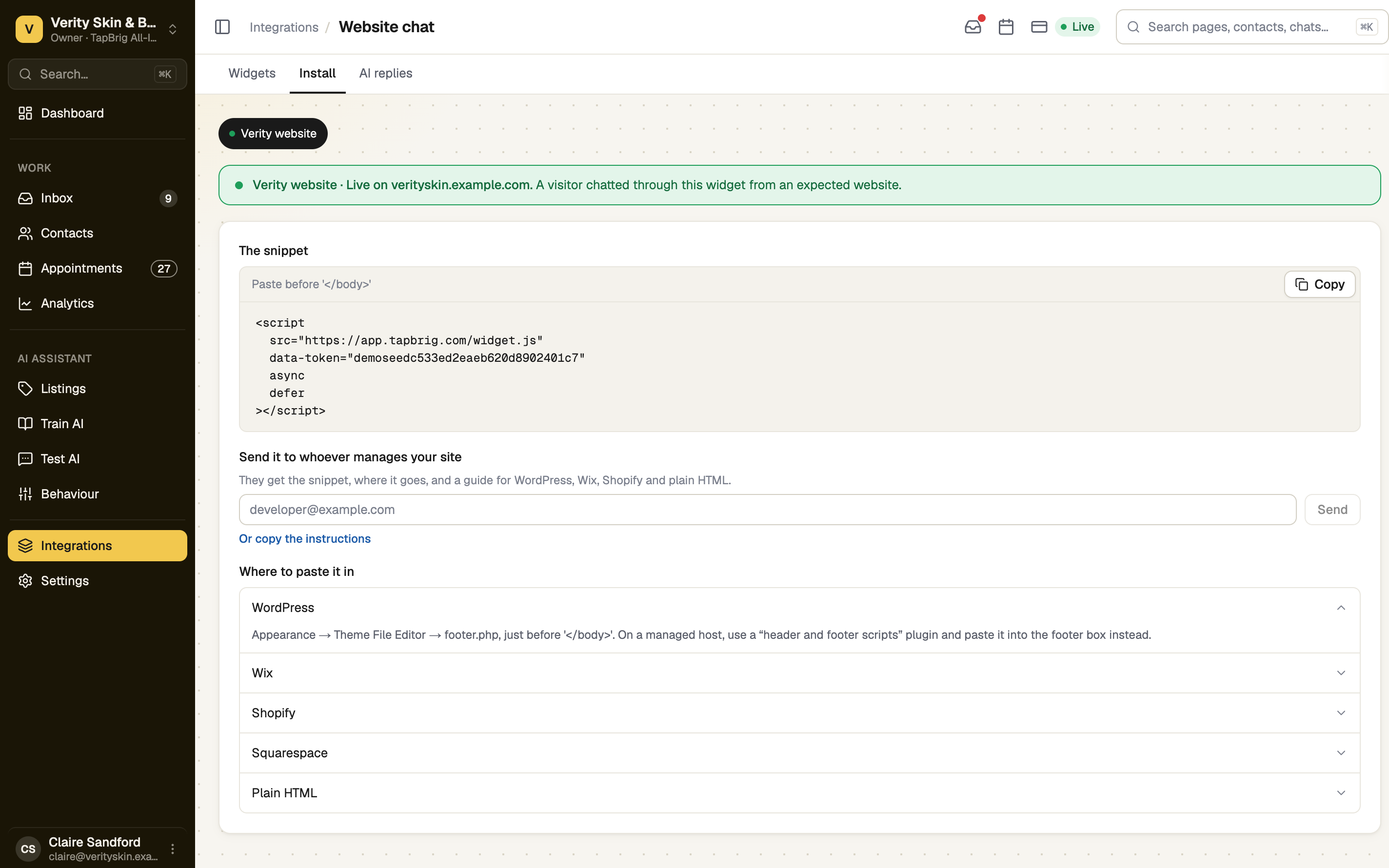
Copy the snippet
Press Copy on The snippet, one <script> line that carries your widget's code. If your browser blocks copying, the text is selected for you: press Ctrl+C, or ⌘C on a Mac.
Paste it before the closing body tag
Paste it immediately before </body> on every page that should show the chat, then save or publish the site. Where to paste it in has exact steps for WordPress, Wix, Shopify, Squarespace and Plain HTML.
Someone else looks after your site? Enter their email under Send it to whoever manages your site and press Send. That opens a draft in your email app.
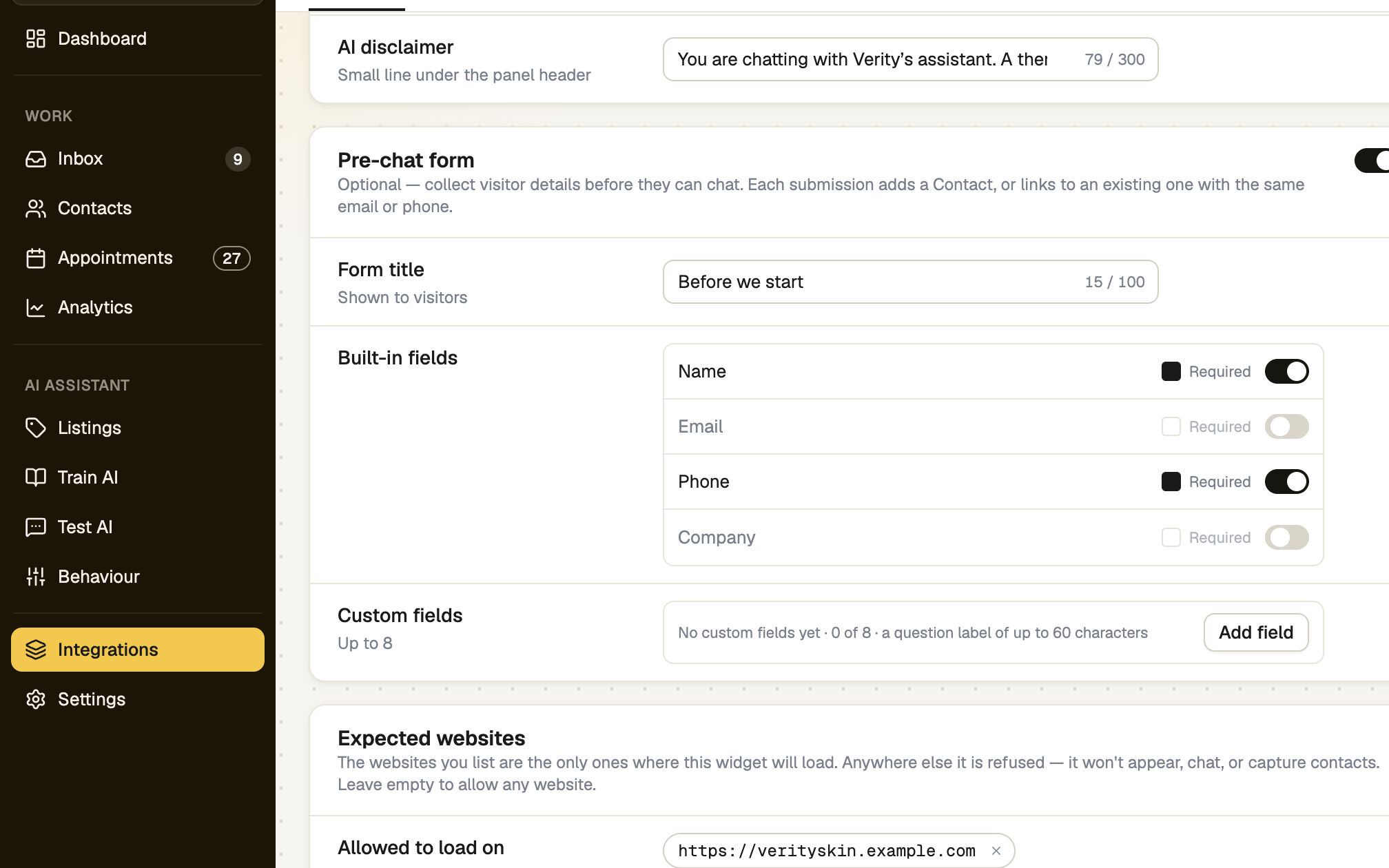
Check your website is on the expected list
On the Widgets tab, press Edit on the widget and open Expected websites. The widget loads only on listed websites, and an empty list allows any. Enter an address like https://example.com. A path is ignored, and with or without www counts as one website. Other subdomains, http against https, and other ports are separate entries. Wildcards don't work.
Run the live test
In Setup, Add it to your website ticks the first time the chat loads on your site. Then press Start the test on Chat on your own website, open your site and say hello. It passes when the AI replies there, or when your message arrives if the AI has no training yet.
screenshot · Live test dialog asking you to open your site and say hello · 1440 × 900
Where it appears
Each widget's Position sets its corner. Widgets in the same corner stack, and only one chat panel is open at a time.
If it doesn't work
| What you see | What to do |
|---|---|
| "The widget hasn't loaded on your site" | Usually the snippet isn't published yet, or your site's address isn't in the widget's expected websites. |
| "Origin must start with http(s)://" | Enter the full website address, starting with https://. |
| "Switched off by you. The snippet stays on the site and renders nothing." | Press Turn on on the Install tab. |
| "The AI has nothing to answer with yet." | The chat shows but cannot answer. Press Train your AI. |
| "Copy failed — select the text and copy it manually" | Select the snippet and copy it with Ctrl+C, or ⌘C on a Mac. |