Before you start
0 / 3
- The email address you signed up with
- Access to that inbox — reset and confirmation links go there
- Your current password, if you want to change it
Reset a forgotten password
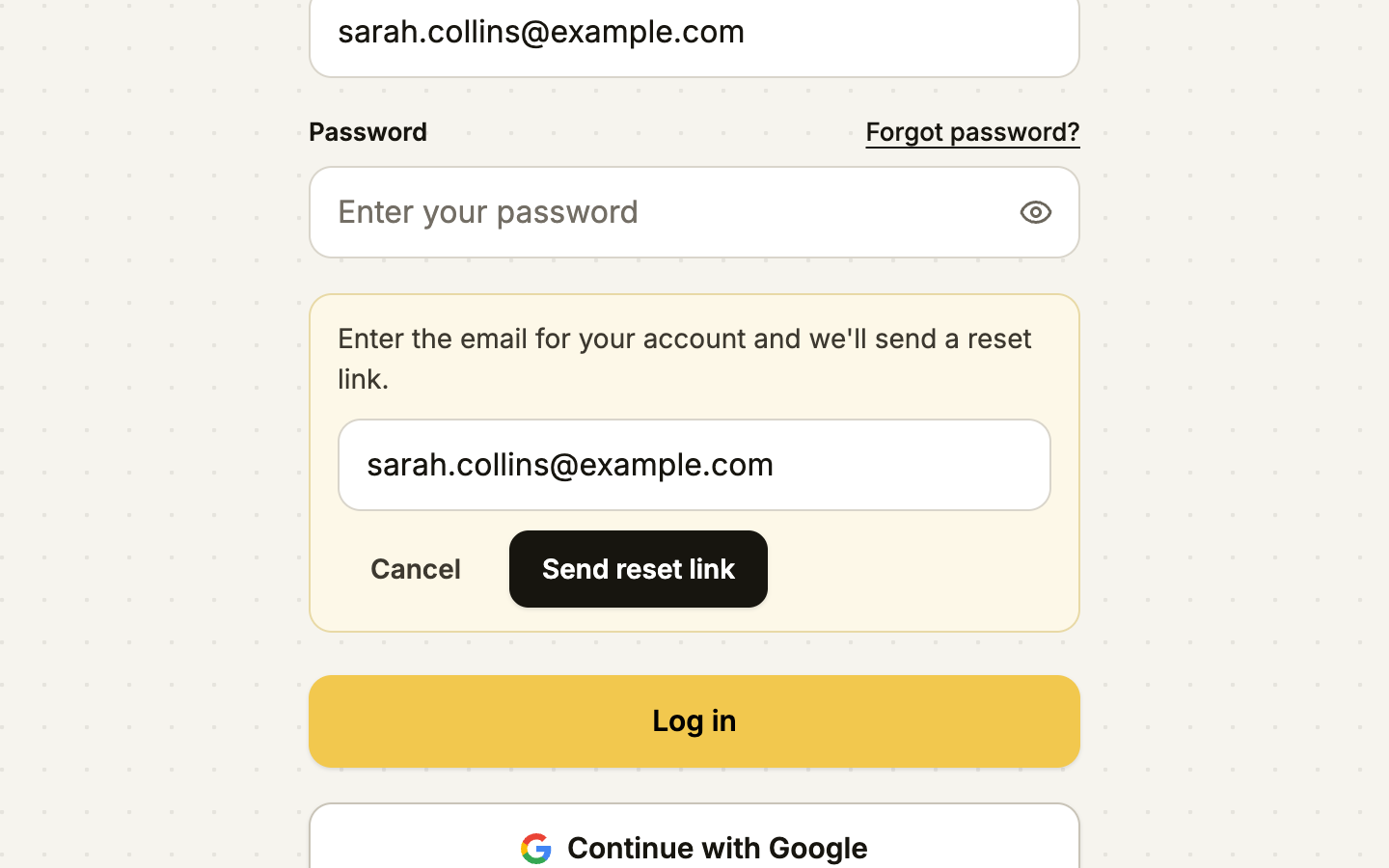
On the log-in page, select Forgot password? beside the password field, check the address and select Send reset link. A message says a reset link has been sent if an account exists for that address; it reads the same whether or not one does. The email, "Reset your TapBrig password", holds a link that works for 1 hour. Open it and choose a new password.
Change your password
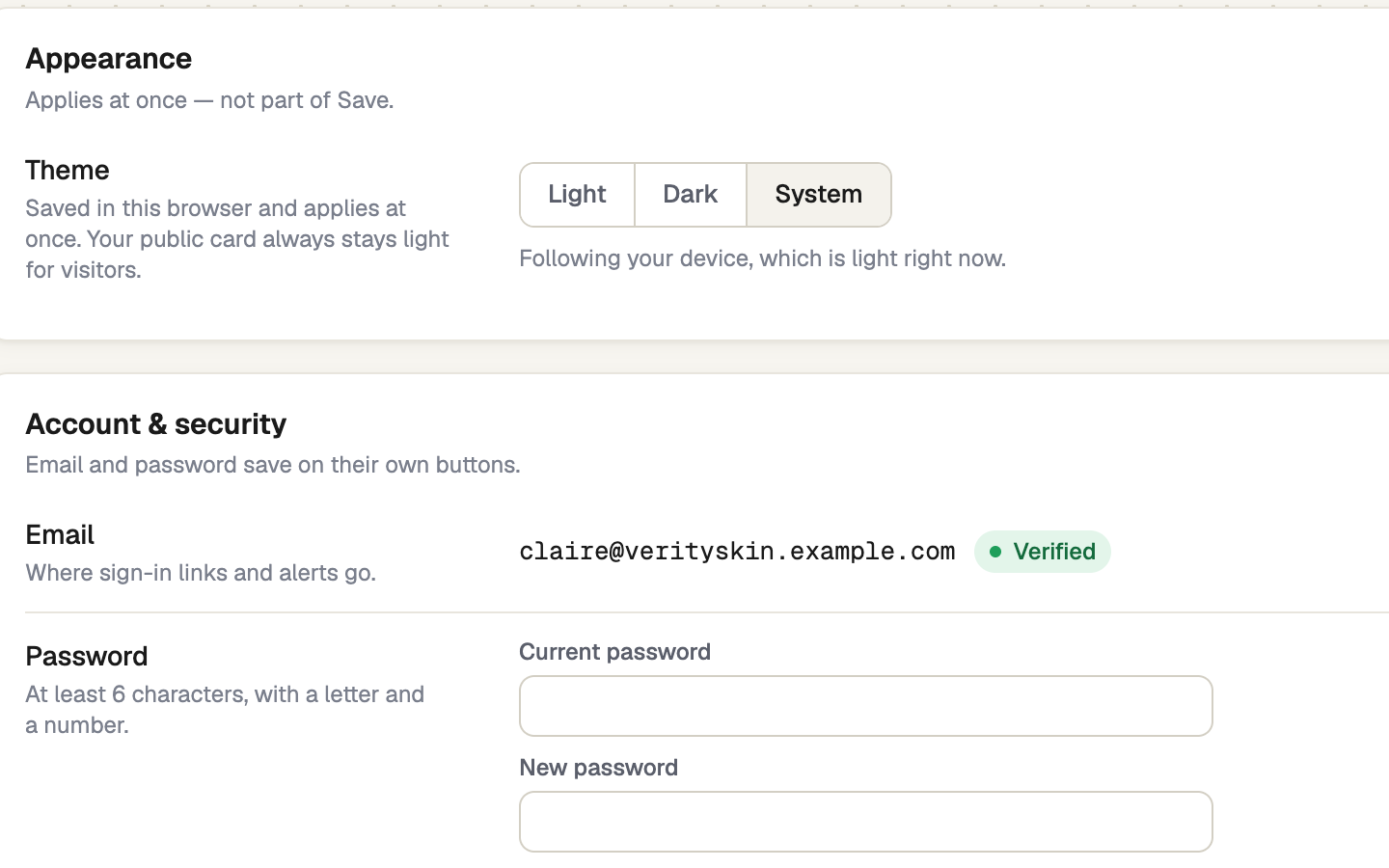
Go to Settings → Profile → Account & security. Enter your Current password, a New password and Confirm new password, then select Update password. The new one needs at least 6 characters, a letter and a number.
Check your email address
The same card shows your email and whether it is Verified. If it says Not verified · alerts paused, select Resend verification email and open the link. This page doesn't edit the address. A typo before you confirm it is covered in Confirm your email address; once it is confirmed, contact support to change it.
That card, your email and your password, is the whole security section. While the address isn't confirmed, the Profile entry in the Settings list also reads Email not verified.
Sign out
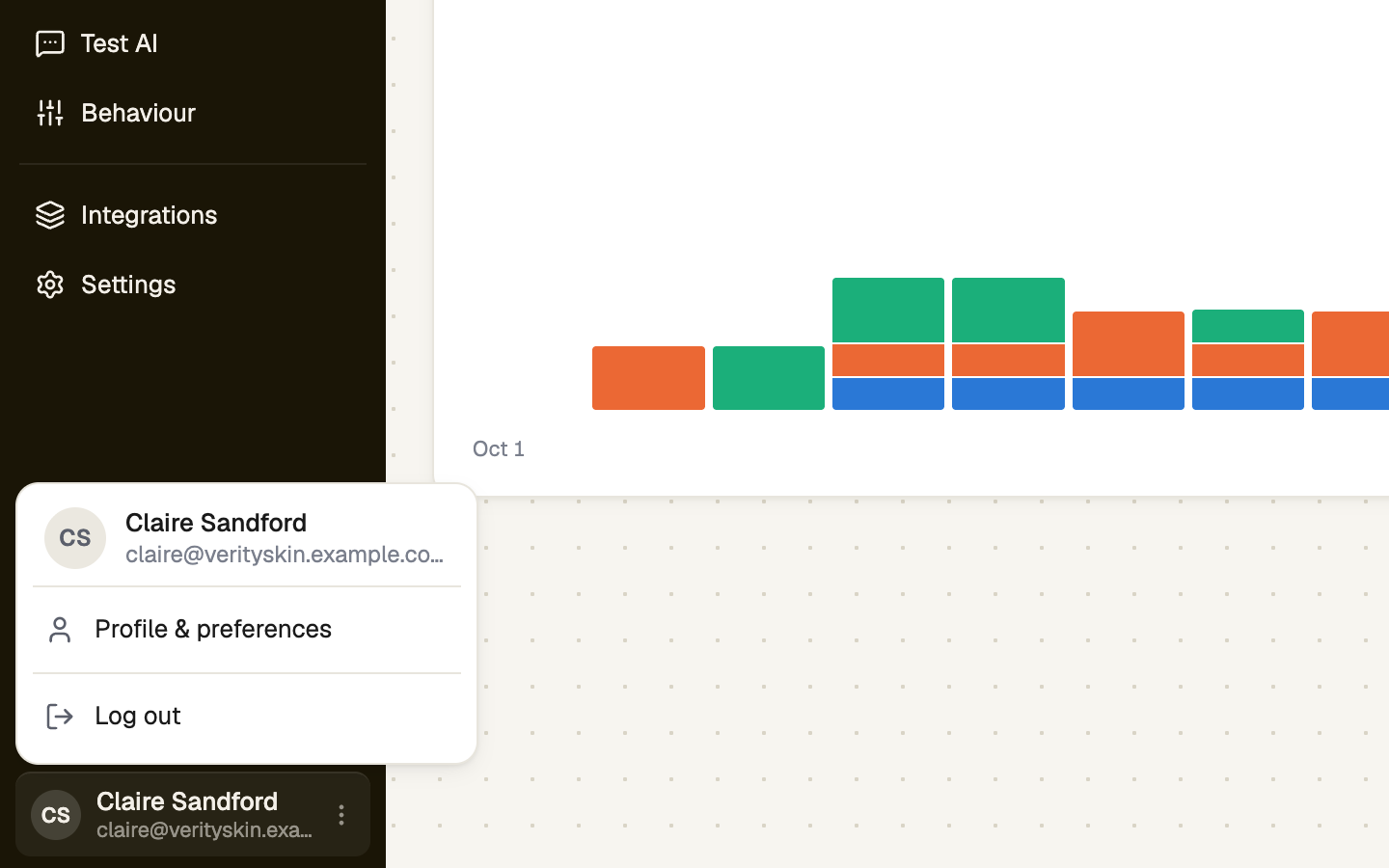
Open the account menu at the foot of the sidebar and choose Log out. On a phone, open Menu first.
If it doesn't work
| What you see | What to do |
|---|---|
| "Invalid email or password." | Check both, or use Forgot password?. |
| "Too many attempts — please wait a minute and try again." | Wait for the countdown on the button, then retry. |
| "That isn't your current password." | Sign out, then use Forgot password? on the log-in page. |
| "Google sign-in doesn’t work inside this app’s browser." | Open the page in your normal browser and sign in there. |
| "This email already signs in with a password. Log in with your password instead." | Use the password form, or reset the password. |
Next
- Your profile — name, photo, language and time zone
- Confirm your email address — if the confirmation link did not arrive