Before you start
0 / 3
- Accept appointments switched on, with at least one open day
- A published card, if you want a Book button on it
- A second device to open the page as a visitor would
Find your link in Appointments → Settings
Under Accept appointments, the Booking page row shows your link with a Live chip. Paused means booking is off. The link holds no names, so renaming your business never breaks it. Each teammate who takes bookings has their own.
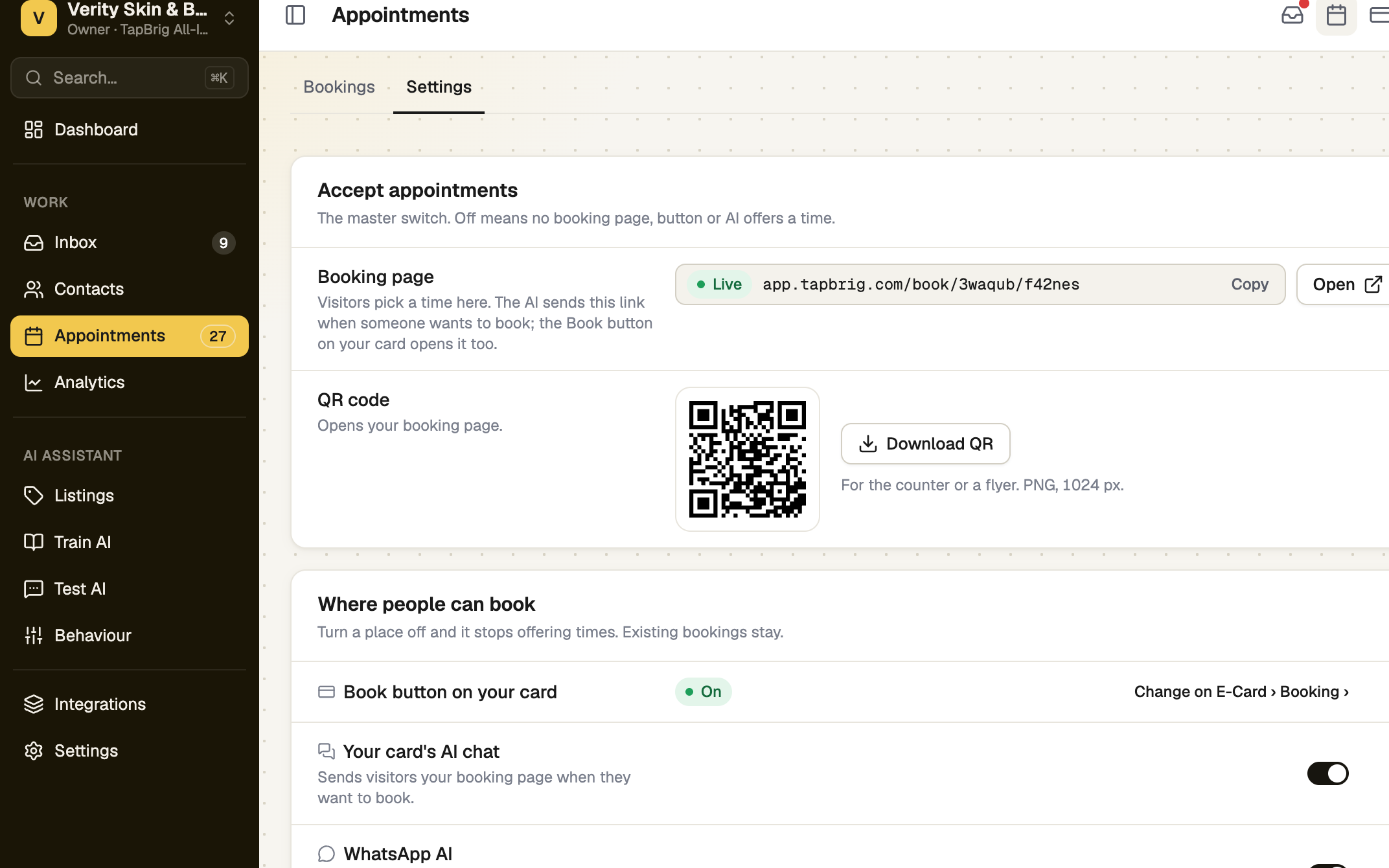
Copy it, open it, or print the QR code
Copy copies the link. Open shows the page in a new tab, and ticks Open your booking page in Setup. Download QR saves a code (PNG, 1024 px) for a counter or flyer.
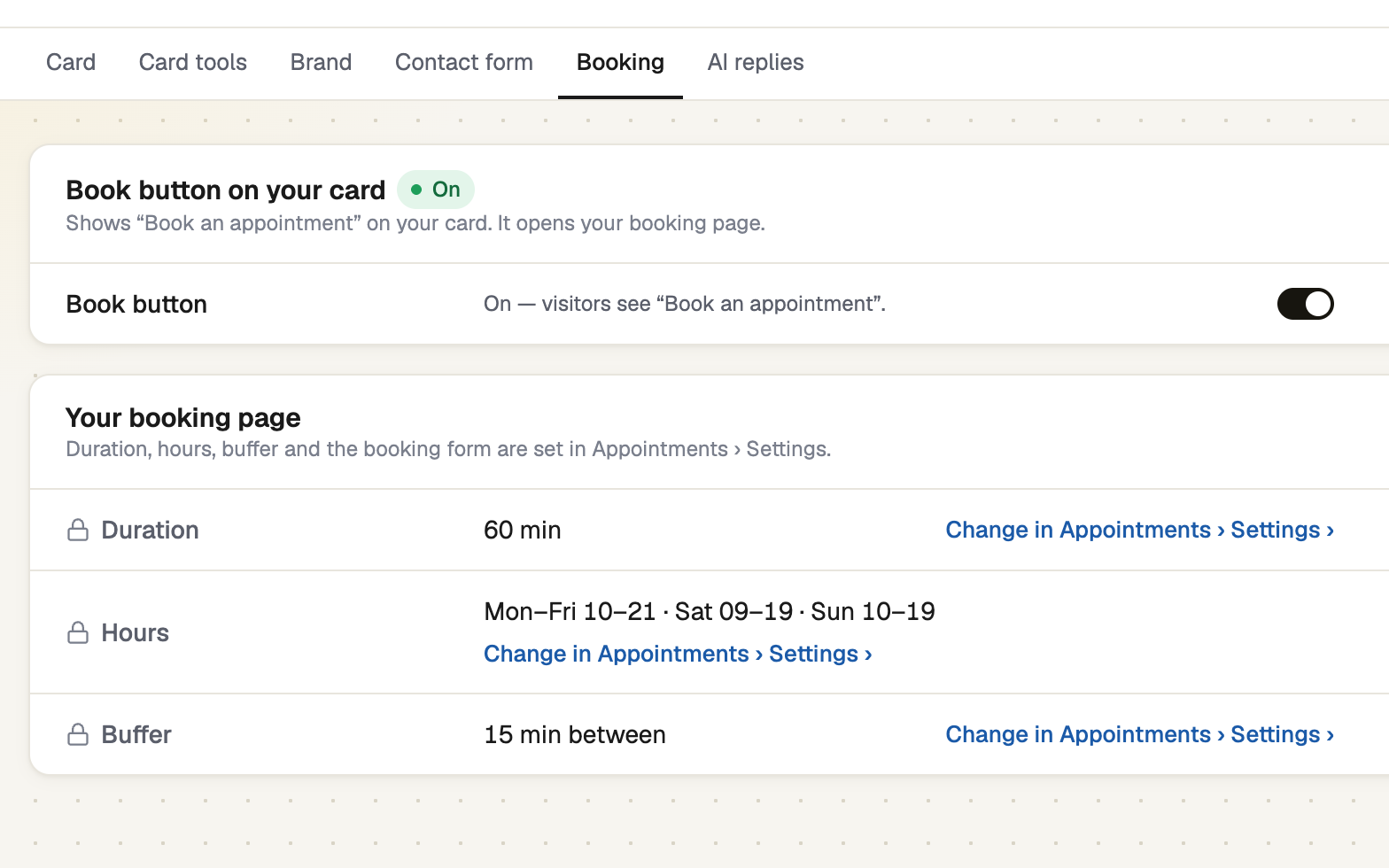
Add a Book button to your card
Open Integrations → E-Card → Booking, switch Book button on, and press Save changes. The button opens this page. Switched off, the AI can still send your link.
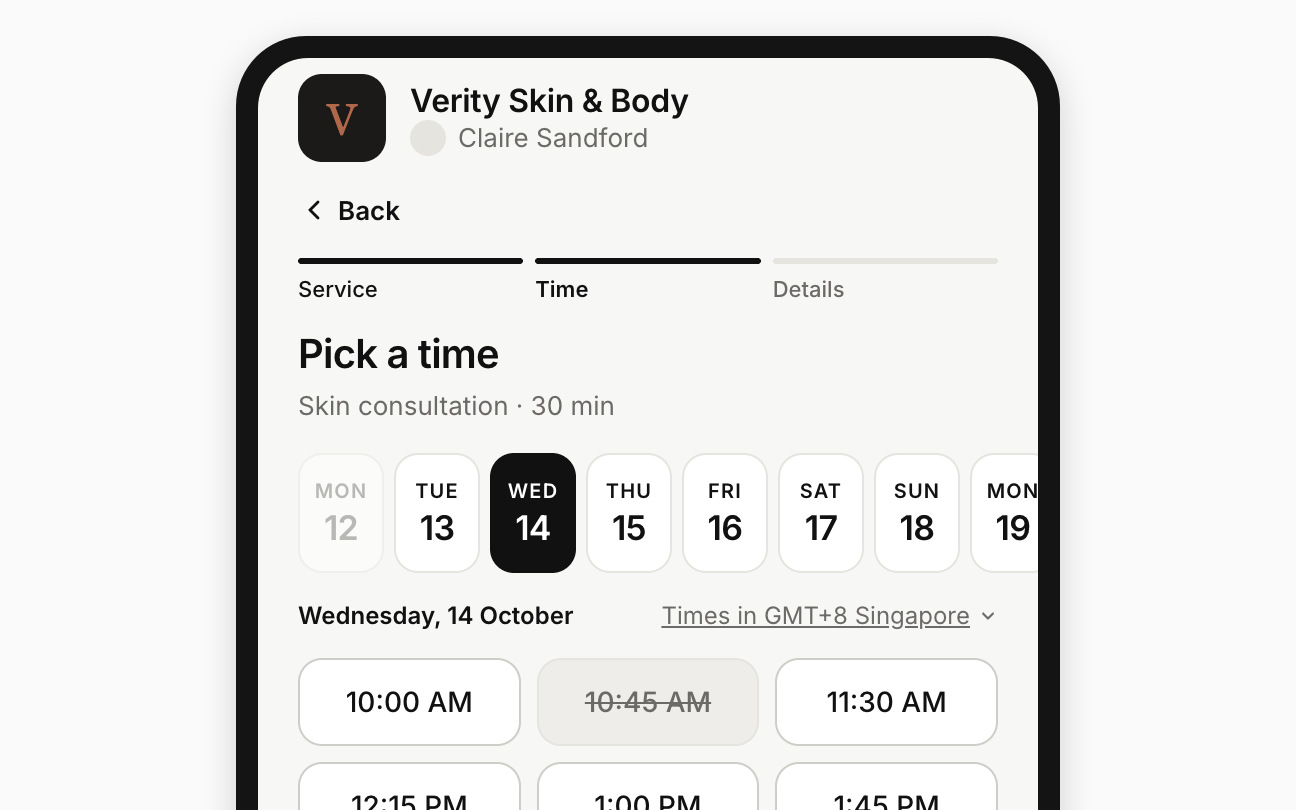
See what visitors see
They choose a service (if you offer more than one), pick a time and enter their details. The button reads Request booking, or Book now if you confirm automatically. Times show in your business time zone, and visitors can switch to their own.
If it doesn't work
| What you see | What to do |
|---|---|
| "Your link is being set up. It will appear here shortly." | Reload in a moment. |
| "Couldn't load your booking link." | Press Try again. |
| "Bookings are paused" | Visitors see this when Accept appointments is off. Switch it on and save. |
| "This booking link doesn't work" | The link was mistyped. Copy it again from the Booking page row. |
Next
- Confirm, move or cancel a booking — what happens after someone books
- When customers ask the AI to book — let the AI send the link