Before you start
0 / 3
- A CSV file with a header row: export one from your spreadsheet, phone or CRM, or start from the template
- A name, email or phone on every row; rows with none are skipped
- Edit contacts, and room in your plan's contact allowance
Open Contacts and press Import
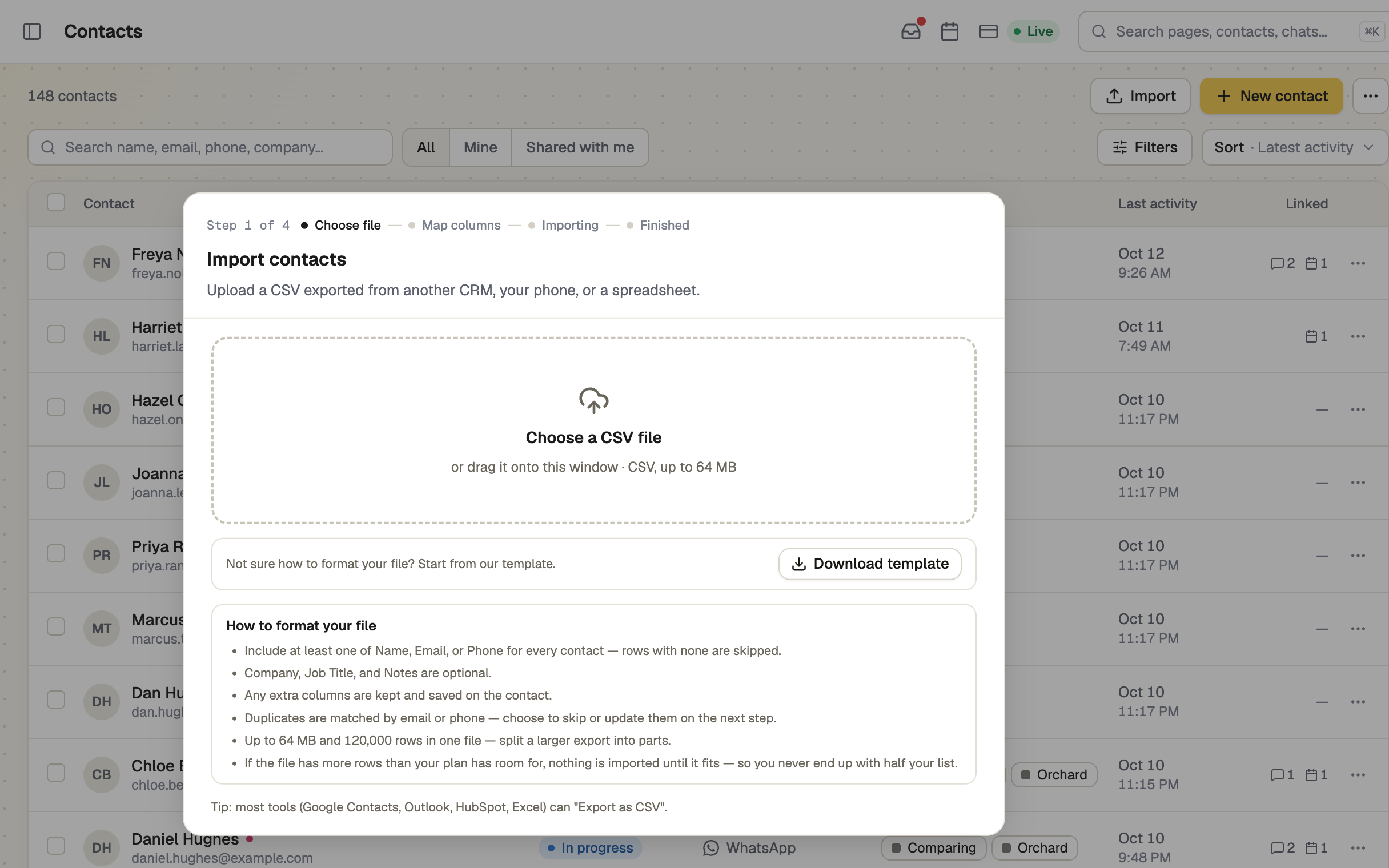
No Import button means you lack Edit contacts or your allowance is full. On a phone it is ··· → Import. The window lists the file size and row limits, and Download template gives you a sheet with the right columns.
Choose your file
Click the box or drag the file onto it. Only .csv works; TapBrig works out the separator itself. A file over the limits needs splitting into parts.
Match the columns
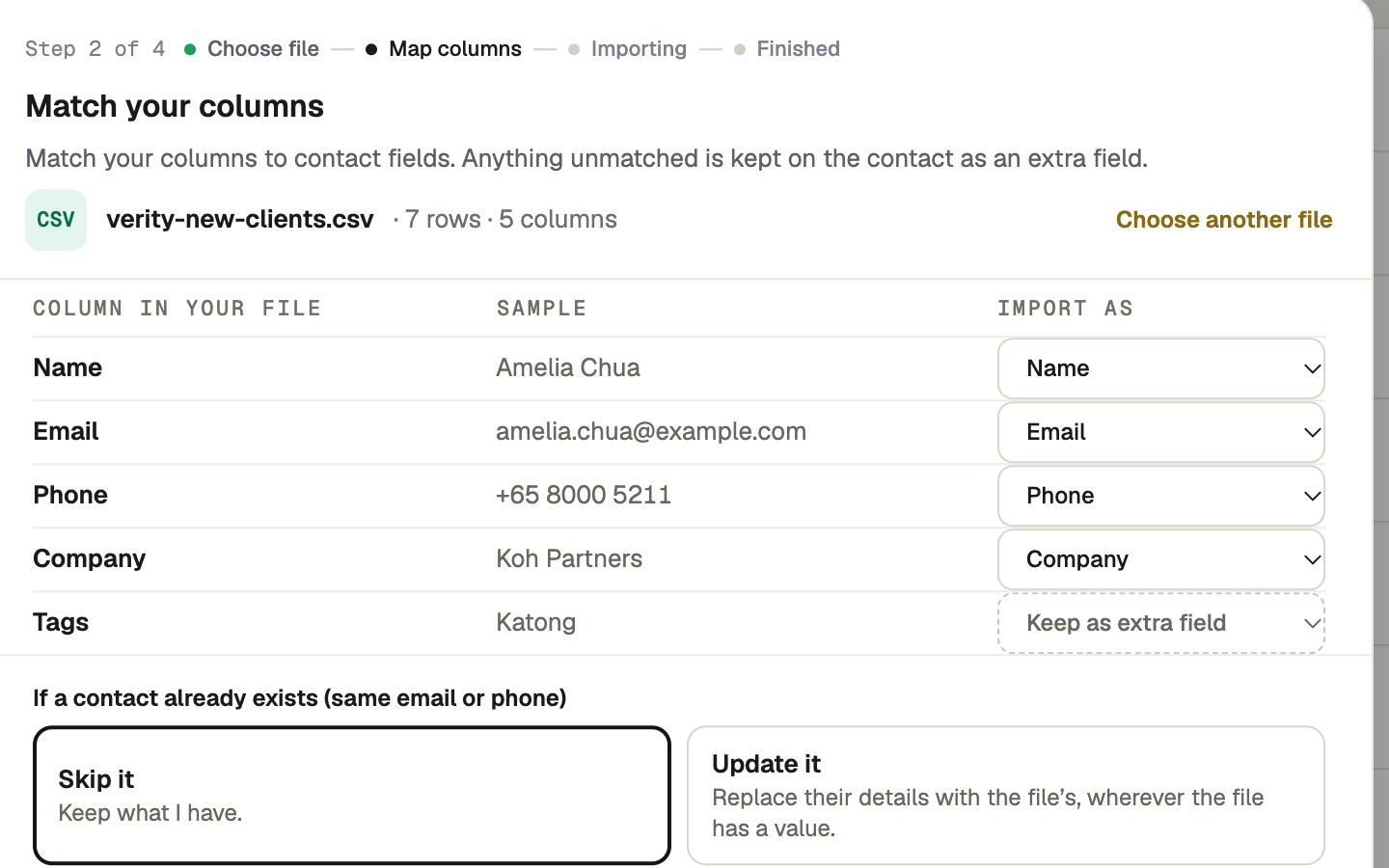
TapBrig guesses a field for each heading. Check the Sample and change any with Import as: Name, First name, Last name, Email, Phone, Company, Job title, Notes, Keep as extra field or Ignore this column. You need at least one Name, Email or Phone column.
Extra fields are saved on the contact, on Info under Captured. A Tags column stays an extra field and does not become tags.
Choose what happens to duplicates
A duplicate is someone already in TapBrig with the same email (capitals ignored) or the same phone number (compared by its digits).
- Skip it keeps what you have.
- Update it replaces a saved detail with the file's wherever the file has one, notes included. Blank cells change nothing.
Then press the button that reads Import and your row count.
Duplicates are checked against contacts already in TapBrig. If one person appears twice in your file, both rows can come in; merge them afterwards.
Let it run
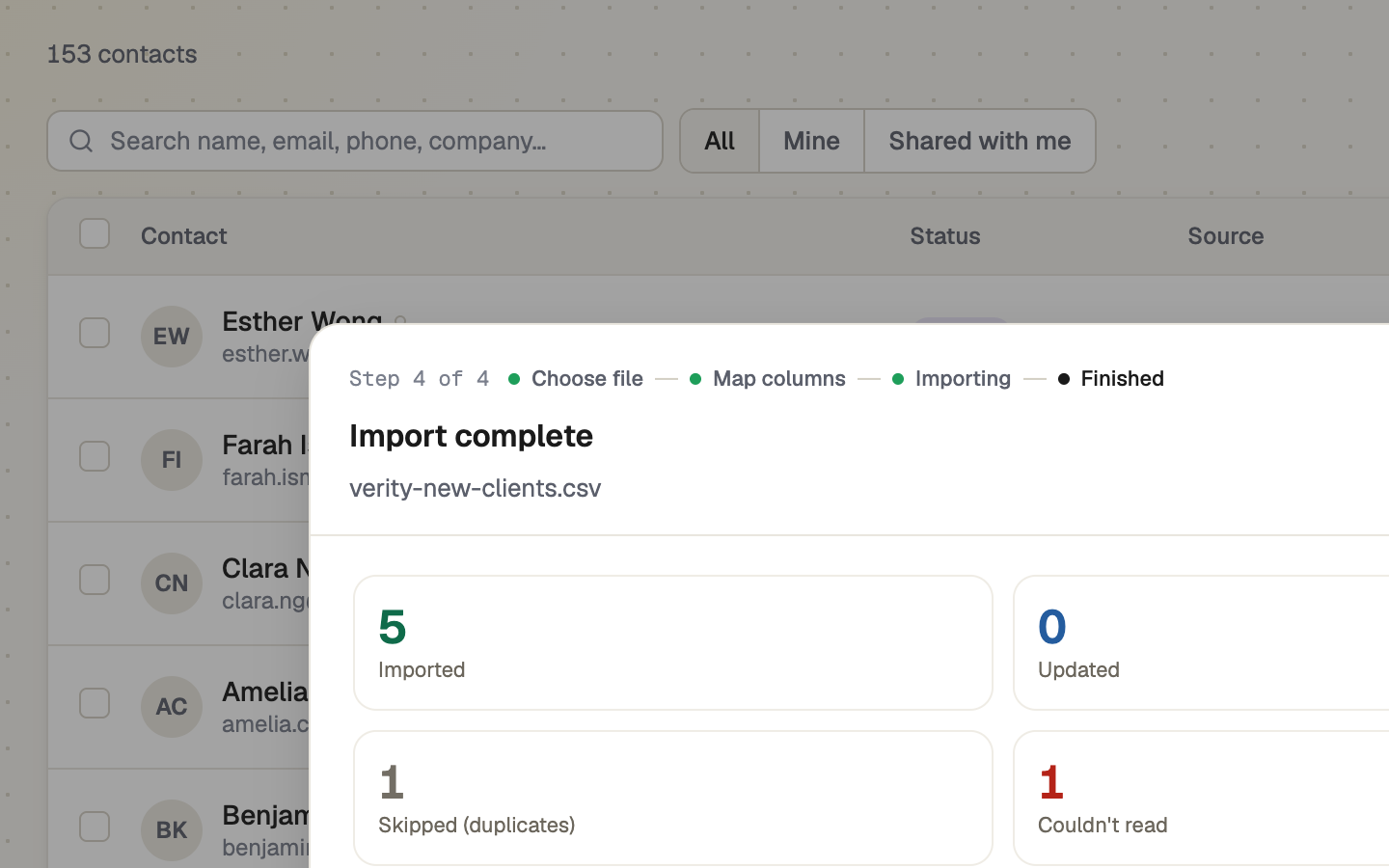
The import runs in the background. You can close the window; stay on Contacts and the result is under ··· → Imports. It ends with Imported, Updated, Skipped (duplicates) and Couldn't read. For rows it couldn't read, a link downloads them with the reason for each; it lasts 30 minutes.
If it doesn't work
| What you see | What to do |
|---|---|
| "Please choose a .csv file" | Save or export the sheet as CSV, not as an Excel file. |
| "Map at least one Name, Email, or Phone column to continue." | Set one column's Import as to Name, Email or Phone. |
| "Nothing will be imported until it fits" | The file has more rows than your plan has room for. Remove rows and upload it again, or upgrade. Nothing was imported. |
| "This import has stopped moving." | Press Re-run from row. Rows already imported are skipped as duplicates. |
Next
- Merge duplicate contacts — tidy up people who came in twice
- Contacts and leads