Before you start
0 / 3
- Teammates in your workspace, which needs Plus or higher: Invite your team
- Their access to the WhatsApp number: Who can use which number
- Your own reply access to that number
Open a WhatsApp conversation
Owners and assigned people are for WhatsApp chats. An E-Card or website chat has one person handling it instead: whoever took it over.
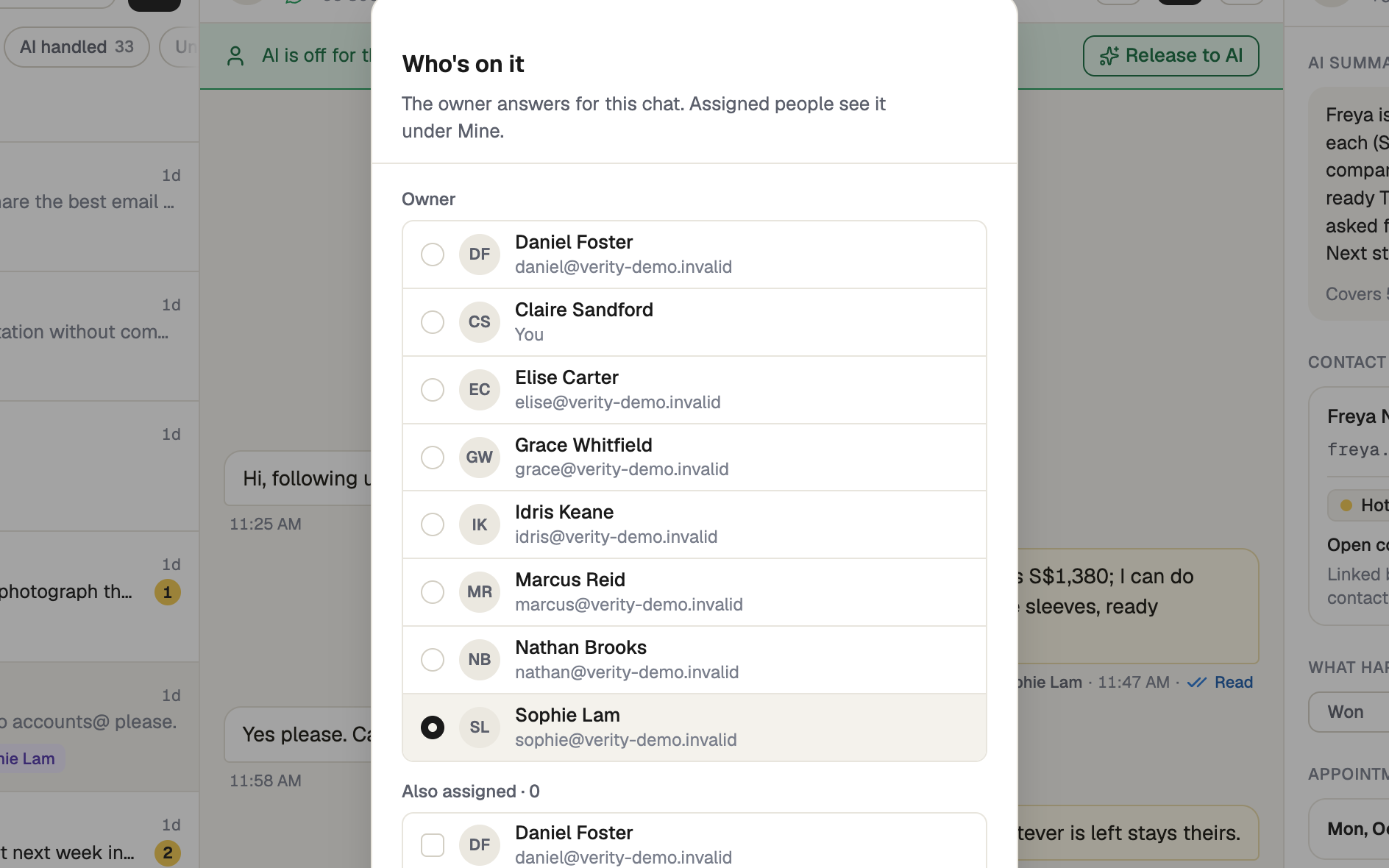
Pick the owner and the helpers
- Owner: one person, who answers for the chat. Pick them again to clear.
- Also assigned: as many people as you like. They see the chat under Mine.
Each change applies at once; press Close when you're done. Nothing here touches the AI or messages the customer, and the owner stays on after Release to AI.
Find your chats
Mine lists the chats you own or are assigned to. The unread number beside Inbox in the sidebar counts chats you own, chats you're assigned to and chats nobody owns yet. A colleague's chats don't add to it.
Taking over or replying sets this for you: you become the owner if there is none, otherwise you're added to the assigned people.
A teammate you assign hears about it only as a message in the app ("You've been assigned a conversation"), and only while TapBrig is open. There is no email or phone alert.
If it doesn't work
| What you see | What to do |
|---|---|
| The list shows only you | Nobody else has access to this number yet. Give it under Integrations → WhatsApp → Access. |
| "You have view-only access to this WhatsApp account and cannot send messages." | Changing people needs reply access to the number. Ask the owner. |
| "Couldn’t change who’s on this chat. Please try again." | The change didn't save. Check your connection and try again. |
| There is no Who's on it item | You are in an E-Card or website chat, which has no owner or assigned people. |
Next
- Taking over a conversation — stop the AI on a chat and answer yourself
- Who can use which number
- Invite your team