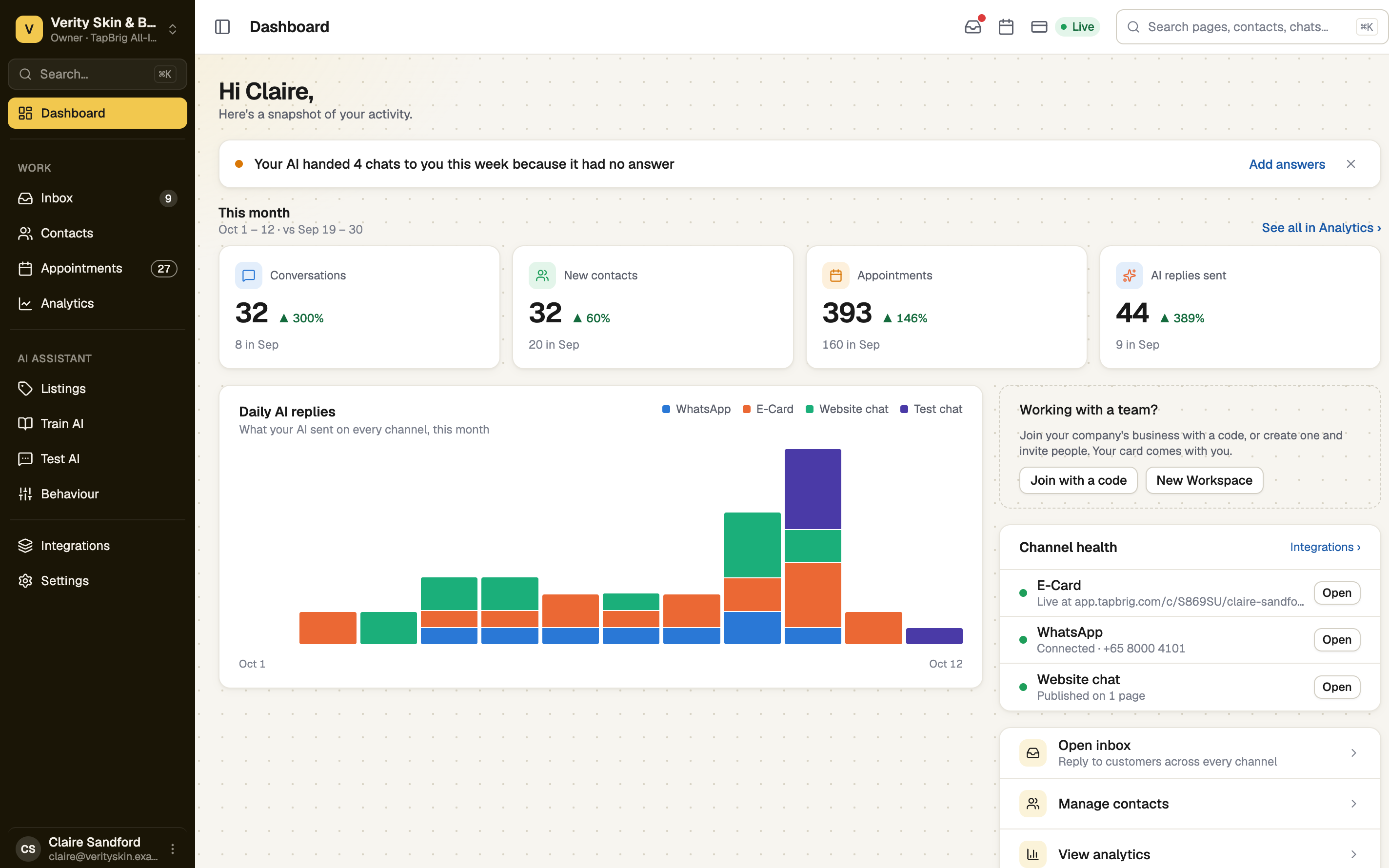
Read the sidebar from the top
- Dashboard and Setup
- Work: Inbox, Contacts, Appointments, Analytics
- AI Assistant: Listings, Train AI, Test AI, Behaviour
- Integrations: your E-Card, WhatsApp and Website chat
- Settings: your profile, business, team and billing
You only see what your plan and your role allow. On a narrow window the sidebar folds into icons; press Expand sidebar to see the names.
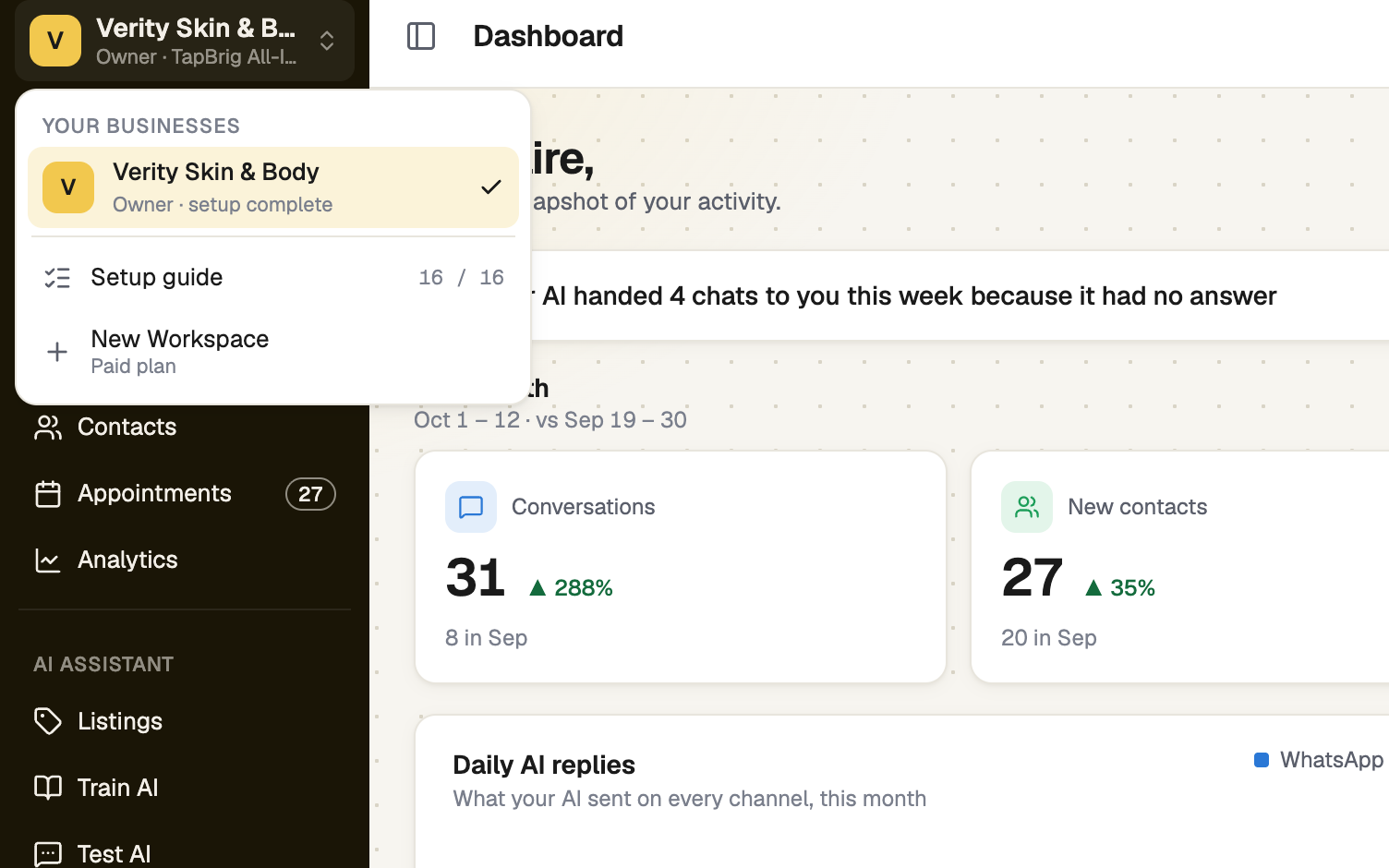
Switch business at the top of the sidebar
The business switcher shows your business and plan. Open it for Your businesses, Setup guide and New Workspace, which is marked Paid plan. Picking a business takes you to its Dashboard.
Search from anywhere
Press Ctrl+K (⌘K on a Mac) or use the search box. It finds pages, contacts, conversations, listings and appointments. Everything but pages needs two letters.
Read the badges
- Inbox: unread conversations
- Appointments: how many are still to come today
- Setup: steps done, like 3 / 8, until you finish
- Settings: days left of your free trial, or a dot when someone is waiting to join
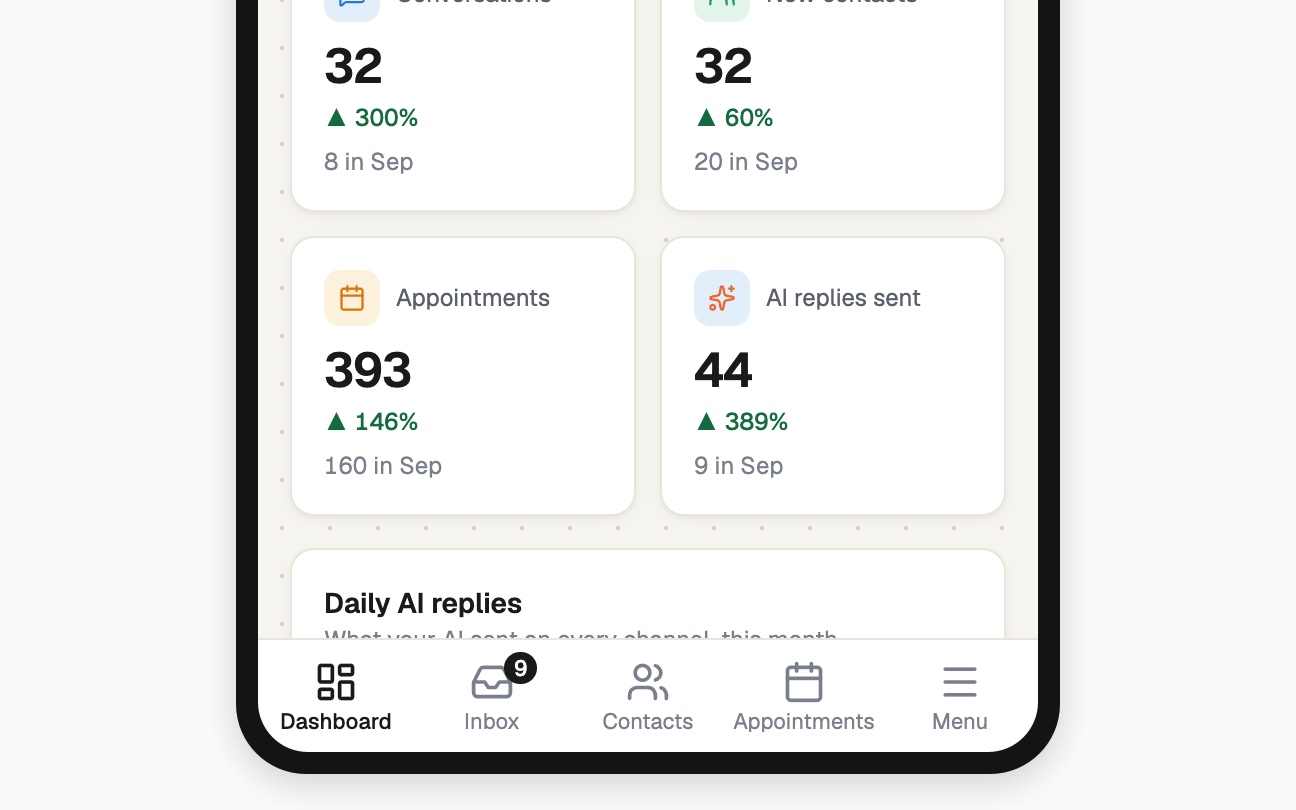
On a phone, use the bottom bar
It holds up to four pages (Dashboard, Inbox, Contacts, Appointments) plus Menu. Menu opens the full sidebar, with the business switcher and search at the top and your account at the bottom. If your plan has no Inbox or Appointments, E-Card and Analytics take their place.
If it doesn't work
| What you see | What to do |
|---|---|
| "No results for" | Check the spelling, or try a name, a phone number or a page name. Anything but pages needs two letters |
| A page you expect isn't in the sidebar | Your plan or your role doesn't include it. Settings → Billing & plans lists what your plan has |
| Setup has gone from the sidebar | Every required step is done. Open Setup guide in the business switcher |
Next
- Setting up, in order — your first steps
- Add TapBrig to your home screen — open it in one tap
- Every conversation in one inbox — where customers reach you